Meetings
Meetings brings your teams’ meetings onto the same map as their roles. Each meeting belongs to one or more groups: the people holding roles in them are invited, the team brings its topics before or during the meeting, and the minutes go out by mail when it ends. Meetings comes with the Proposals app.
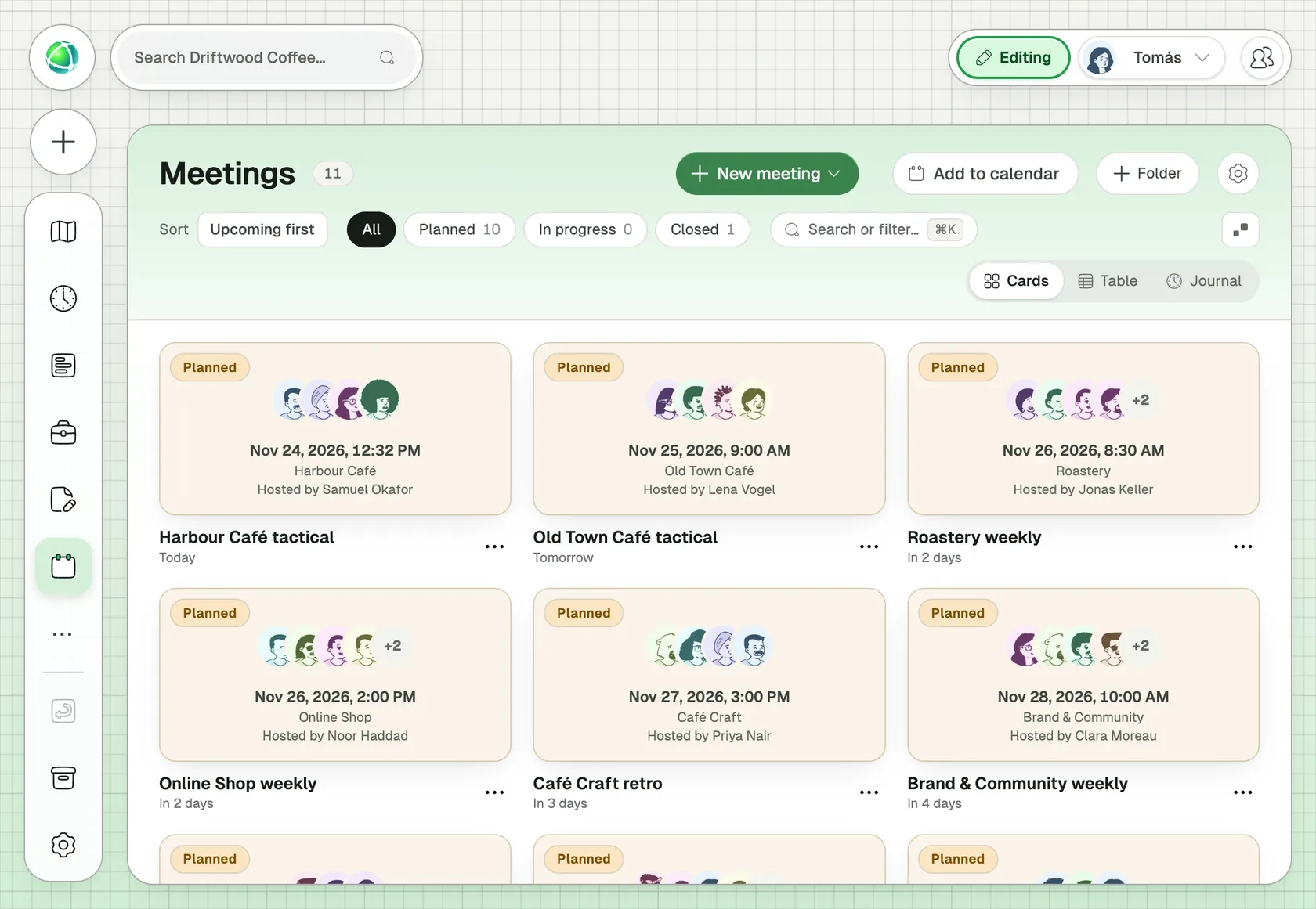
Meetings on the map
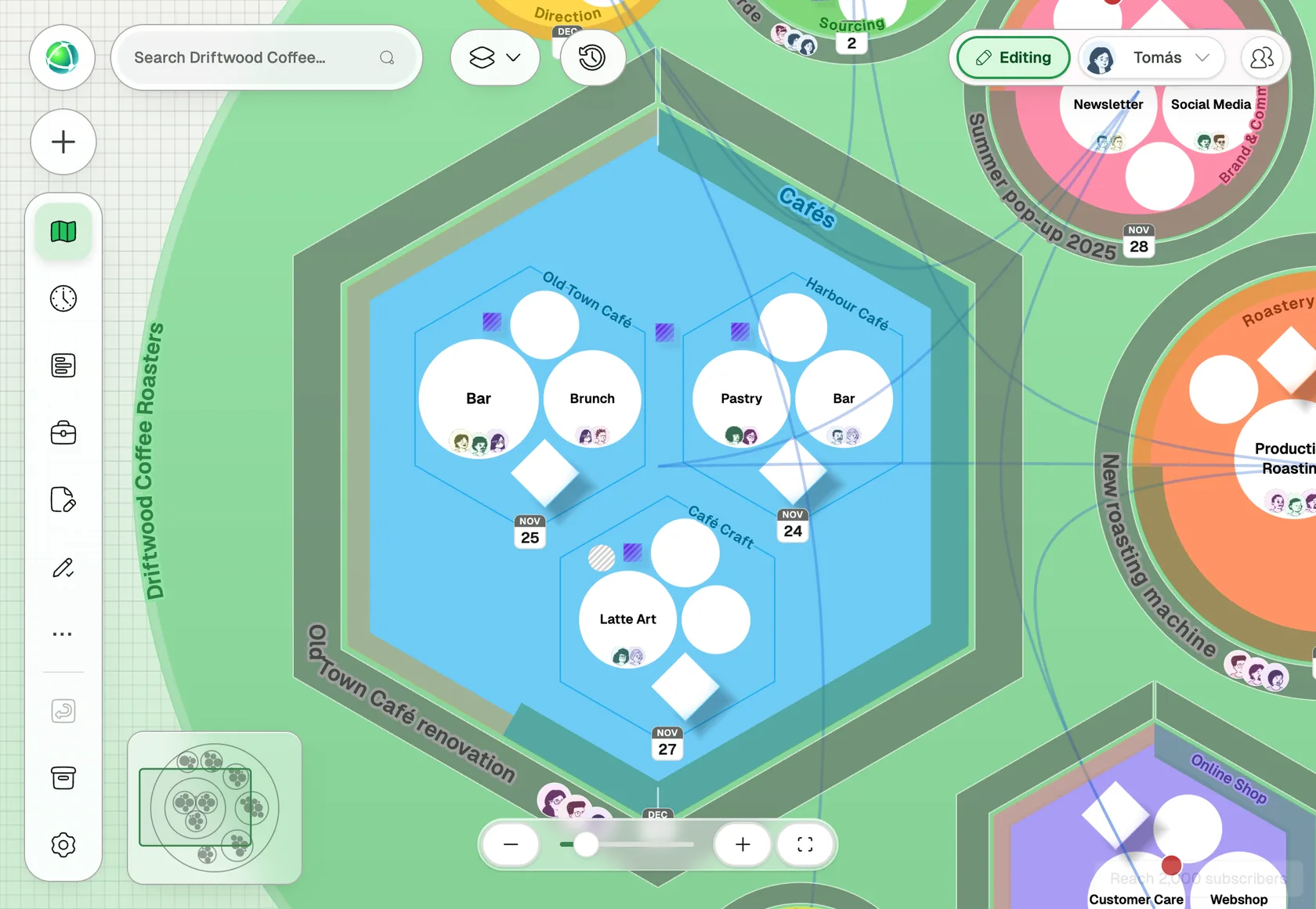
On the live map, with the Meetings layer on, each group’s next meeting that you can open shows as a small calendar tile on its circle, with the month and the day. A running meeting comes first: its tile shows Now in green, and its circle glows. Click or tap a tile to open the meeting right on the map.
Plan a meeting
Choose New meeting and pick a Meeting type. The type brings its sections, starter topics, checks and metrics. Then set:
- Title and When: the day, the time and how long it takes
- Groups: whose meeting it is; the people holding roles in them are invited
- Facilitators: who runs the meeting
- Host: who is responsible for it; that is you, unless you choose someone else
- Private meeting (Editors and Owners): kept to the people invited, the host and the facilitators, as described under Who can use Meetings below
Peerdom mails the colleagues invited to an upcoming meeting who can open it, except the person who sent the invitation and anyone who turned meeting mails off. They answer whether they will come: from the mail, confirmed in Peerdom while the meeting is planned, or in the meeting’s People tab. Facilitators, Editors and Owners add more people there with Add invitees.
Bring the topics
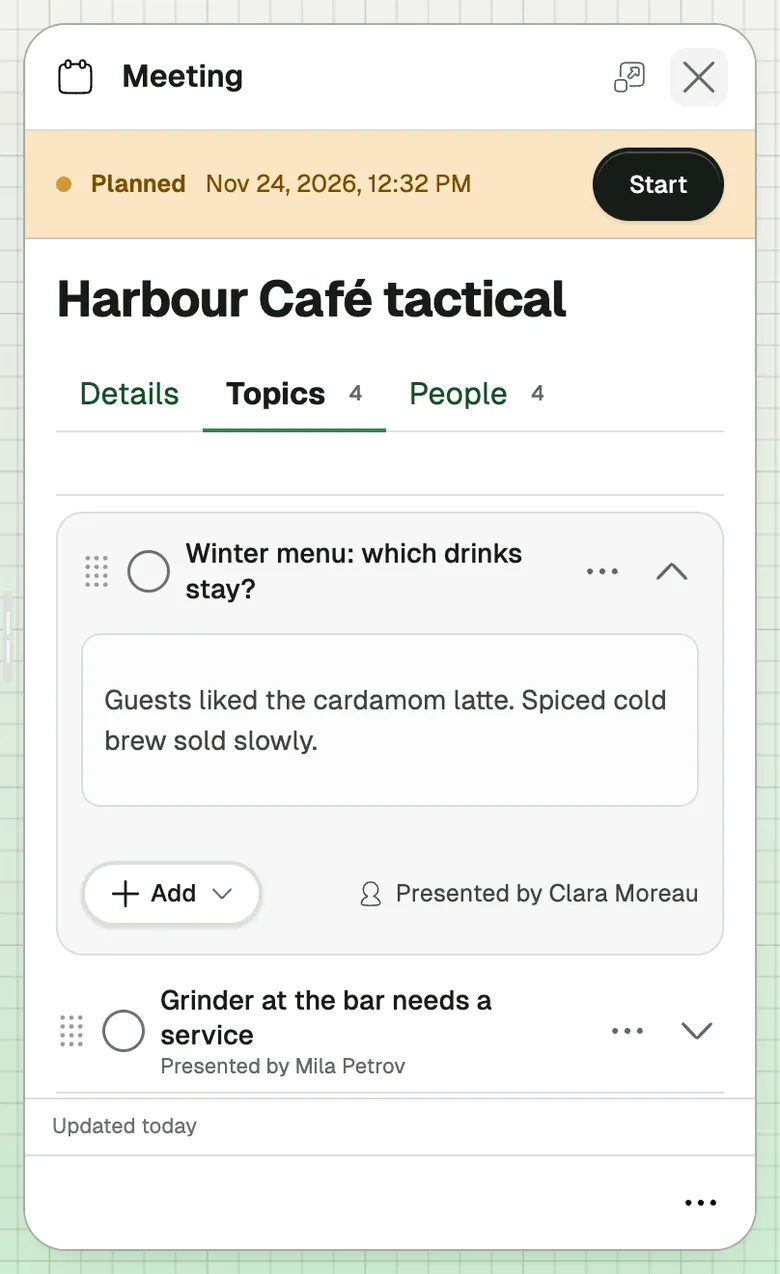
Colleagues add topics in the Topics tab, before the meeting or while it runs. Each topic can have notes and a presenter. Whoever runs the meeting can reorder the list by dragging. The tab’s number shows how many topics are on the agenda.
Run the meeting
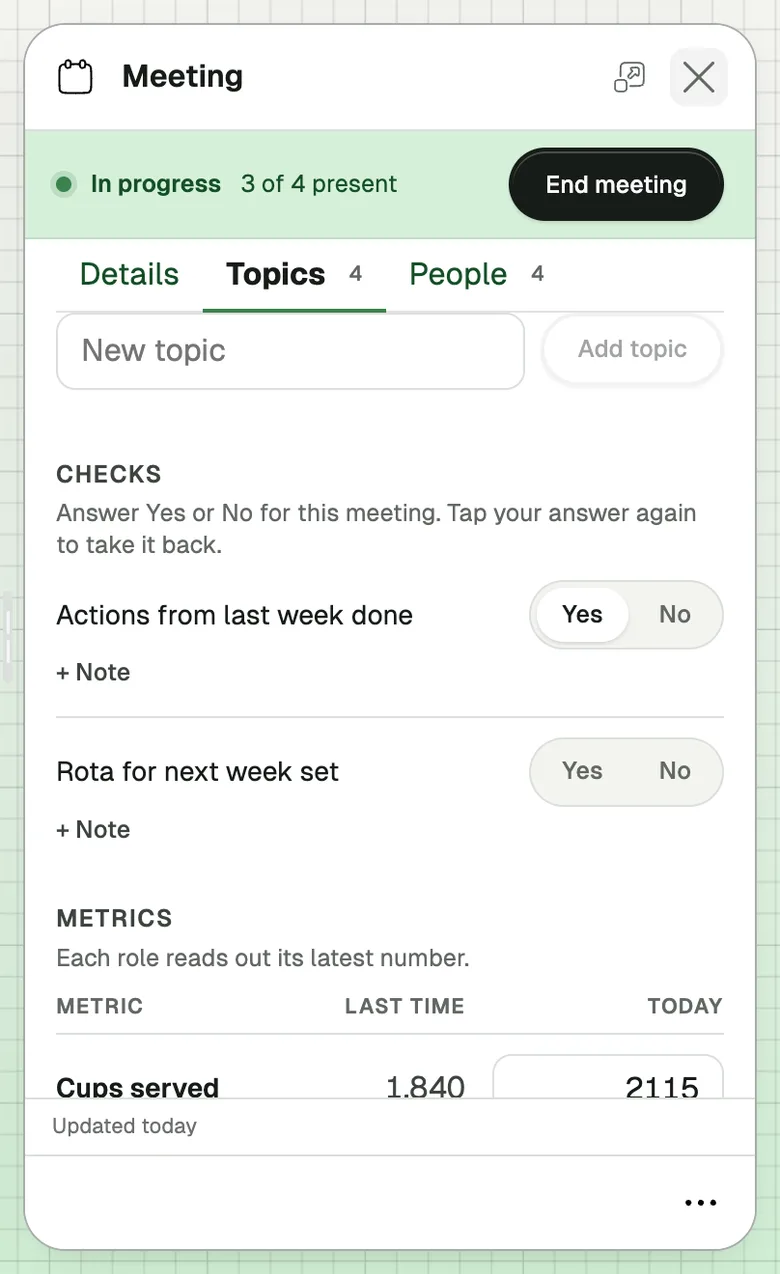
When it is time, the facilitator chooses Start. The band turns green and says how many people are present; mark who came in the People tab.
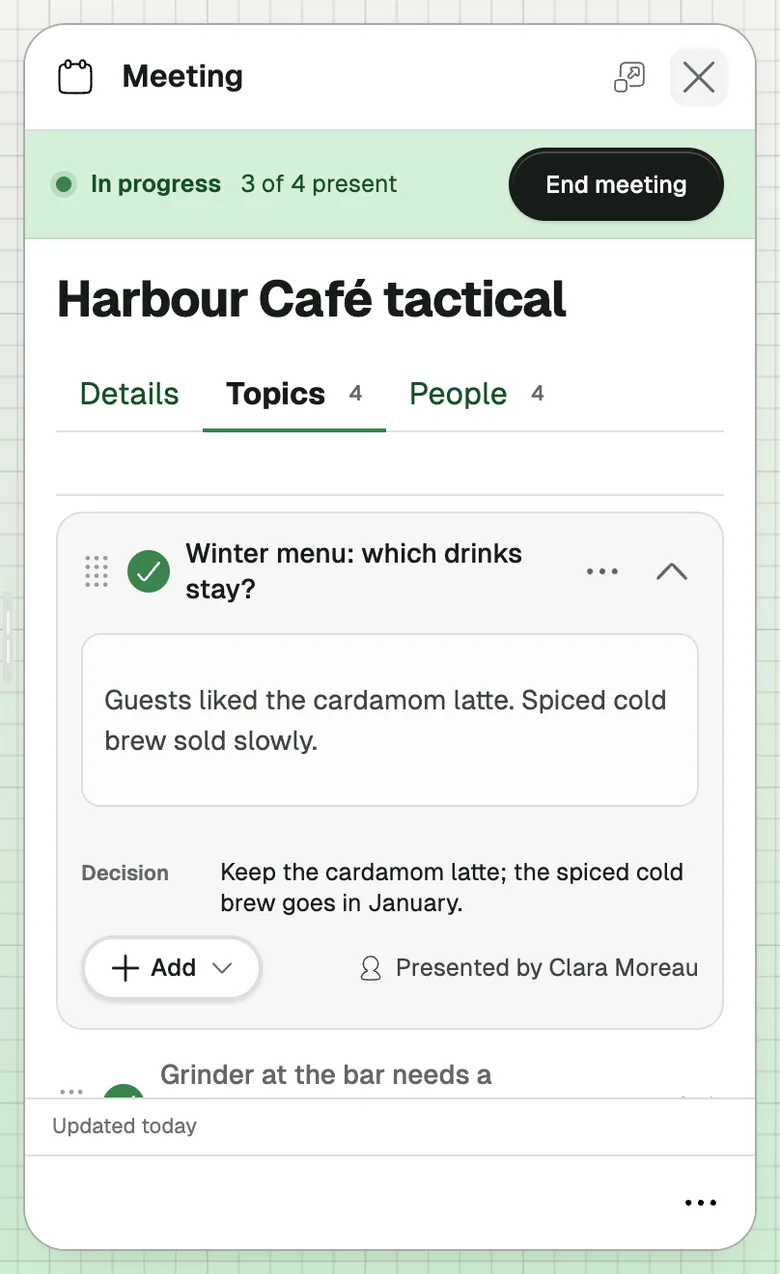
Go through the topics one by one. For each one, write notes and add what came out of it:
- Decision: what the group agreed
- Action: who does what; with the Projects app, someone who may create projects can turn it into a project
- Proposal: a change to the map, handed to the Proposals app
Choose Mark resolved when a topic is done.
Below the topics, the meeting type’s Checks are answered with Yes or No, and its Metrics show last time’s figure next to today’s, with the change between them.
End the meeting and keep the minutes
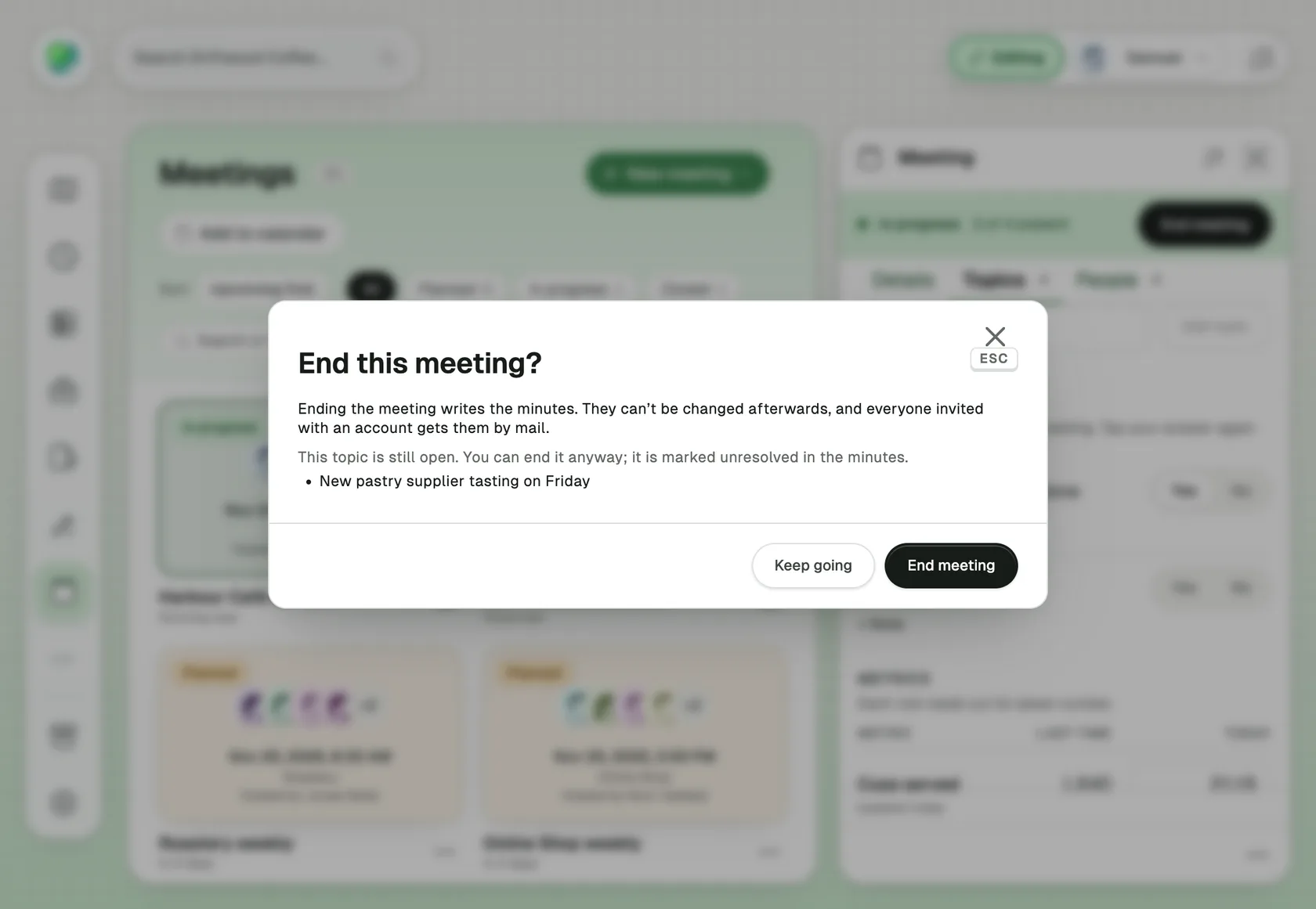
Choose End meeting. Peerdom lists the topics that are still open; you can end the meeting anyway, and they are marked unresolved in the minutes.
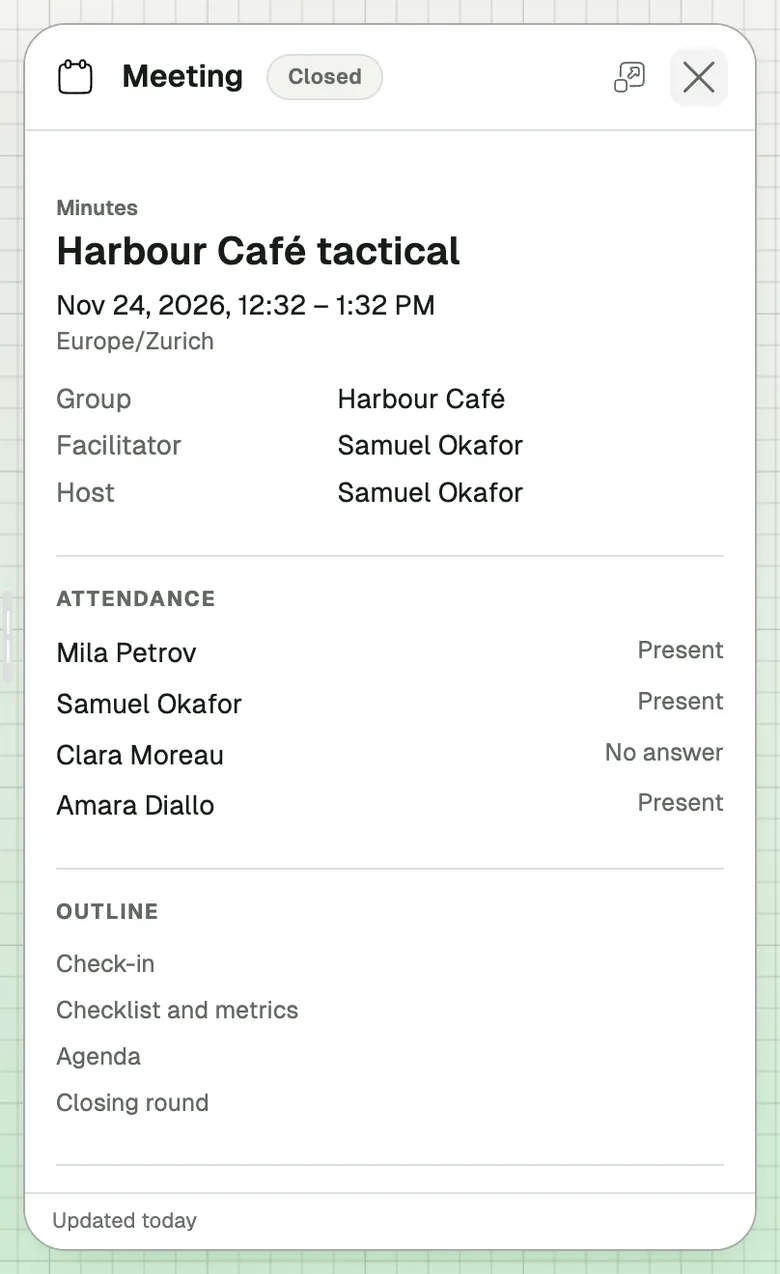
Ending the meeting writes its minutes: who came, the outline, every topic with its notes, decisions and actions, the checks and the metrics. The minutes stay exactly as they were written, and the colleagues invited who can open the meeting get them by mail.
Add meetings to your calendar
Where your organization offers calendar links, choose Add to calendar to get your personal link. Add it to your calendar app once, and your meetings stay up to date there. All meetings shows every meeting you can open, from three months back; Only meetings I’m invited to leaves out the ones you declined. Reset link gives you a new one and stops the old one at once.
Set up meeting types
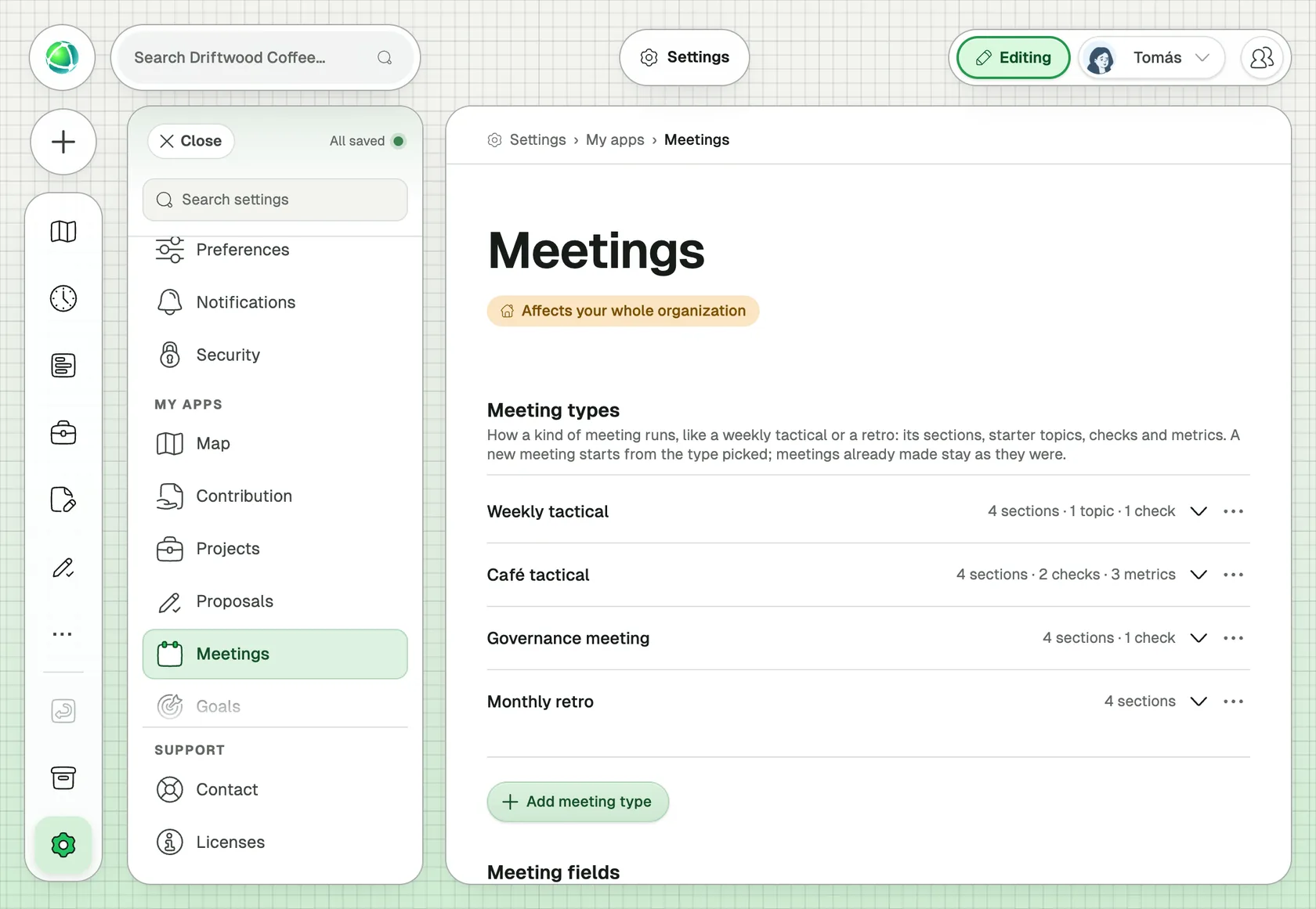
In Settings › Meetings, Owners shape how each kind of meeting runs, like a weekly tactical or a monthly retro:
- Sections: the parts every meeting of this type goes through, in order, like Check-in, Agenda and Closing round
- Starter topics: topics already on the list when a meeting of this type is created
- Checks: Yes-or-No questions the group goes through each time
- Metrics: numbers the group looks at each time, with a unit
A new meeting starts from the type picked; meetings already made stay as they were.
Keep meetings in order
Sort meetings into folders, give them labels, and archive the ones you no longer need in the list. Sort the list with the upcoming meetings or the past ones first.
Who can use Meetings
- Members, Editors and Owners, with that access given in your organization, open its meetings; a private meeting opens only for the people invited, its host and its facilitators, and for Peerdom support when your Owners allow support access
- Members add topics to the meetings they can open, until a meeting ends
- Facilitators, Editors and Owners start a meeting and run it: the order of topics, attendance, checks, metrics and outcomes
- Editors and Owners create meetings, and so does an editor of a group for the groups they edit
- The host, a facilitator or an invited Owner ends a meeting
- Owners set up the meeting types in Settings
Related
- Circles and Groups: a meeting belongs to its groups
- Proposals: what happens to a proposal from a meeting
- Projects: turn an action into a project
- Owner Quick Reference: install and configure apps