Managing People
Every person in your Peerdom organization has a profile. Owners and Editors can manage these profiles, while Members can edit their own. See Access Rights for a full breakdown of who can do what.
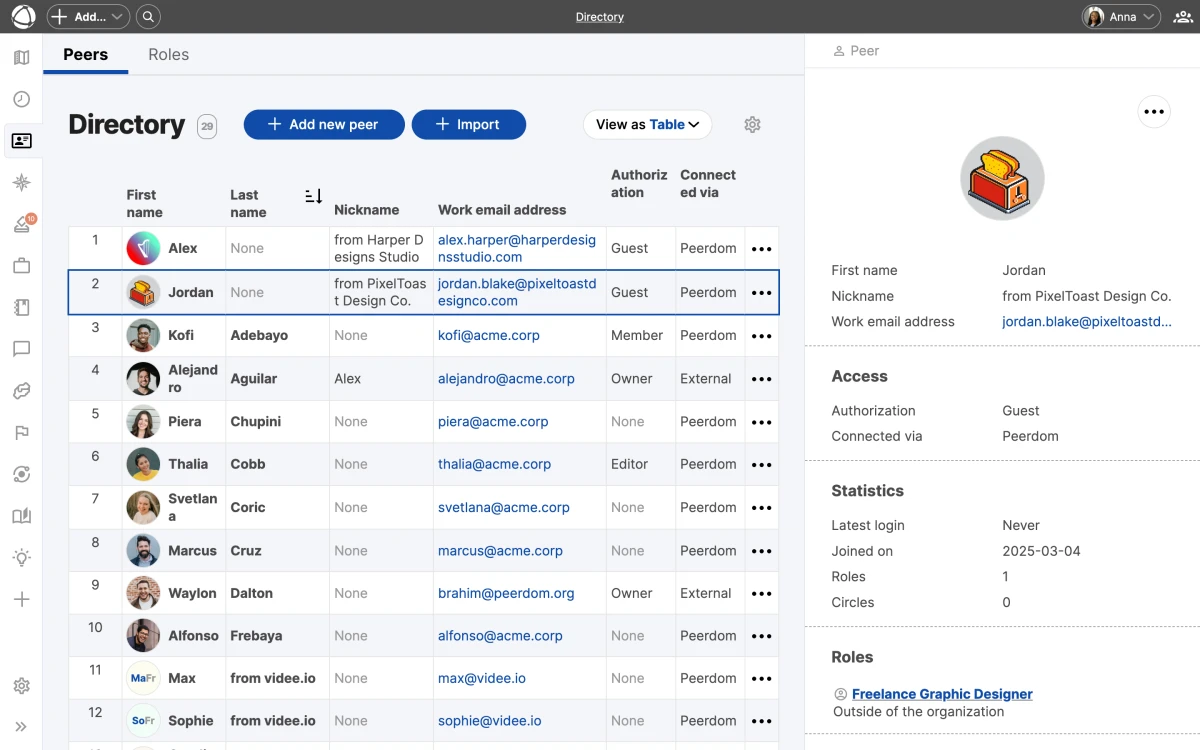
Add a peer
- Click + Add in the top toolbar
- Select New Peer
- Enter their first name (required) and last name (optional)
- Provide an email address if the person needs to log in
- Choose an access level and save
An email address is required for any peer who will have an account.
Profile structure
Each profile contains:
- Header: email, contribution description, and custom fields
- Basic info: name and avatar
- Tabs: Roles (current assignments), Journal (activity history), and Feedback (received feedback)
Edit a profile
Members can edit their own profile. Editors and Owners can edit any peer’s profile. Open the profile, click Edit, and make your changes.
Avatar: Upload a JPG, PNG, GIF, or WebP image. Animated GIFs are supported.
Invitations
When you add a peer with an access level that includes an account, Peerdom sends an invitation email automatically. You can toggle this off to invite them later.
For peers who have not yet activated their account, you can resend the invitation from their profile.
SSO organizations
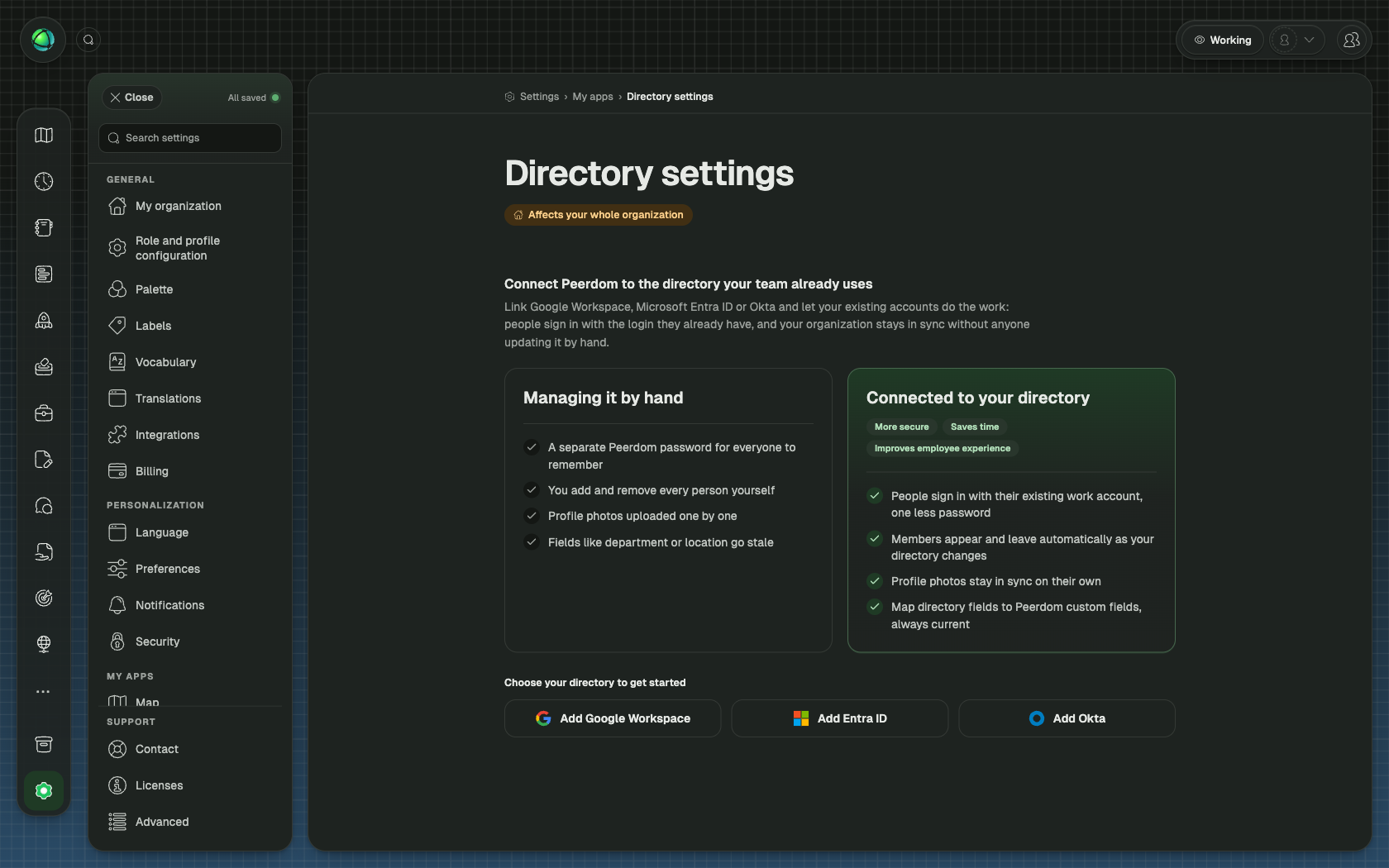
If your organization uses SSO, manage synced user details in your identity provider (Microsoft Entra ID, Google Workspace, or Okta).
Remove a peer
To handle a departure, open the peer’s profile and select Let peer go. This performs a soft delete:
- The peer is marked as “left” with a departure date
- Their profile remains accessible at its URL
- Past role assignments are preserved in history
- The peer is no longer billable
Past members
Peers who have left are not listed in the Directory. Their profiles can still be found through the Journal or by visiting their profile URL directly. Past member profiles cannot be edited.
Bulk import
On paid plans, Owners can import multiple peers at once using a CSV file. Go to Settings to access the import tool. See Data Export & Import for details on the CSV format.
Related
- Invite Your Team: add people step by step
- Directory: browse and search all peers
- Single Sign-On: automate user provisioning
- Access Rights: permission levels for editing