Peerdom for Sociocracy
Sociocracy is a governance system designed to improve productivity, wellbeing, and organizational resilience. It structures decision-making through semi-autonomous circles, consent-based policies, peer-elected roles, and double-linking between teams. Peerdom provides the apps and features to make sociocratic structures visible, maintainable, and transparent.
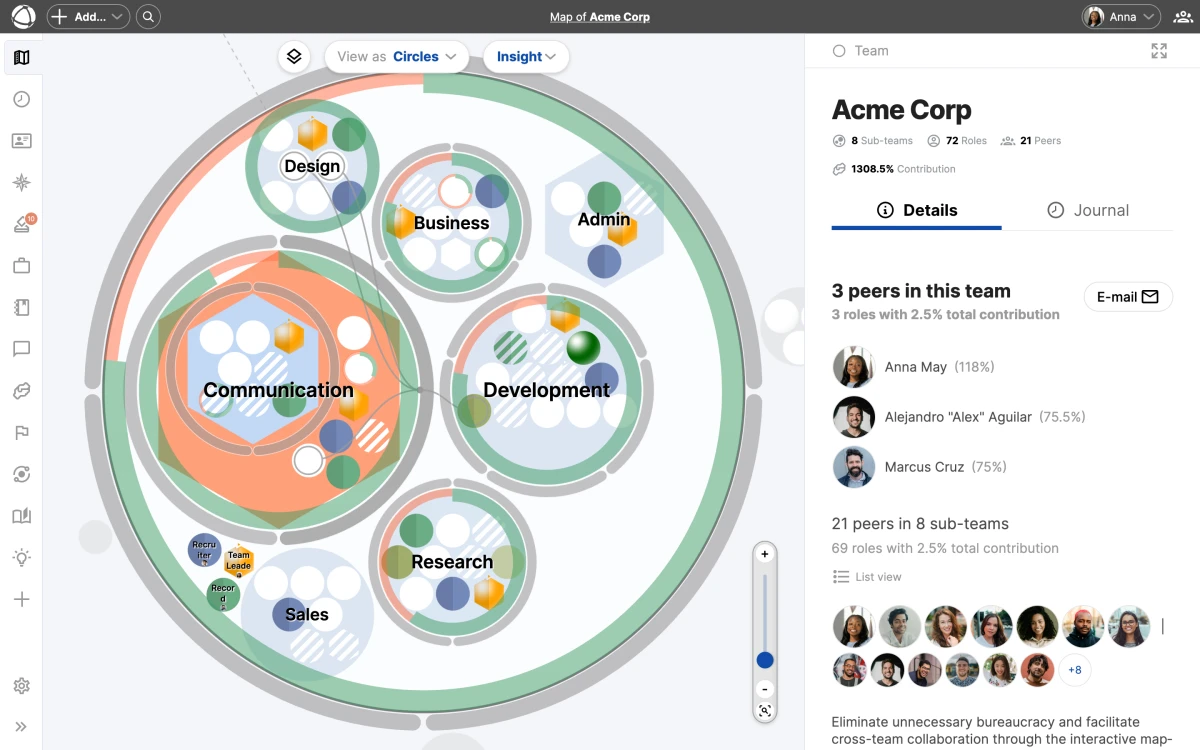
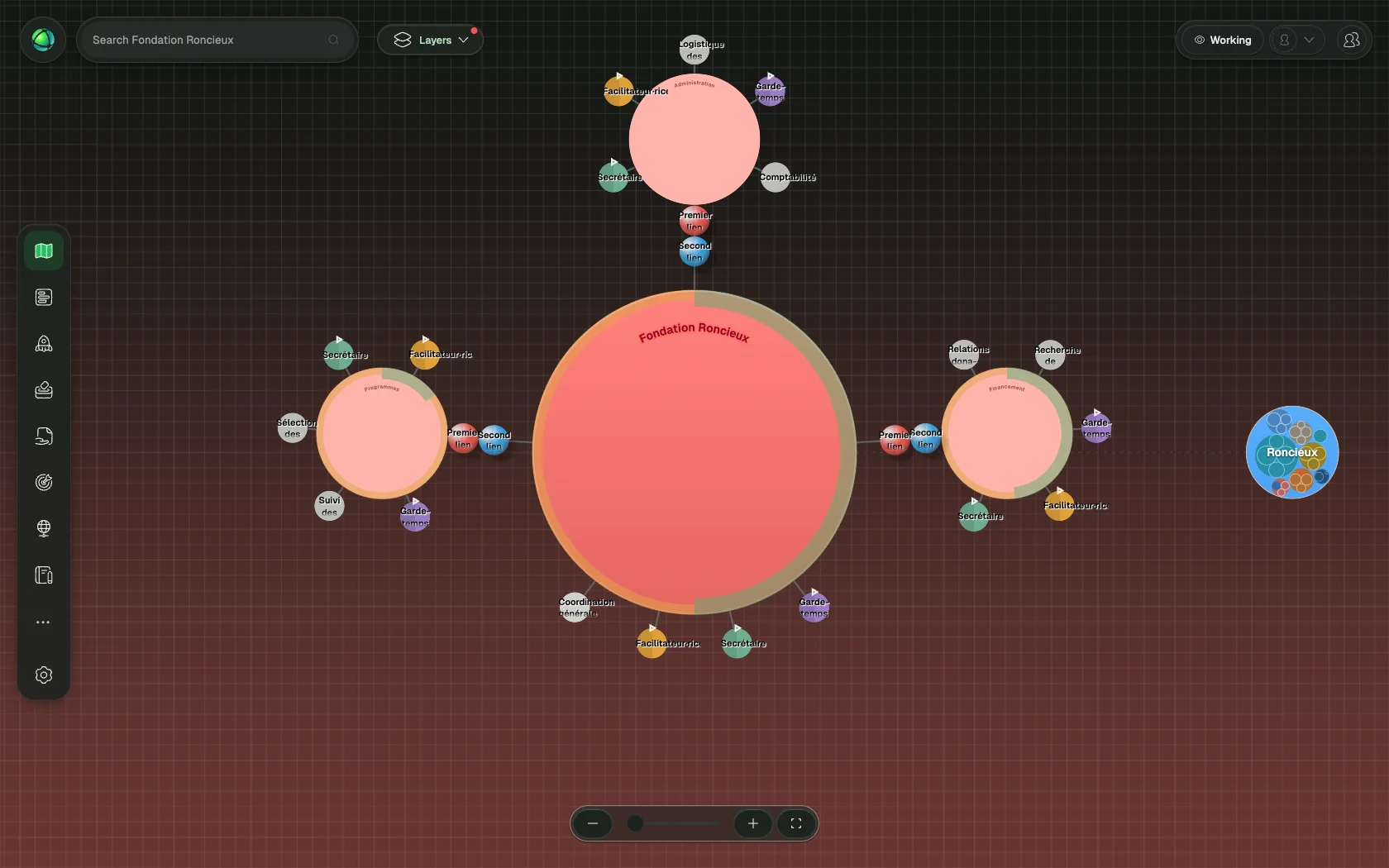
Map your organization with circles
In sociocracy, work is distributed across interconnected circles. Each circle operates as a semi-autonomous group with decision-making authority over its domain.
Create as many circles as you need to distribute work. For each circle, define two key properties:
- Aim: what this circle works toward
- Domain: the scope of responsibility and authority
As your organization evolves, nest sub-circles inside parent circles for specialization. Each sub-circle maintains its own aim and domain while staying accountable to the parent. There is no limit to nesting depth, but two to three levels keeps things readable.
Customize your vocabulary
Peerdom uses generic terms by default, but you can configure them to match sociocratic language through custom terms. Go to Settings > Vocabulary and adjust:
- Group becomes Circle
- Representative becomes Delegate or Leader
- Peer becomes Member
Your choices apply across the entire interface, including the map, the Inspector, profiles, apps, and exports. See custom vocabulary for the full list of available terms.
Choose a map layout
Sociocratic structures benefit from layouts that emphasize equality and interconnection rather than top-down hierarchy. Peerdom offers two layouts well suited for this:
- Flattened cactus flower: circles arranged around a center, resembling people seated around a table
- Line layout: circles connected with linking lines to show relationships
To configure your layout, click Configure next to the Circles view and select your preferred option. Read more about views in circle view and layouts.
Distribute work into roles
Roles are the building blocks of sociocratic work distribution. Each role defines a clear set of responsibilities that exists independently of who holds it.
Create detailed role descriptions with a purpose and accountabilities. Assign roles to members so everyone understands their scope. When a role has multiple holders, add a focus area for each person to clarify their specific contribution.
Set up circle process roles
Every sociocratic circle has four process roles. You can make each one visually distinct on your map:
- Leader: carries the representative badge (spherical shading) and links the circle to the larger organizational context
- Delegate: carries the representative badge (spherical shading) and represents the circle in the parent circle
- Facilitator: carries the electable badge (arrow at top) and manages circle meetings and decision processes
- Secretary: carries the electable badge (arrow at top), records decisions, and maintains governance records
Mark the Leader and Delegate as representative roles in the Inspector panel. Mark the Facilitator and Secretary as electable roles, which requires the Elections app.
Implement double-linking
Double-linking is a core sociocratic practice that ensures information flows both up and down between circles. Two representative roles connect each sub-circle to its parent:
- The Leader links downward, selected by the parent circle to guide the sub-circle
- The Delegate links upward, elected by the sub-circle to represent it in the parent
Both roles carry the representative badge on the map. Assign different people to each role to maintain independent information channels. This structure ensures that every circle has a voice in the circles above it.
Use mirrored roles for consistency
When process roles like Facilitator or Secretary need the same definition across all circles, use mirrored roles:
- Create the role (for example, “Facilitator”) in one circle with its full description
- Right-click the role and select Copy to… then choose the target circle
- Select as a mirrored copy
Mirrored roles share their purpose, domains, responsibilities, and color. Changes to one mirror update all copies automatically. Each mirror has its own location and assignee. Learn more about role types in the roles documentation.
Document decisions transparently
Sociocracy depends on transparent governance. Use the Pages app to document:
- Proposals and consent decisions
- Working agreements
- Organizational policies
- Circle-specific governance records
Link pages to the relevant circle so all members can find them through the Inspector panel. This creates a living record of your governance that stays connected to the structure it governs.
Track elections and terms
The Elections app helps you manage roles filled through sociocratic election processes. Mark a role as electable, set the term end date, and the app tracks expiration across your organization. A color-coded timeline shows which terms are expired, expiring soon, or on track. Owners receive weekly email notifications when re-elections are due.
Continuously improve
Sociocracy emphasizes ongoing learning and adaptation. Three Peerdom apps support this:
- Journal: chronicles every structural change with who, what, and when. Use date navigation to review historical periods.
- Insights: reveals patterns like role turnover, group scatter, and role hoarding. These data points help you spot circles that need attention.
- Feedback: enables role-to-role feedback loops. Regular feedback strengthens accountability and supports personal development.
Get started
Use the sociocracy template to start with a pre-configured structure:
- Go to peerdom.org/start?template=sociocratic-startup
- Customize the circles and roles for your organization
- Invite your members
The recommended apps for sociocratic organizations are:
- Map: visualize your circle structure (always included)
- Journal: track governance changes (included with Peerdom+)
- Elections: manage term-based roles and re-election schedules
- Pages: document decisions and policies
- Feedback: support peer accountability and development
- Insights: monitor organizational health with data
FAQ
Can I double-link circles in Peerdom? Yes. Create Leader and Delegate roles in the sub-circle, mark both as representative roles, and assign different people to each. Both will display with the representative badge on the map, ensuring information flows in both directions.
How do I track consent decisions? Use the Pages app to document proposals, decisions, and rationale. Link each page to the relevant circle so all members can find governance records through the Inspector panel.
Can roles have term limits? Yes. Mark a role as Electable and use the Elections app to set term end dates. The app tracks term lengths, shows history, and sends weekly email reminders when re-elections are due.
How do I show that a role is elected? In the role editor, check Electable role. The role will display with an arrow indicator at the top on the map. This requires the Elections app.
Related
- Circles and Groups: create and organize circles
- Roles: define work and assign people
- Custom Vocabulary: rename terms to match your framework
- Elections: track electable roles and terms
- Pages: document governance decisions