Pages
Pages lets you create wiki-style documentation that connects directly to your organizational structure. Each page can link to circles, roles, or people, keeping knowledge anchored to the parts of the organization it belongs to.
Browse pages
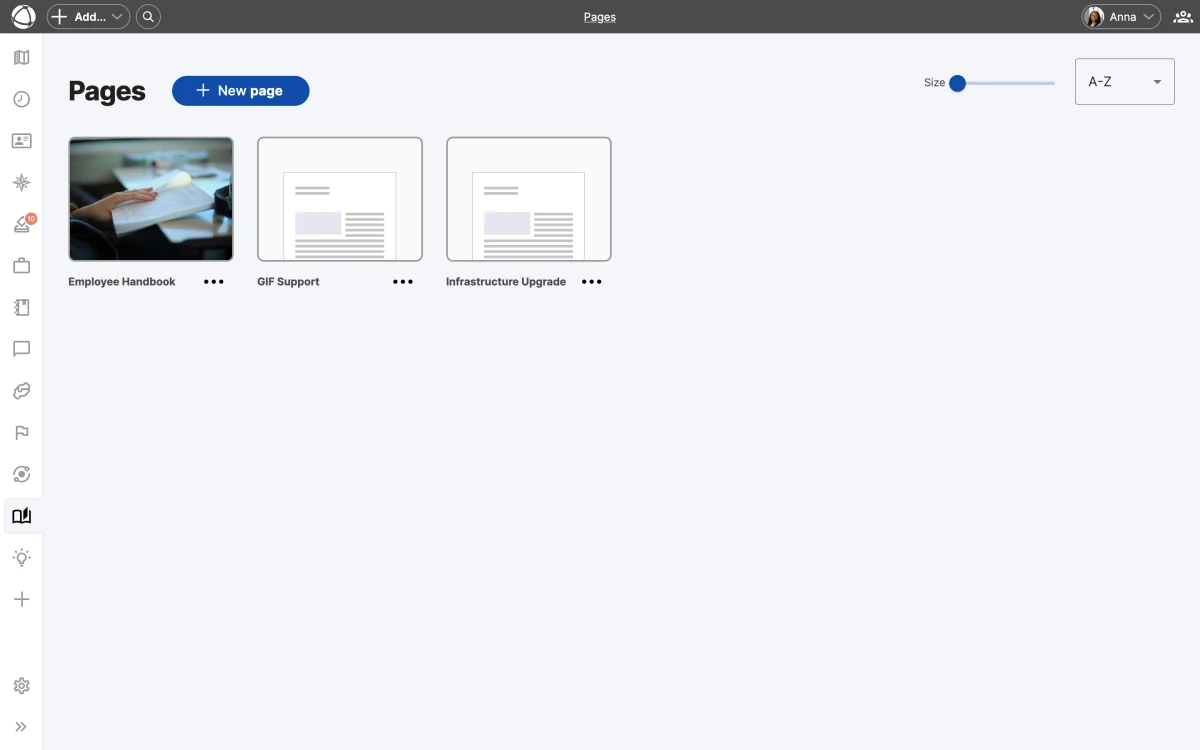
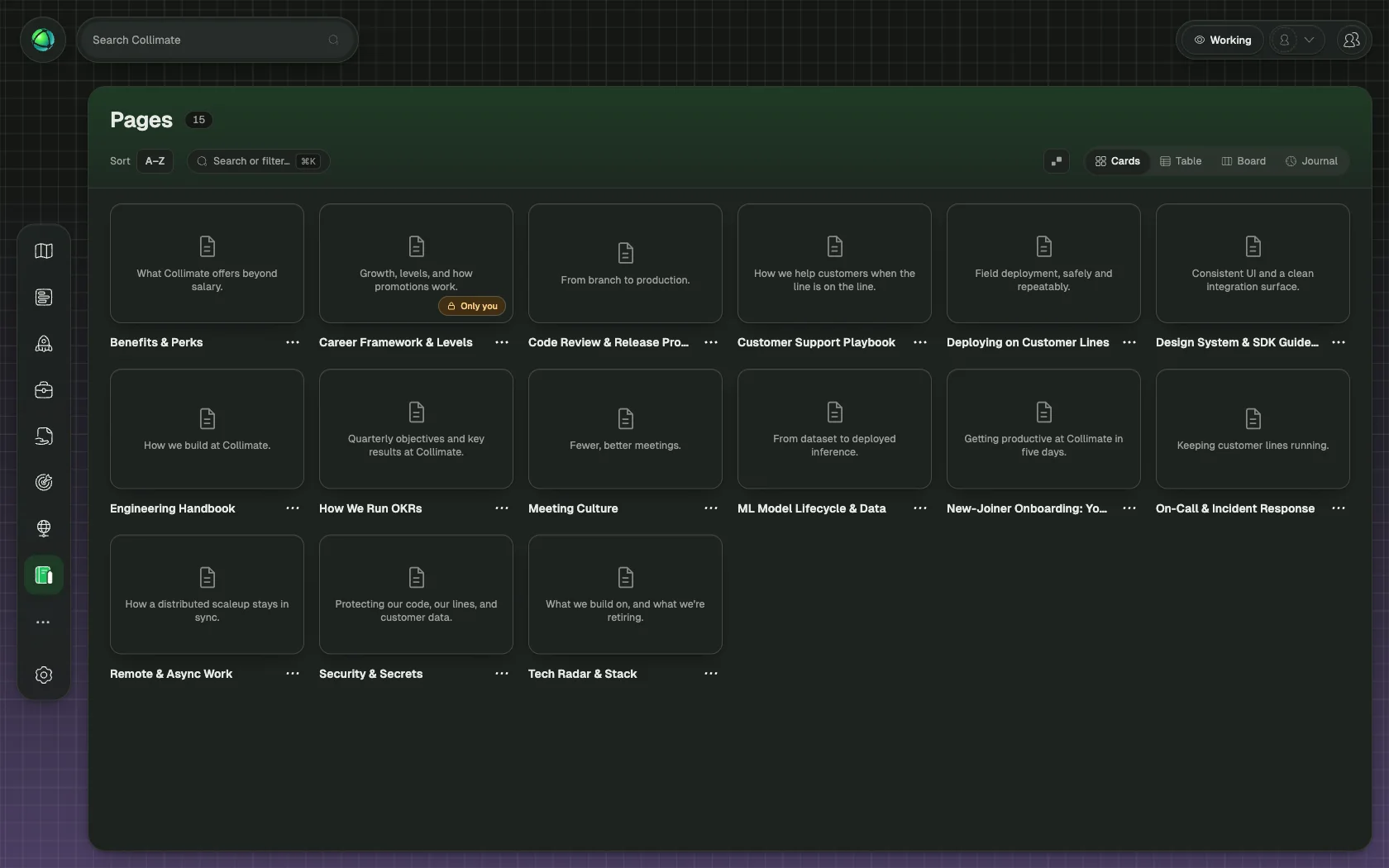
Pages appear in a card grid view with thumbnails. Use the size slider to zoom in or out, and sort pages by name (A-Z), newest, or oldest. The grid gives you a visual overview of all available documentation.
Create a page
Each page is built from content cards. You can add two types:
- Text cards: rich text with Markdown support for formatting
- Image cards: upload images up to 25 MB each
Arrange cards in the order that makes sense for your content.
Link pages to your structure
Use relationship fields to link a page to one or more circles, roles, or people. Linked pages appear in the Inspector panel when you select the connected node on the map. One page can link to multiple nodes, so shared documentation stays in one place.
Visibility
Each page can be set to public (visible to all users with access) or private (visible only to the author). This lets you draft pages before sharing them with your organization.
Who can use Pages
- Editors and Owners can create and manage pages
- Members can view pages but cannot create or edit them
- Guests cannot access Pages
Related
- Custom Fields: relationship fields link pages to nodes
- Relationships: understand how items connect
- Navigating the Map: find pages in the Inspector panel
- Owner Quick Reference: install the Pages app