Circle View & Layouts
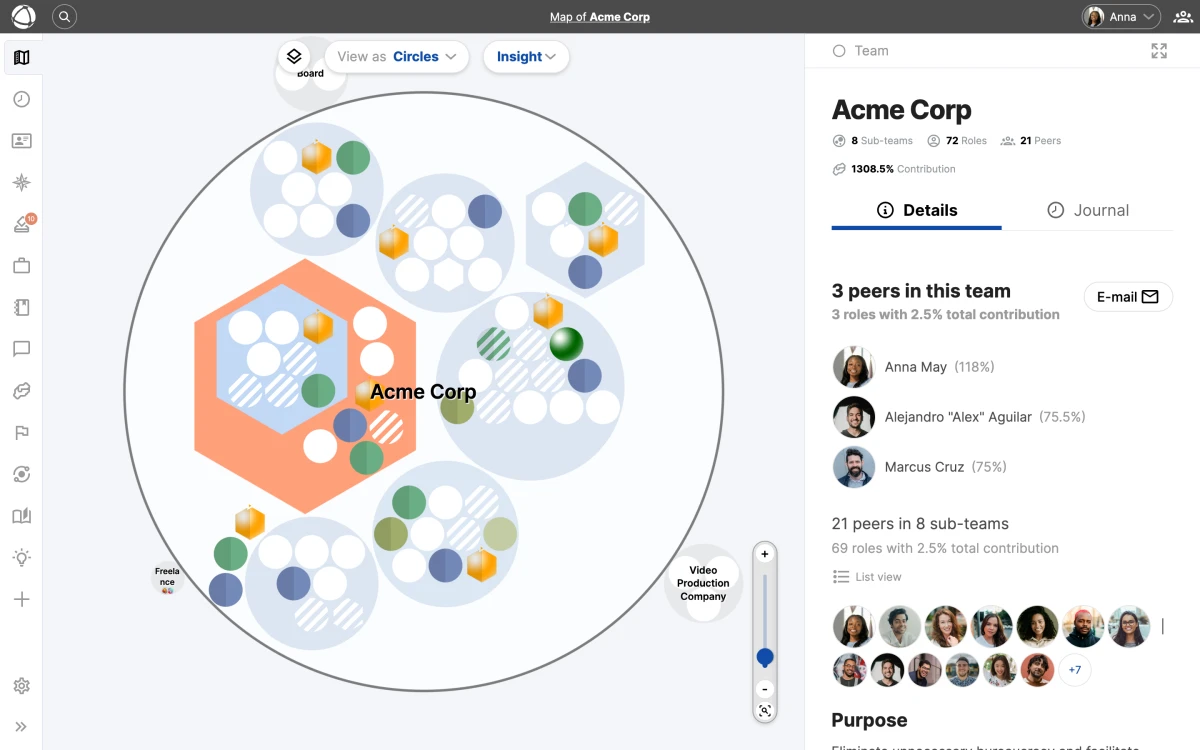
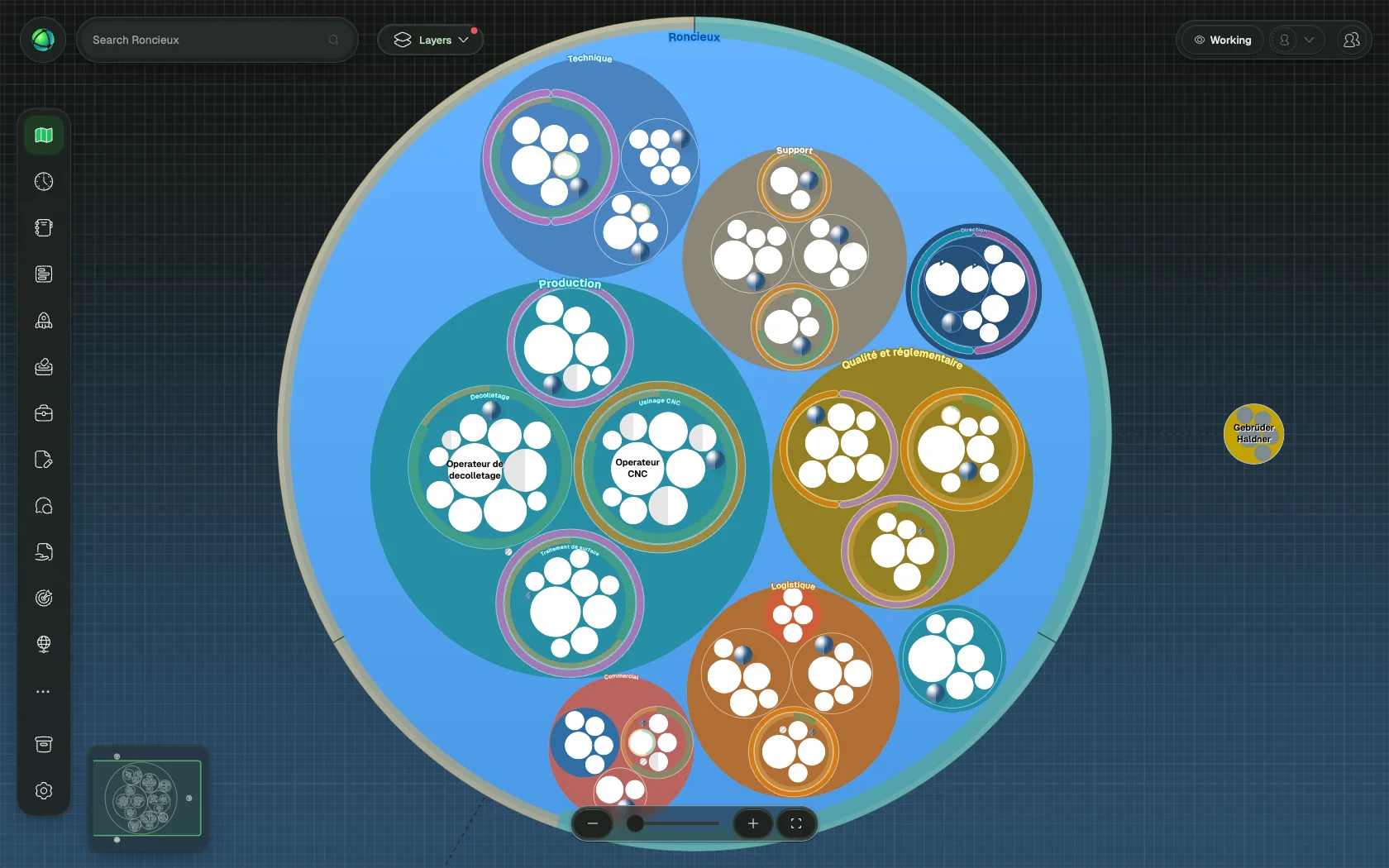
Circle View is Peerdom’s default visualization and the one used by the vast majority of organizations. It displays your structure as nested circles, where circles and groups contain roles, which contain people, all visible at every zoom level.
How it works
Circles represent your groups (teams, departments, domains). Roles sit inside circles, and people’s avatars appear on the roles they hold. The nesting reflects your organizational hierarchy: a circle inside another circle means that group is part of the parent group.
All nodes remain visible regardless of how far you zoom in or out. Nothing collapses or hides. For details on moving around and selecting nodes, see Navigating the Map.
Layout options
Click the Configure button to choose between five layout variations:
- Nest roles and groups: roles and sub-groups appear inside their parent circle. The most common choice.
- Nest roles only: roles appear inside circles, but sub-groups are positioned beside them.
- Do not nest: all items appear at the same level without nesting.
- Nest roles only + lines: same as “Nest roles only” with connecting lines between groups.
- Do not nest + lines: flat layout with connecting lines showing relationships.
Choosing a layout
The right layout depends on your organizational style:
- Deeply nested structures work well with “Nest roles and groups” for a clear containment hierarchy.
- Flat or network-style organizations benefit from the non-nested layouts with lines, which emphasize connections over hierarchy.
- Mixed structures may prefer “Nest roles only” for a middle ground.
Related
- Navigating the Map - zoom, pan, search, and the Inspector panel
- Tree View - an alternative hierarchical diagram layout
- List View - browse your structure as a flat searchable list
- Circles & Groups - understand how groups organize your structure
- Roles - define work with roles inside your circles