Tree View
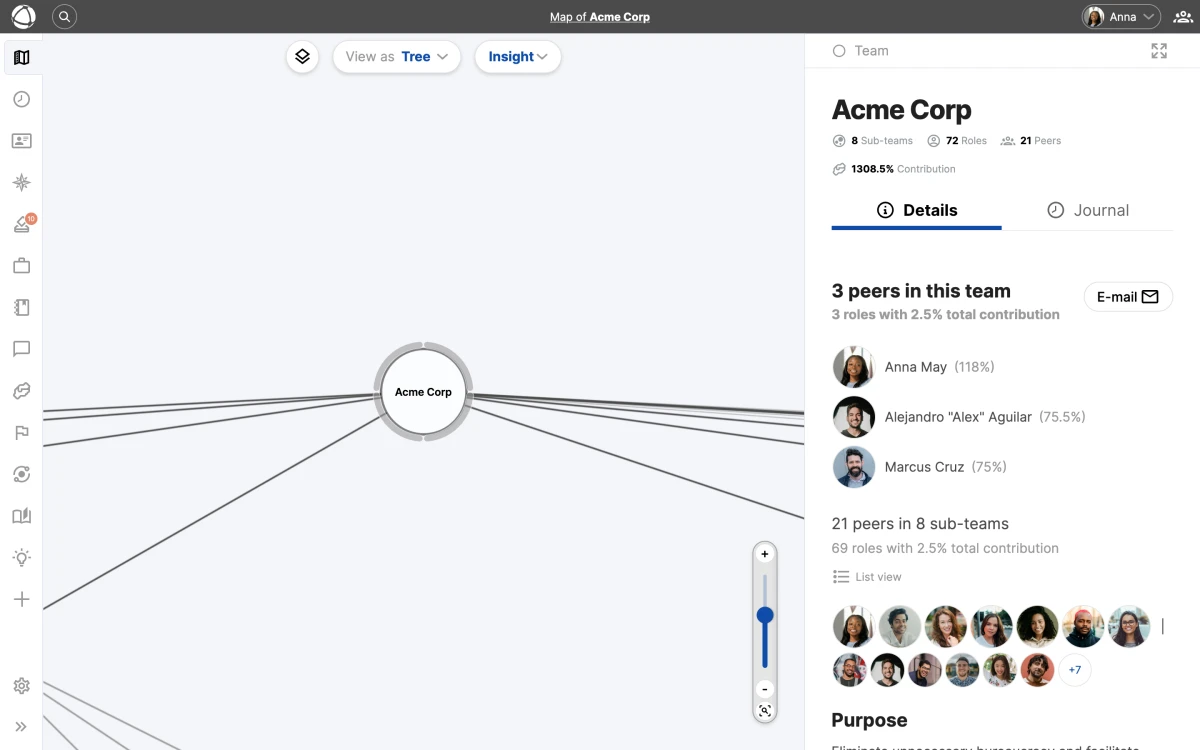
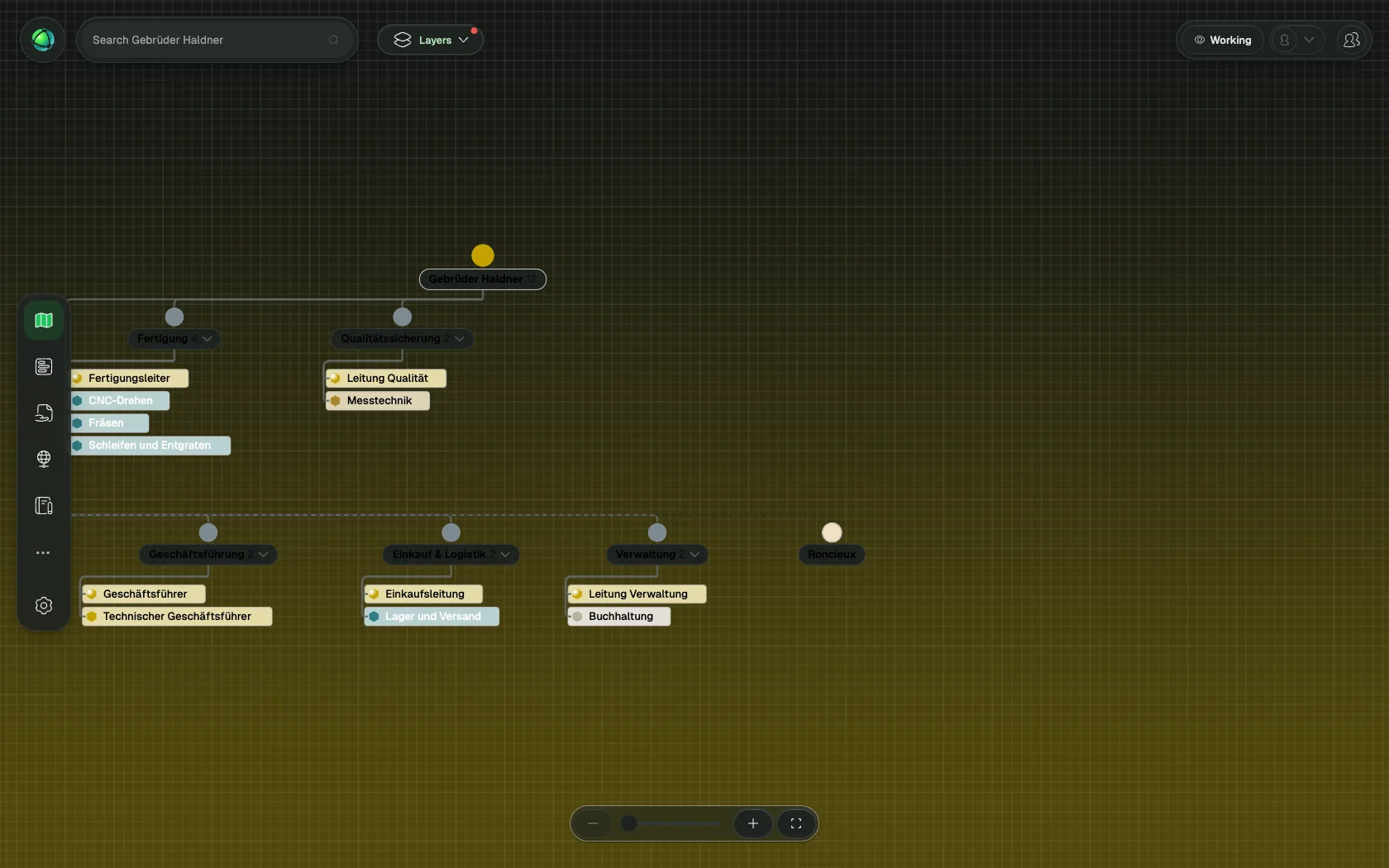
Tree View displays your organization as a hierarchical diagram, making parent-child relationships between circles and roles immediately clear. It is a good alternative to Circle View when you want to emphasize reporting lines or nested structure.
How it works
Each node in the tree represents a circle or role. Lines connect parent nodes to their children, showing how your structure branches out from the top-level organization down through teams, sub-teams, and individual roles.
Click any node to open its Inspector panel on the right, where you can view details, edit properties, or manage assignments. For general navigation controls, see Navigating the Map.
Layout options
Click the Configure button to choose between two tree layouts:
- Vertical: a top-down tree with the root at the top and branches flowing downward. Familiar to anyone who has used a traditional org chart.
- Radial: the root sits at the center with branches spreading outward in all directions. Works well for large structures where vertical space is limited.
Choosing a layout
- Vertical is ideal for organizations with a clear top-down hierarchy. It reads naturally from top to bottom.
- Radial makes better use of screen space for wide or deeply nested structures. It gives equal visual weight to all branches.
Related
- Navigating the Map - zoom, pan, search, and the Inspector panel
- Circle View & Layouts - the default nested visualization
- List View - browse your structure as a searchable flat list
- Circles & Groups - how groups organize your structure