Moving & Organizing Nodes
Your organization changes, and your map should change with it. Peerdom gives you several ways to move circles and roles around by dragging, right-clicking, or using keyboard shortcuts.
Drag and drop
In the Circles view, you can drag any node to reorganize your structure:
- Drop on a circle to move the node inside that circle
- Drop outside all circles to make the node external (top-level)
The node keeps all its properties, descriptions, and assigned peers when moved.
Copy instead of move
Hold Cmd (Mac) or Ctrl (Windows) while dropping a node to create a copy instead of moving it. The copy is independent, so changes to one do not affect the other.
Right-click menu
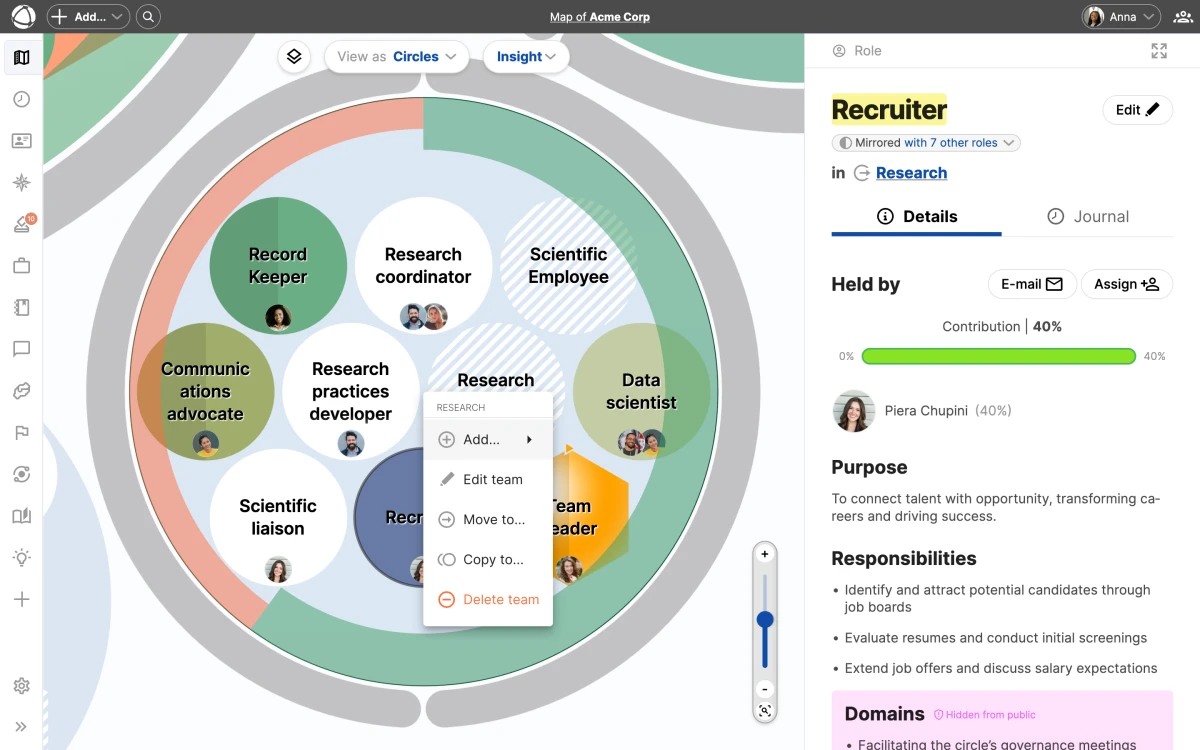
Right-click any circle or role to access additional options:
- Move to… relocates the node to a specific circle
- Copy to… creates a copy in another location
- Delete removes the node from your map
Undo changes
Most operations can be undone immediately after you perform them. If you move or delete something by mistake, use undo to restore it before making further changes.
Edit conflict detection
When multiple people edit the map at the same time, Peerdom detects conflicts. If someone else modifies the same area you are working on, you receive a warning. This prevents accidental overwrites and keeps your map consistent.