List View
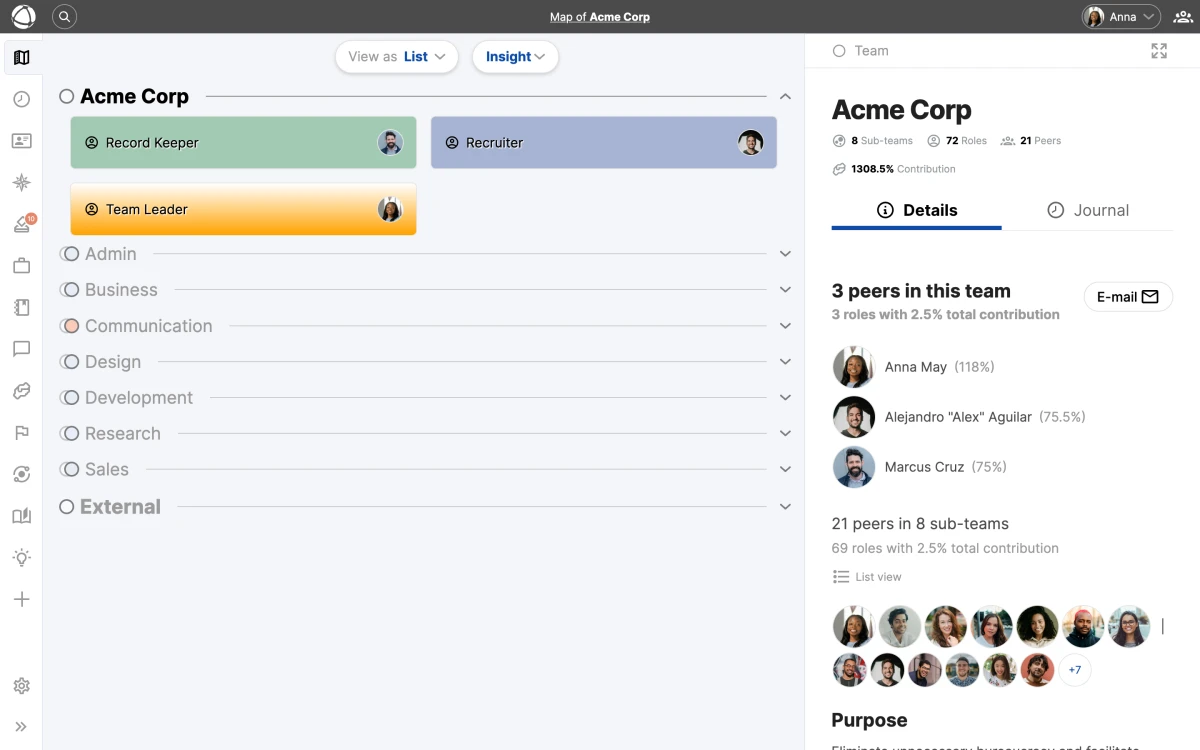
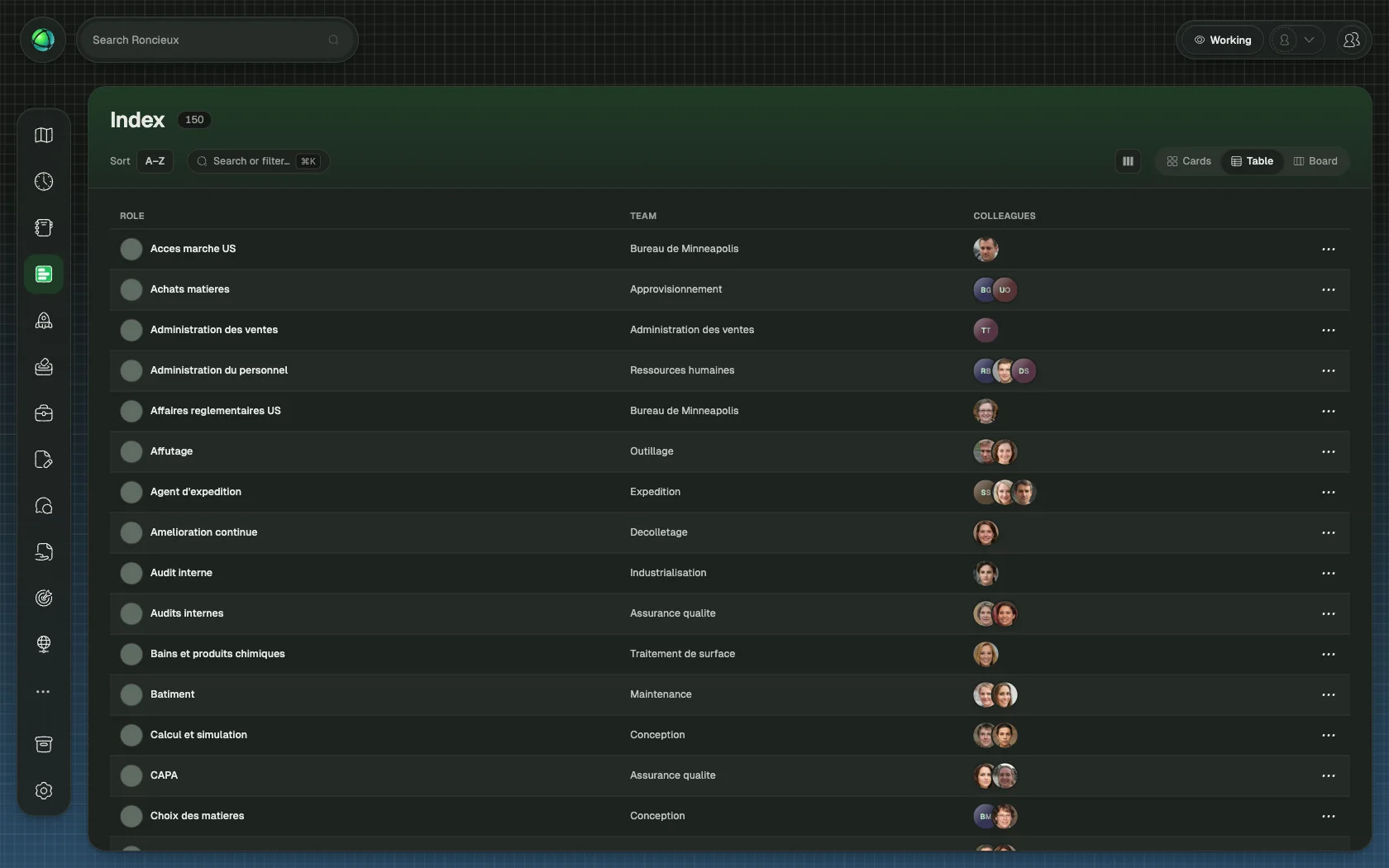
List View presents your entire organization as a flat, text-based list instead of a visual map. Every circle and role appears as a line item that you can scan, search, and click into.
When to use List View
List View is useful when you need to:
- Find a specific item: search by name when you know what you are looking for
- Scan the full structure: review all circles and roles without navigating a visual map
- Work quickly: locate and select nodes faster than panning and zooming
It complements the visual views by giving you a straightforward, scannable overview of your organization’s contents.
How it works
Switch to List View from the view selector. You see a flat list of all circles (groups) and roles in your organization. Use the search field at the top to filter the list by name.
Click any item in the list to open its Inspector panel, where you can view details, edit properties, or manage assignments. This is the same panel you see in Circle View and Tree View.
Related
- Navigating the Map - zoom, pan, search, and the Inspector panel
- Circle View & Layouts - the default nested visualization
- Tree View - view your organization as a hierarchical diagram
- Circles & Groups - how groups organize your structure