Access Rights
Every peer in your organization has one access level that controls what they can see, edit, and manage. Choose the right level when adding someone, and adjust it later as their responsibilities change.
The four access levels
- Owner (billable, has account): Full administrative control over settings, billing, permissions, integrations, publishing drafts (a private draft can be published only by the Owner who created it), and archiving or deleting the organization.
- Editor (billable, has account): Day-to-day structure management. Creates and edits circles, roles, and content across all apps. Can invite new peers up to Member level.
- Member (billable, has account): Participates without editing structure. Views everything, uses installed apps, edits their own profile, and contributes through goals, feedback, and elections.
- Guest (free, has account): View-only access to the map. Cannot access apps or see directory details.
- No-access (free, no account): Appears on the map for documentation purposes only. Cannot log in.
Permission matrix: Map and Structure
| Feature | Owner | Editor | Member | Guest |
|---|---|---|---|---|
| View map | Yes | Yes | Yes | Yes |
| Create circles and roles | Yes | Yes | No | No |
| Edit descriptions | Yes | Yes | No | No |
| Assign role holders | Yes | Yes | No | No |
| Self-assign to roles | Yes | Yes | If enabled | No |
Permission matrix: Apps
| Feature | Owner | Editor | Member | Guest |
|---|---|---|---|---|
| View app content | Yes | Yes | Yes | No |
| Create goals | Yes | Yes | No | No |
| Vote on goals | Yes | Yes | Yes | No |
| Create projects | Yes | Yes | No | No |
| Create pages | Yes | Yes | No | No |
| Give feedback | Yes | Yes | Yes | No |
| Use drafts | Yes | Yes | View only | No |
Permission matrix: Administration
| Feature | Owner | Editor | Member | Guest |
|---|---|---|---|---|
| Organization settings | Yes | No | No | No |
| Billing | Yes | No | No | No |
| Invite users | Yes | Limited | No | No |
| Change permissions | Yes | No | No | No |
| SSO and Directory | Yes | No | No | No |
| API keys | Yes | No | No | No |
| Webhooks | Yes | No | No | No |
Guest vs. Member
Guests and Members both have accounts, but their capabilities differ significantly.
What Guests miss:
- No access to any apps (Goals, Journal, Feedback, Projects, Pages, Network, Missions)
- No directory details or peer profiles
- Cannot vote, give feedback, or self-assign to roles
- Cannot contribute content of any kind
What Members get (beyond Guest):
- Full access to all installed apps
- Can view the Directory and peer profiles
- Can vote on goals and give feedback
- Can self-assign to roles (if enabled in settings)
- Can edit their own profile
No-access use cases
No-access peers have no account and cannot log in. They exist on the map purely for documentation. Common use cases include:
- External consultants who hold an advisory role
- Board members documented in governance circles
- Historical role holders preserved for organizational memory
App-specific permission overrides
Some apps have their own permission layers on top of the base access level.
- Contribution: Separate view and edit levels control who can see and modify compensation data.
- Salary Admin role: A special role that grants salary administration rights independent of the base access level.
FAQ
Can I have multiple Owners? Yes. You can have as many Owners as you need. Every Owner has full administrative control. Having at least two Owners is recommended so that access is never lost if one person leaves.
What is the difference between Guest and No-access? Guests have an account, can log in, and can view the map. No-access peers have no account at all. They appear on the map for documentation purposes but cannot interact with Peerdom in any way.
Do Guests count toward billing? No. Guests and No-access peers are both free. Only Owners, Editors, and Members count as billable seats.
Can Editors invite other Editors? No. Editors can invite new peers but only assign them up to Member level. Only Owners can grant Editor or Owner access.
Can Members see the Journal? Yes. Members can view all installed apps, including the Journal. They cannot edit structure or create content reserved for Editors, but they have full read access to app content.
Related
- Invite Your Team: add people with specific access levels
- Managing People: edit profiles and change access
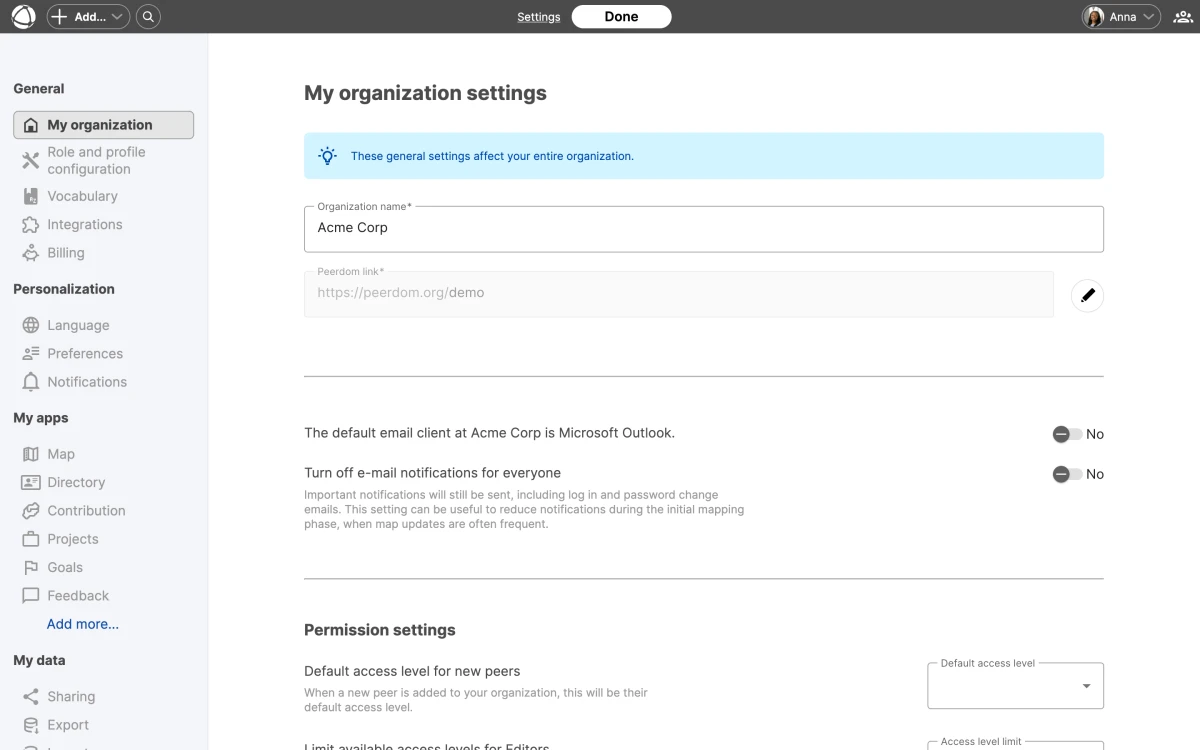
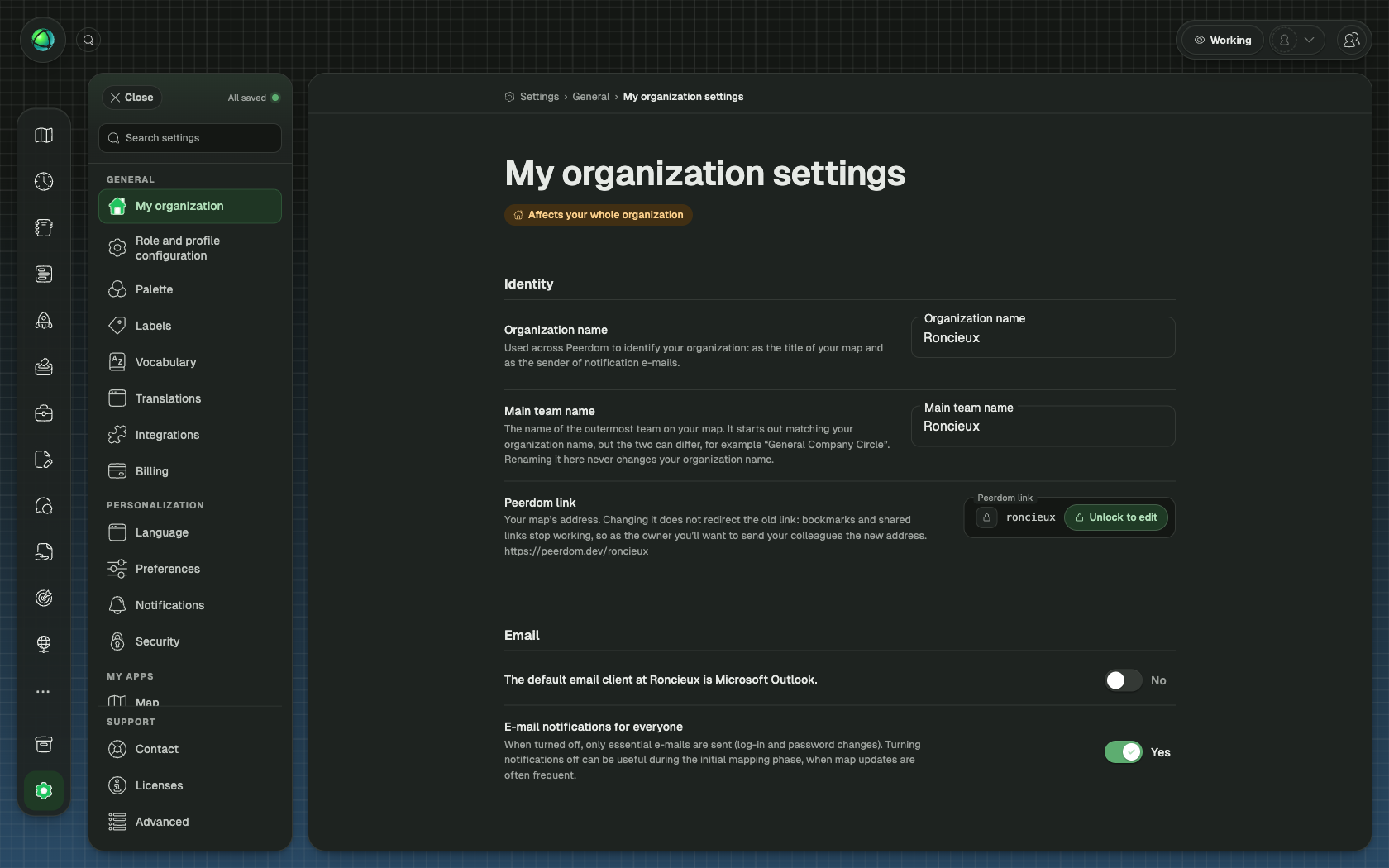
- Organization Settings: configure default access level
- Owner Quick Reference: what Owners can do