Sharing & Embedding
You can share your Peerdom map with people outside your organization in three ways: make it public, send a private link, or embed it on another website.
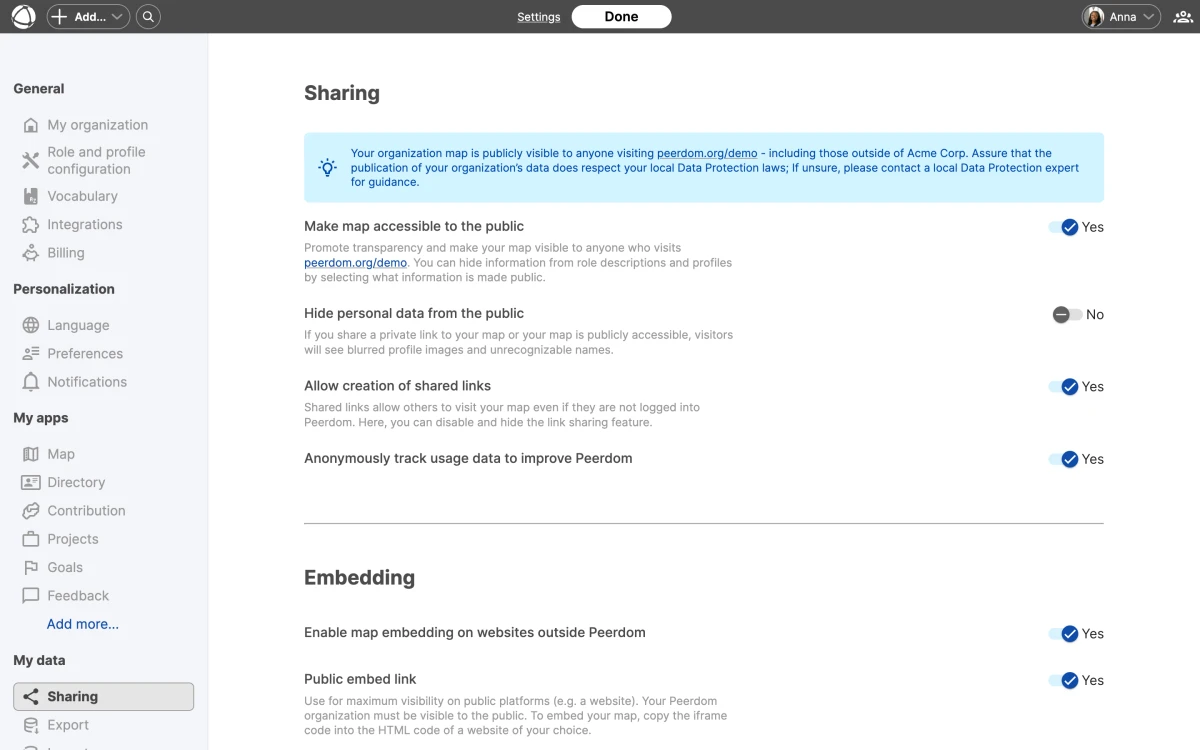
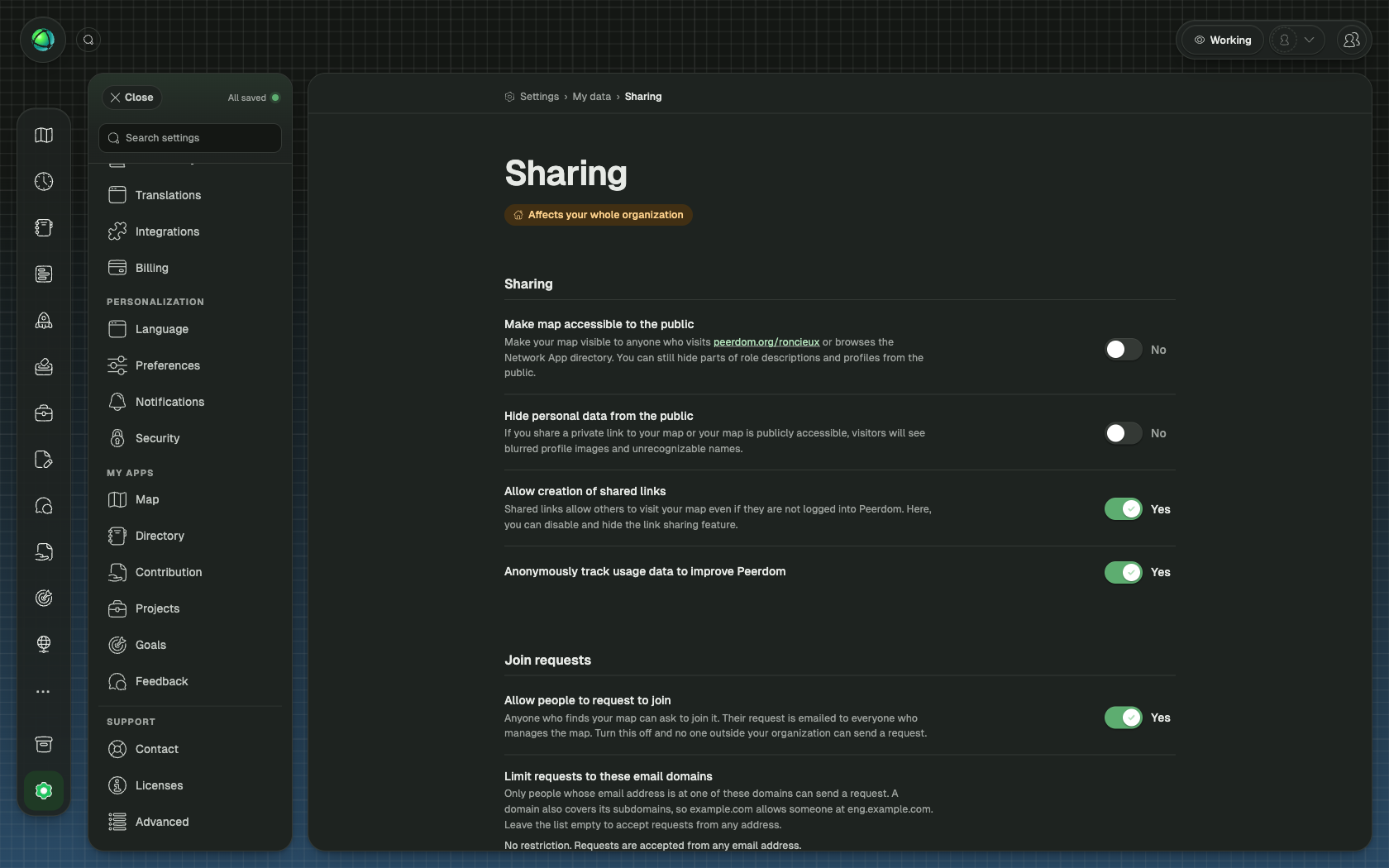
Public sharing
Make your map visible to anyone on the internet.
- Go to Settings > Sharing
- Toggle Public map on
- Anyone with the URL can now view your map
Public maps are read-only. Visitors can browse your structure but cannot make changes.
Private link sharing
Share your map with specific people who do not have a Peerdom account. The link is created from the map itself. The Settings page only controls whether link sharing is allowed at all.
- An owner goes to Settings > Sharing and turns on Allow creation of shared links
- Open your map
- Open the profile menu in the top right corner and select Share
- Toggle Activate on to create the private link
- Select Copy and send the link to the people you want to grant access
The same Private link to map overlay manages the link afterwards:
- Refresh link issues a new link and makes the previous one inaccessible
- Toggling Deactivate turns the private link off entirely, immediately revoking access for everyone who had it
Embed on external websites
Display your map inside other platforms using an iframe. Peerdom embeds work on SharePoint, Confluence, WordPress, Webflow, and any platform that supports iframes.
- Go to Settings > Sharing
- Copy the Embed code
- Paste it into your website or intranet page
What works in embeds
Visitors can zoom, search, and read descriptions of circles and roles in the embedded view.
What is not available in embeds
- Goals layer
- Network layer
- Private custom fields
- Contact information
Anonymization
If you want to share your structure without revealing personal details, enable anonymization. When turned on, public and embedded views show:
- Abbreviated names (initials instead of full names)
- Blurred avatars
This lets you share your organizational design while protecting individual privacy.