Drafts
Drafts let you experiment with structural changes without affecting your live map. Think of a draft as a sandbox where you can reorganize circles, create roles, and test new structures, then publish when you are ready. Explore the Drafts app to learn how it supports safe experimentation.
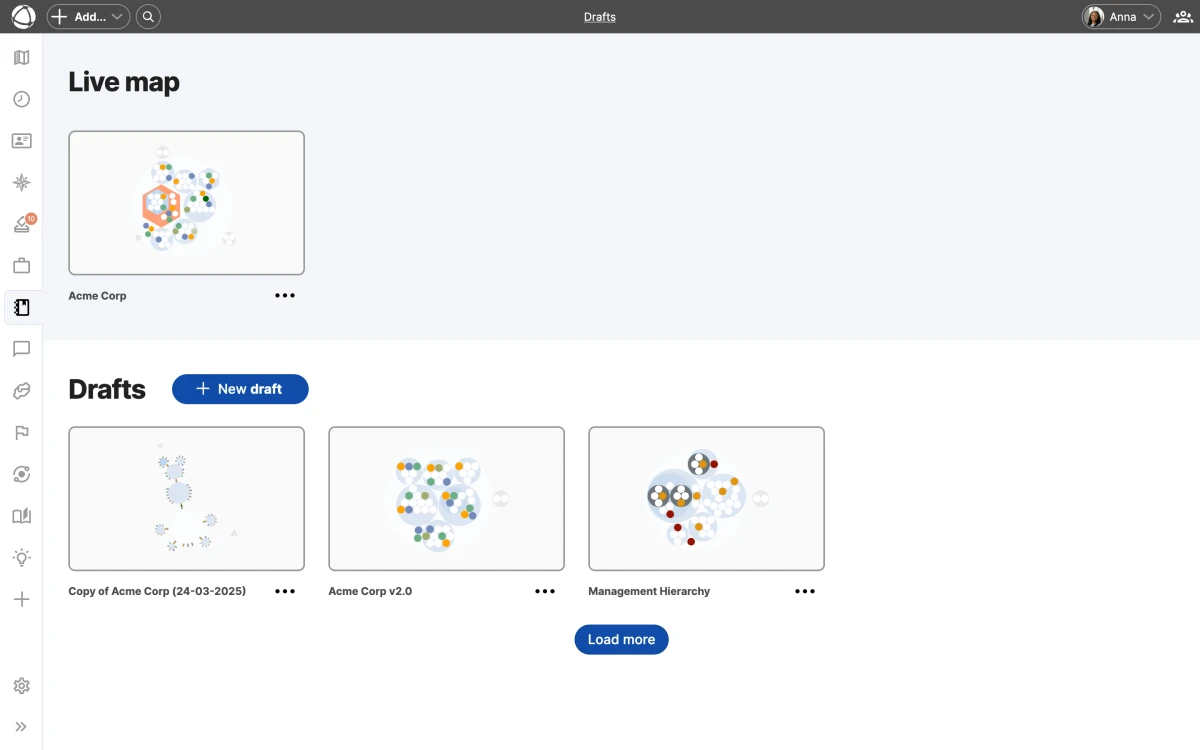
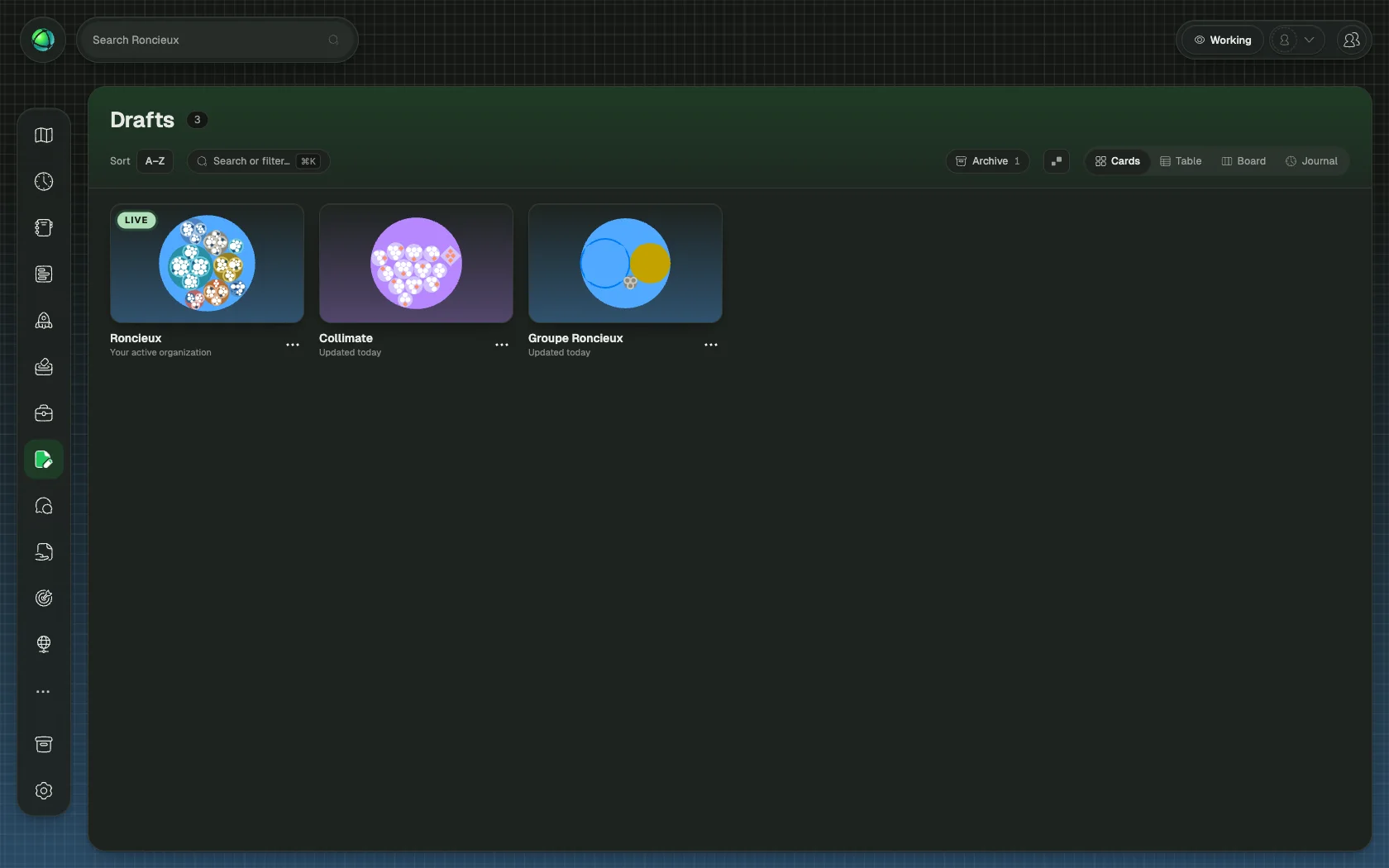
Create a draft
You can start a new draft in three ways:
- From scratch: an empty map where you build a new structure
- Copy of live: a snapshot of your current live map that you can modify
- Duplicate an existing draft: a copy of another draft as a starting point
Your organization can have multiple drafts open at the same time.
Working in a draft
When you enter a draft, the background changes to a blueprint-style pattern. This visual cue reminds you that changes here do not affect the live map.
Inside a draft, you can create, edit, move, and delete circles and roles the same way you would on the live map. You can also copy or move individual nodes between a draft and the live map. There is no automatic way to merge two drafts, but moving nodes between them does the same job by hand.
Sharing
A draft is either private or visible. A private draft is seen only by the person who created it. A visible draft is seen by everyone in your organization with Member access or above, and Editors and Owners can edit it.
To let particular people into a private draft, share it with a link. Open the ⋯ menu on the draft, choose Share…, then Create link and copy the Private link. There is no list of people to pick from: access goes to whoever opens the link, and you manage that list afterwards.
Anyone at your organization with Member access or above gets in when they sign in and open the link. Members can view the draft; Editors and Owners can also edit it. Guests have no access. The link does not expire and there is no limit on how many people use it, so treat it as a secret: anyone you send it to can pass it on.
Managing access
Choose Share… again to see who has opened the link. From there you can Remove access for one person, or Stop sharing to end it for everyone.
Removing someone replaces the link. People who already have access keep that access; the old link itself stops working, so anyone still to join needs the new one. Removal is silent: the draft simply stops appearing for them.
You, and any Owner you have shared with, can see the link and the list of people. An Owner you share with can also remove people or stop sharing.
Sharing ends on its own when you publish the draft or make it visible to everyone: turning it private again does not bring it back. It also ends if the draft is deleted, or if the person leaves your organization. Archiving does not end sharing, and Share… is hidden while a draft is archived, so unarchive it first if you need to stop.
Publishing
Publishing replaces the current live map with the draft. The map that was live becomes a draft of its own, so you can publish it again to go back.
Publishing always needs Owner permissions. For a private draft, you also have to be the person who created it:
- A visible draft can be published by any Owner.
- A private draft can be published only by the Owner who created it. An Owner who was given a link can view and edit that draft, but not publish it. A private draft created by an Editor cannot be published at all: make it visible first.
Who can use Drafts
- Editors and Owners can create and work with drafts.
- Members can view visible drafts, and any private draft shared with them by link.
- Guests cannot see drafts.
Related
- Navigating the Map: explore views and search
- Circles & Groups: organize structure in drafts
- Roles: create and modify roles in a sandbox
- Owner Quick Reference: publishing capabilities