Map Layers
Layers let you show or hide different types of information on your map. Think of them as transparent overlays: toggle each one on or off to focus on what matters right now.
Available layers
- Peers displays holder avatars on roles. This layer is always available.
- Projects shows project badges on circles and roles. Requires the Projects app.
- Goals shows goal indicators on circles. Requires the Goals app.
- Network shows connected organizations. Requires the Network app.
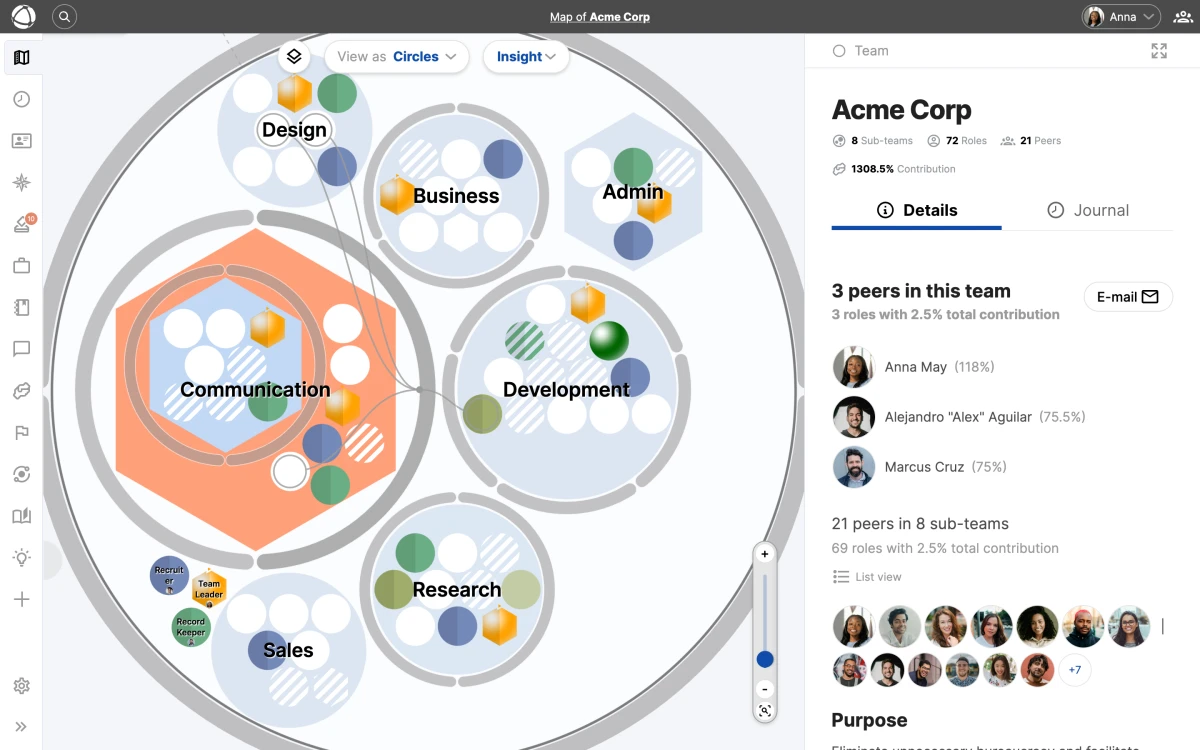
Toggle layers
- Click the Layers icon on the left side of the toolbar
- Check or uncheck each layer to show or hide it
- Your selection is saved automatically
Layer settings are saved per organization. If you belong to multiple organizations, each one remembers its own layer configuration.
Who can use layers
Layers are available to billable users: Members, Editors, and Owners. Guests cannot access the layers panel or toggle overlays.
Tips
- Turn off the Peers layer when you want to focus on structure without people
- Enable the Goals layer during planning sessions to see progress across the map
- Combine Projects and Peers to see who is working on what