What's new in Peerdom 5
Peerdom 5 is a redesign of the whole product rather than a set of added features. Your data is untouched: every map, role, circle, person, project and goal is exactly where you left it. What changed is the way you work with them.
This page walks through what is different, grouped by what you will notice, so you can find your way around on day one.
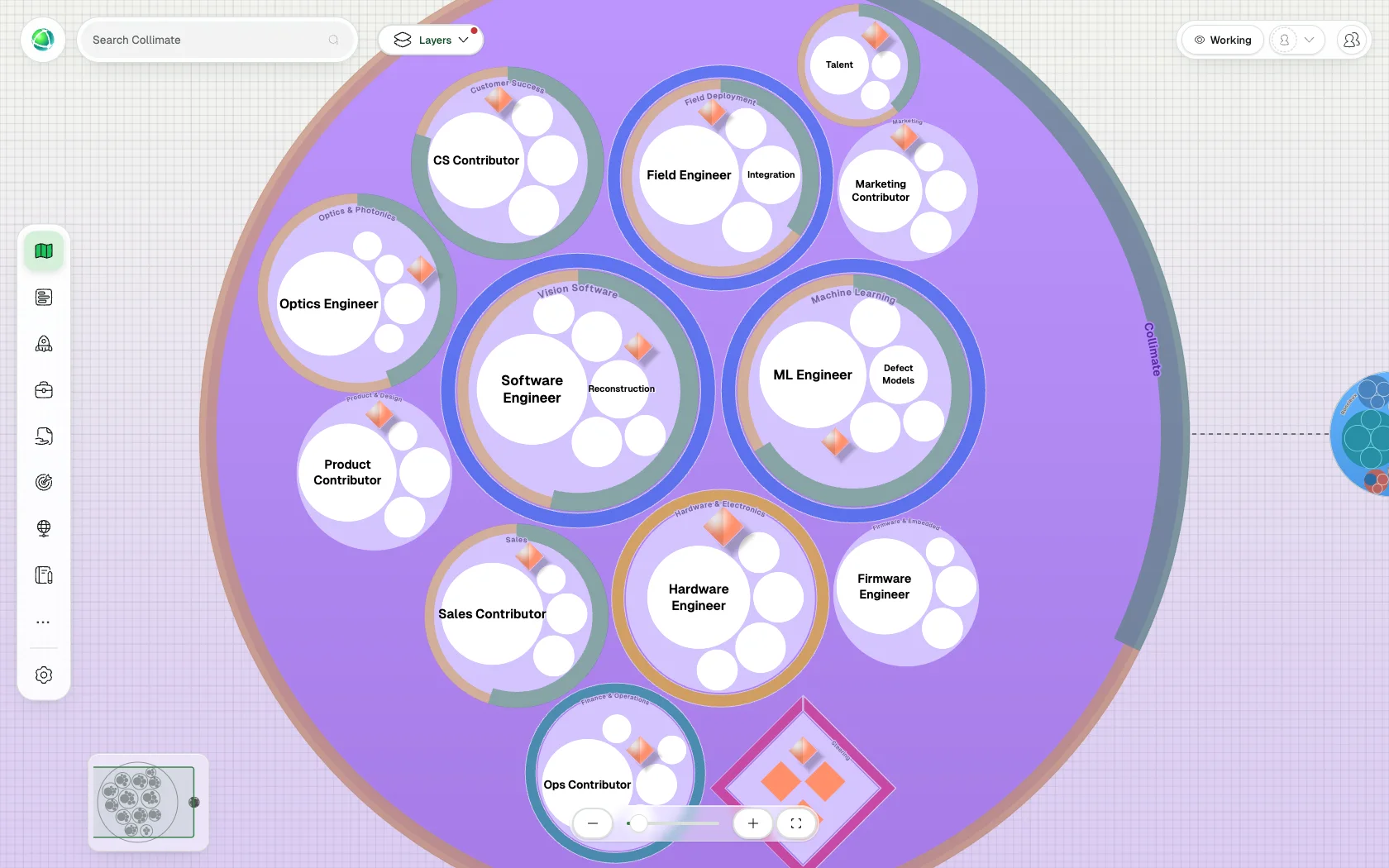
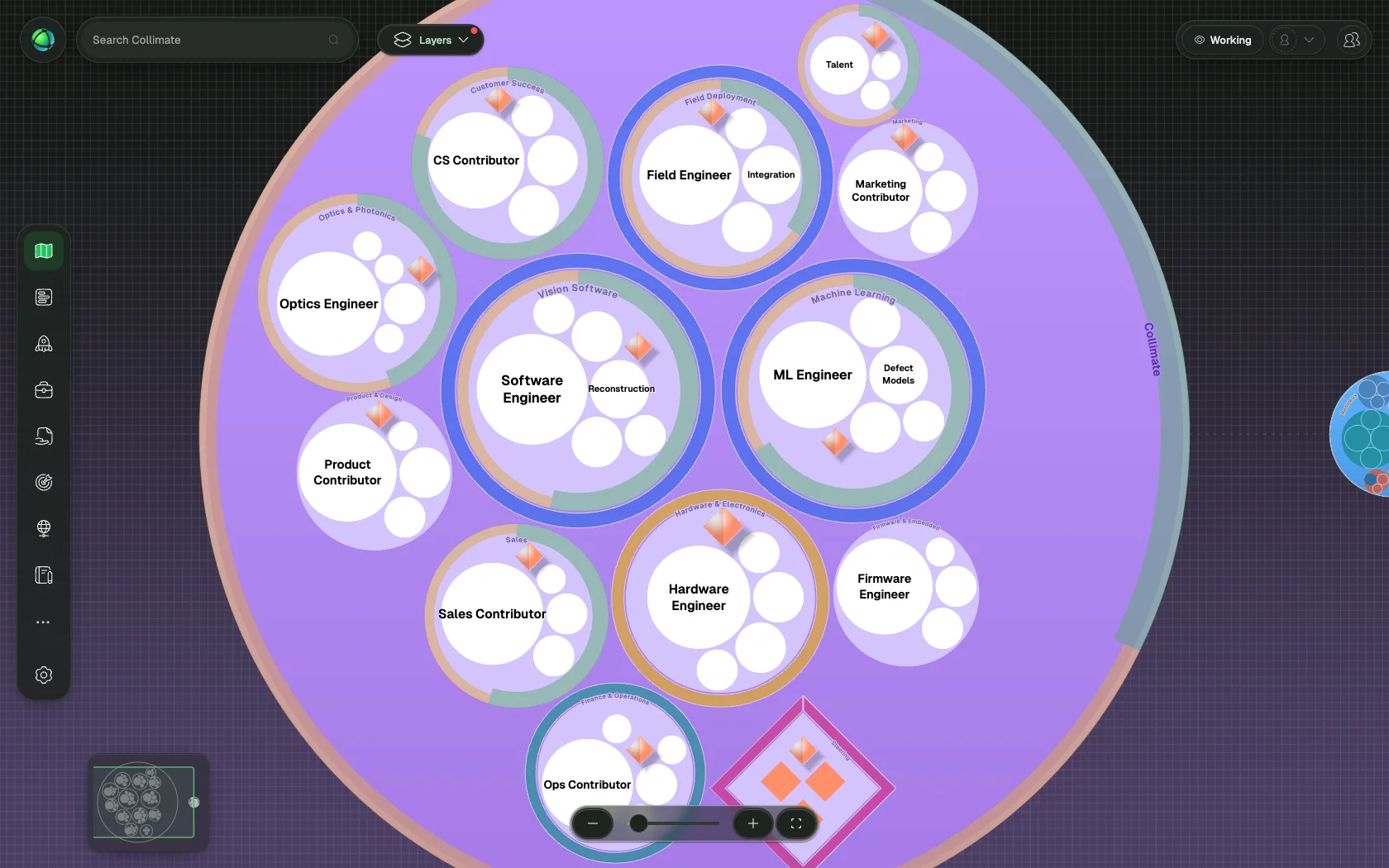
Where things moved
If you are looking for something you used in Peerdom 4, start here.
| In Peerdom 4 | In Peerdom 5 |
|---|---|
| Edit → Save in every editor | Editing mode: changes save themselves |
| New role / New group form | Add… creates the item at once, ready to edit |
| App icons and + Add in the top bar | The app rail |
| Groups in Projects, Network and Pages | Folders |
| Map List view | The Index app |
| Directory Roles tab | The Index app. The Directory now lists people only. |
| Map header layout gear, App Bar Change layout | Choose map layout, which opens Settings → Map |
| ”Colour map by” | Vital signs |
Project pages (/projects/…) | The project opens in its panel in the Projects app. Old links still work. |
| Goal edit dialog | Editing inline in the Goals app |
| Copy and Move dialogs | Sheets inside the editor panel |
| ”Archived items” in each app | Archive, one place for the whole organization |
| Undo in the Journal | Restore |
| Labels for projects only | Organization labels for every app, and for roles and circles on the map |
| Markdown typed into text fields | A visual editor with a Formatting toolbar |
Working and Editing: why there are no Save buttons
Peerdom 5 has two modes, and the switch sits at the top of the screen.
- Working is for the day to day: report progress and update values, without changing how anything is set up.
- Editing is for changing the structure itself: roles, circles, projects, goals, fields.
In Editing, there is nothing to save. Click a field, change it, click away: it is stored. This applies to roles, circles, projects, goals, people, custom fields, your profile, and every page in Settings. Add… creates the new item straight away and opens it, ready to name. There is no form to fill in first.
How you know it worked:
- In the editor, the status reads Saving changes… and then Saved. If it reads Couldn’t save. Try again, your change is not stored yet.
- In Settings, the header reads All saved, and each field flashes Saved! as you change it.
Changed your mind? Every change is in the Journal. The restore icon on a change puts that field back the way it was, and Restore all puts back every change in the list.
Every app works the same way
In Peerdom 4, each app had its own list, its own toolbar and its own editor. In Peerdom 5 they share one design, so once you know one app you know them all.
The app rail replaces the app icons in the top bar. Right-click an app in the rail for App settings, View in App Store, and to activate or deactivate it. Reposition apps… sets their order for everyone.
The same views everywhere:
| View | What it shows |
|---|---|
| Cards | A visual grid. Adjust the card size from the toolbar. |
| Table | Sortable columns. Use Columns to choose which fields are shown. |
| Board | Columns by label or by folder. Drag an item to another column to move it. |
| Journal | What changed in this app, and when. |
The same toolbar everywhere: Search or filter…, Sort, Folder, labels, and a count.
Groups are now folders. What Projects, Network and Pages called groups are folders in every app. Each folder has its own address, so you can bookmark it and a reload brings you back inside it.
Labels work everywhere. In Peerdom 4, labels marked projects only. Labels are now shared by the whole organization and live in Settings → Labels. A new label is available in All apps: projects, goals, pages, flows, drafts, contribution, feedback, network, and roles and circles on the map. To keep a label to certain apps, open its scope and pick them. Rename a label, change its color or translate it there, and it changes everywhere it is used.
The map
- Select, then zoom. The first click on a role or circle selects it. A second click zooms to it. The map no longer moves on the first click.
- One right-click menu for roles, circles, project slices and goals.
- Vital signs replaces “Colour map by”. The measures are now read as health: green is healthy, red is at risk. Combined reads all four together, and where the signals disagree strongly the circle turns amber and the panel says Signals conflict.
- Size circles by number of people, or by contribution, to see where the weight of your organization sits.
- Projects with sub-projects show their progress on the map, the way goals do.
- Time travel shows your map as it was in an earlier week. Once an Owner has turned on Provide access to past maps in Settings → Advanced, switch it on from the header and move along the Timeline. Nothing can be edited until you choose Leave time travel.
- Tree view is a real org chart, with the same features as the circle view, and prints with full role and group names.
- The layout chooser moved to Settings → Map, where you can preview a layout before you apply it.
| Vital sign | Was called | What it measures |
|---|---|---|
| Purpose | Mission alignment | Whether work is anchored to a mission |
| Continuity | Role turnover | Whether roles stay held over time |
| Shared load | Role hoarding | Whether work is spread evenly across people |
| Focus | Group scatter | Whether people are concentrated or spread thin |
| Combined | (new) | All four together, as one health reading |
Index: every role in one place
Index is a new app, and the counterpart to the Map: where the Map shows your structure spatially, Index shows it as a register you can search, sort and group by circle. It replaces both the Map List view and the Directory Roles tab.
- Find any role by name without panning the map
- Sort by any column, and choose which columns are shown
- Open a role and edit it with the full Map editor, docked to the side
- Move a role to another circle from a dropdown, without opening the map
- See mirrored roles at a glance: they are marked with a half-filled dot
The Directory now lists people only.
One editor for everything
Roles, circles, projects and goals all open in the same panel. It floats over the Map and docks to the side inside apps.
- A switch in its header moves between the role itself, its Journal (this item’s own history) and, while a vital sign is on, its Vital signs
- Expand to full screen hides everything else, which helps when writing a longer purpose
- Drag its edge to adjust the width. Peerdom remembers it.
- Footer actions: Add…, Move to…, Copy to…, and a ⋯ menu holding Modify fields and Delete
Projects no longer have a page of their own. A project opens in this panel inside the Projects app, and links to old project pages still lead there. Projects also gain:
- Sub-projects: measurable checklist items (done, a percentage, or an amount) that roll up into the project’s progress
- A description field with formatting
- Copy, which duplicates a project with its roles, labels and custom fields, and Move, which relocates it to another circle
Goals are created and edited inline in the Goals app. The goal dialog is gone, and sub-goals, completion and confidence all edit in place.
Formatting without Markdown
In Peerdom 4, bold text, a link or a list meant typing Markdown into a plain text field. Peerdom 5 has a visual editor: select the text and use the Formatting toolbar for bold, italic, headings, lists, checklists, quotes, links and tables. What you see is what everyone else reads.
It is used for purposes, accountabilities and other role and circle fields, text custom fields, profiles, pages and flow steps. Expand for focused writing gives a longer text the whole screen.
People and profiles
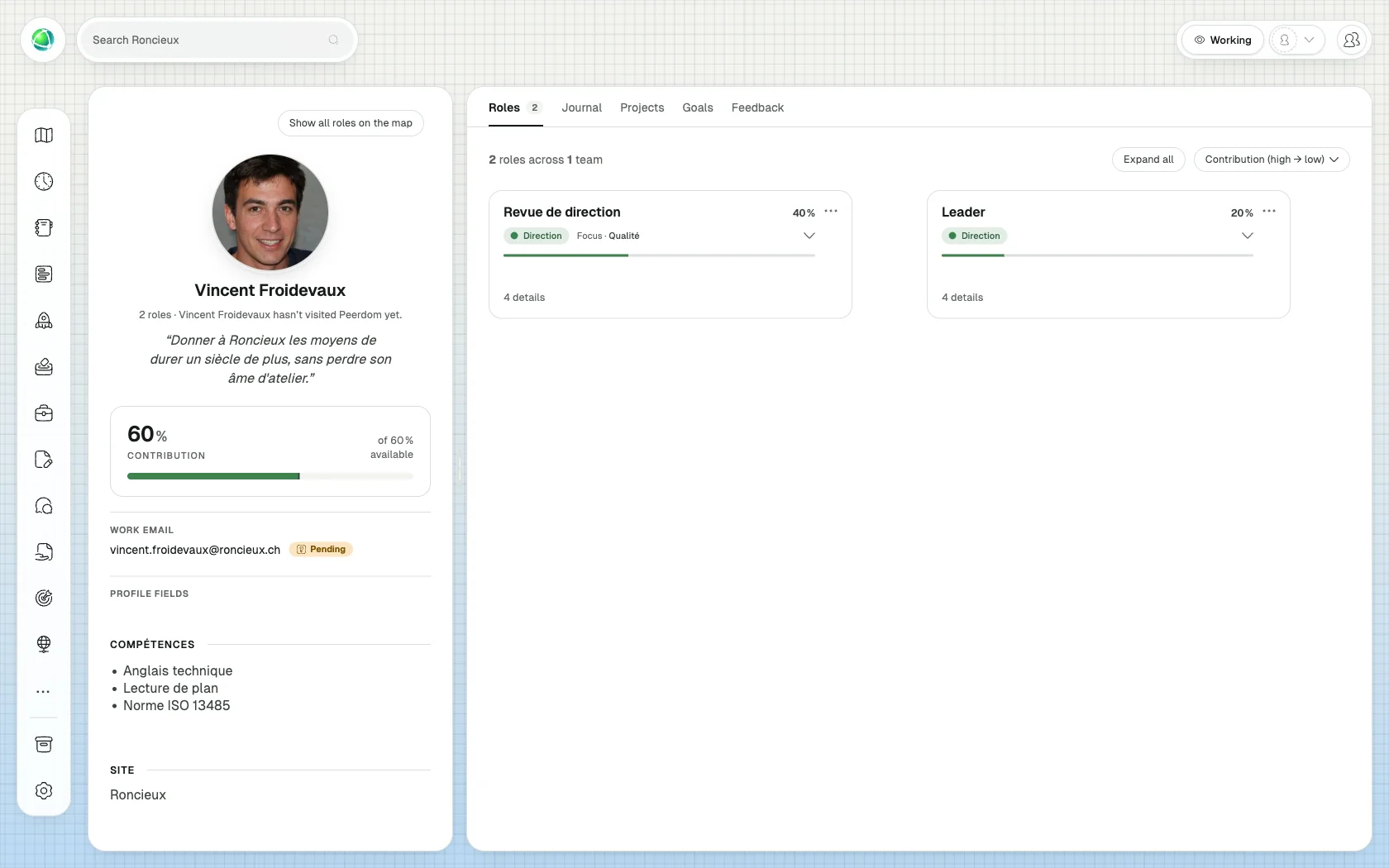
- Your profile is edited where you read it: name, photo, quote and custom fields. Contribution is edited on the role card itself.
- Roles show as cards in their circles’ colors. Roles, salary, journal, projects, goals and feedback each have their own tab. The profile works on mobile.
- Privacy is stated in words: Only you or Everyone. Opening something private shows who owns it, with a Request access button that notifies them.
- My organizations, the screen that lists every organization you belong to, shows each one’s plan and keeps archived organizations on a separate tab.
Finding and keeping things
One search field answers everywhere, with one list of results. When what you type reads like a description rather than a name, Peerdom offers Search by description, which finds roles and circles by what they do. “Who handles invoices?” finds the role even if “invoice” is not in its name.
Archive gathers everything archived across the organization in one place, replacing the “Archived items” list in each app. It is part of Peerdom+ rather than an app in the App Store, and appears in the app rail once something has been archived.
- Archived roles and groups, projects, goals, drafts, pages and flows appear together, newest first
- Filter by kind
- Put back restores an item to where it came from
- Delete forever permanently removes a project, goal or flow, after a confirmation
- Empty archive clears the archive at once
Bringing your organization over is new too. With Import organization data, you can move circles, roles and people from another tool, or bring your documents over and let Peerdom read the structure out of them.
Two new apps
Flows
Turn recurring work into repeatable, guided processes. Map a process as steps and hand-offs, say which roles are involved in each step, and follow where every flow stands on a board. The Flows layer draws the steps over the roles involved on the map.
Proposals
Suggest changes to roles and groups, reviewed before they go live. Anyone can propose a change to a role or group, with a reason, and without needing edit rights. Editors and Owners accept or decline at their own pace, and every proposal leaves a trail.
Both are in the App Store and can be added to any Peerdom+ organization.
Your first digital employee: the Translator
Digital employees are agents that hold a role on your map and do continuous work for you. The first is the Translator. On a multilingual map, it completes every text in the languages you run, so nobody reads a half-empty role. When someone changes what a text means, it carries the change into the other languages. When someone only improves a word, it leaves the rest alone.
Owners turn it on in Settings → Translations → Automatic translation. Digital employees are the one thing added to Peerdom+ separately. Meet the digital employees.
Look and feel
- Peerdom has a new look, with a new typeface and icons throughout.
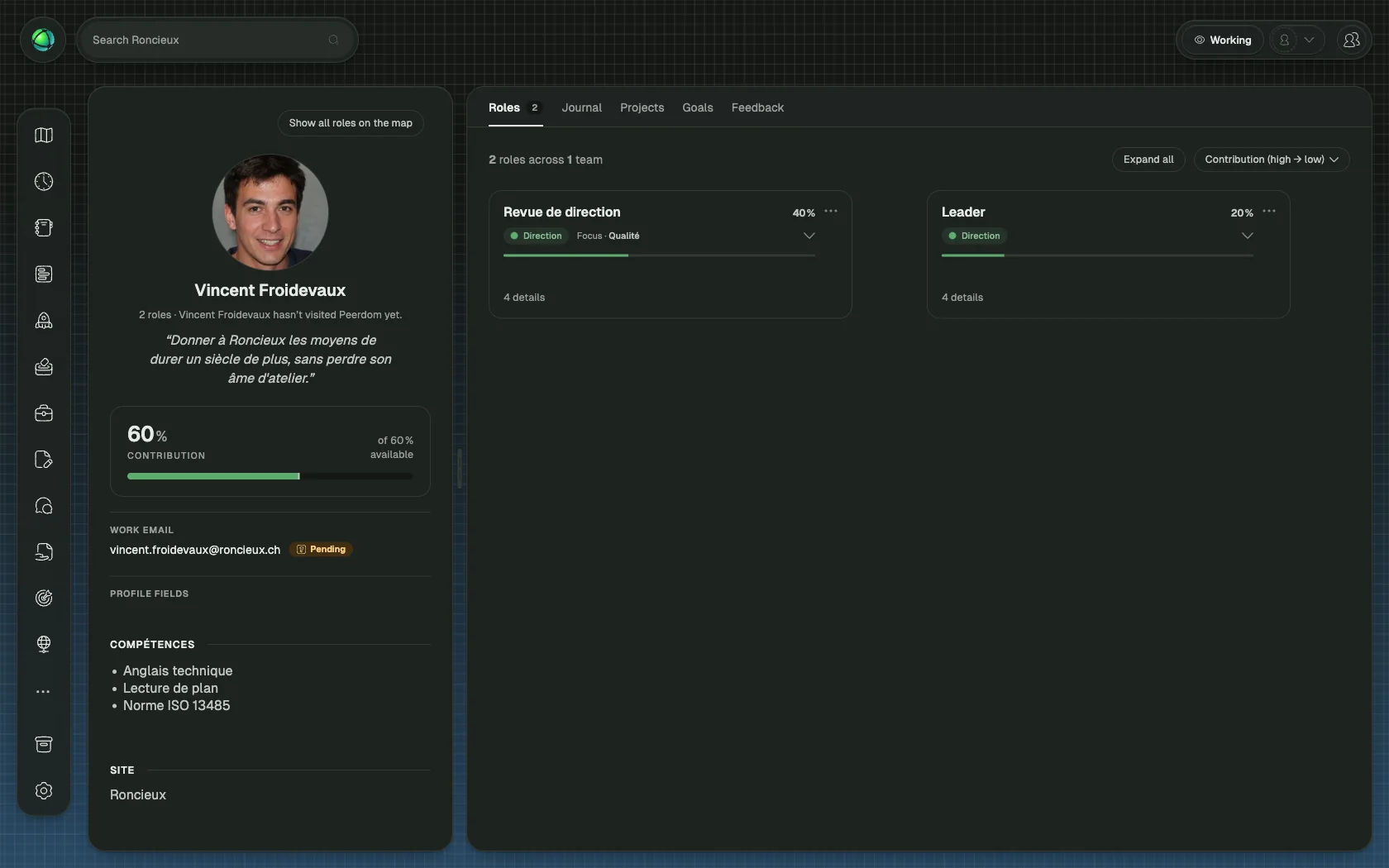
- Dark mode: choose Light, Dark or Auto, which matches your device.
- Accent colour: pick your own from eight.
- These live in Settings → Preferences → Appearance, and every member can now set their own preferences.
- Search settings filters the settings navigation.
Plans: what Peerdom+ includes
Free is the live map for an organization of up to 10 members: your structure and roles, shared with a link.
Peerdom+ is everything in Free, plus:
- As many people as you need on the map
- Index, Insights, Journal, Missions and Network, included at no extra cost
- Time travel through your map’s history
- Archive for everything archived across the organization
- Search by description
- Every custom field type: image, list, link and relationship fields, as well as text
- Any other app in the App Store, including the new Flows and Proposals
- Priority support
The free plan still gives you your live organization map and the people you invite to explore it. What it no longer has is a list of all your roles: Index replaces both the Map List view and the Directory Roles tab, and Index is part of Peerdom+. If your organization is on the free plan, browse your structure on the Map, or see what upgrading adds.
Buying and changing your plan happens inside Peerdom now. Adding an app is one confirmation, and when a trial ends, an Owner can Continue with the free plan without contacting us.
What has not changed
- Your map, roles, circles, people, projects, goals, pages and history
- Access rights and permission levels
- SSO and directory sync
- Your API keys, webhooks and integrations
- Custom fields and their values
- Your organization’s terminology: if you call circles “teams”, Peerdom 5 still calls them teams