Group Layouts
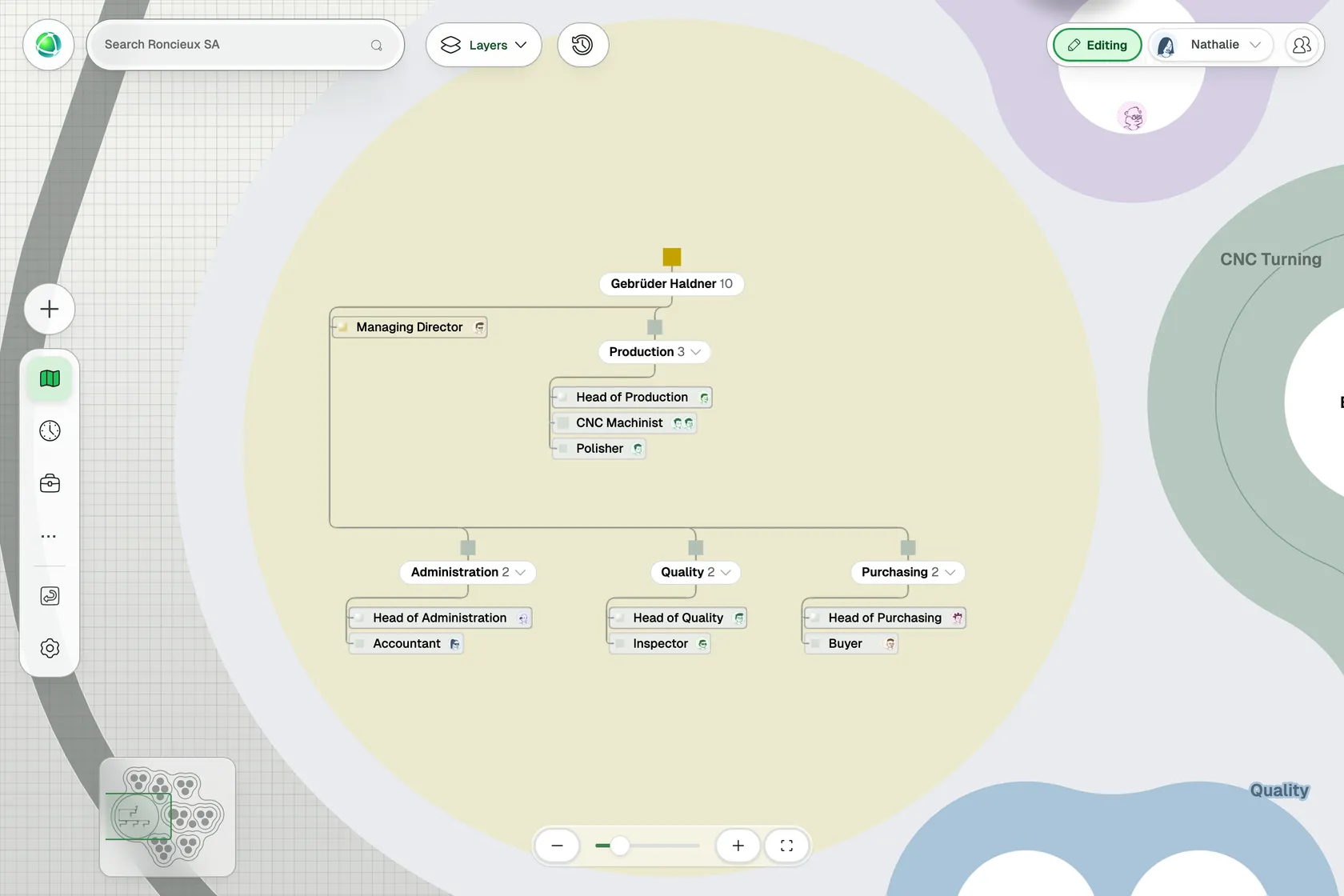
By default, your whole map uses one layout. With group layouts, a group (any team, department or company inside your organization) can draw its own branch in a layout of its own. A department that runs as a hierarchy can show as an org chart, while the rest of the organization stays in the Bubble Map or in circles. This is how you show a hierarchy and a role-based network side by side, on one map.
Choose a layout for a group
- Switch to Editing at the top right.
- Select the group on the map.
- Open the Design tab in its panel.
- Under Layout, choose Choose a layout for the group, then pick a layout.
To go back, choose Use the organization’s layout. The group then follows the map’s layout again.
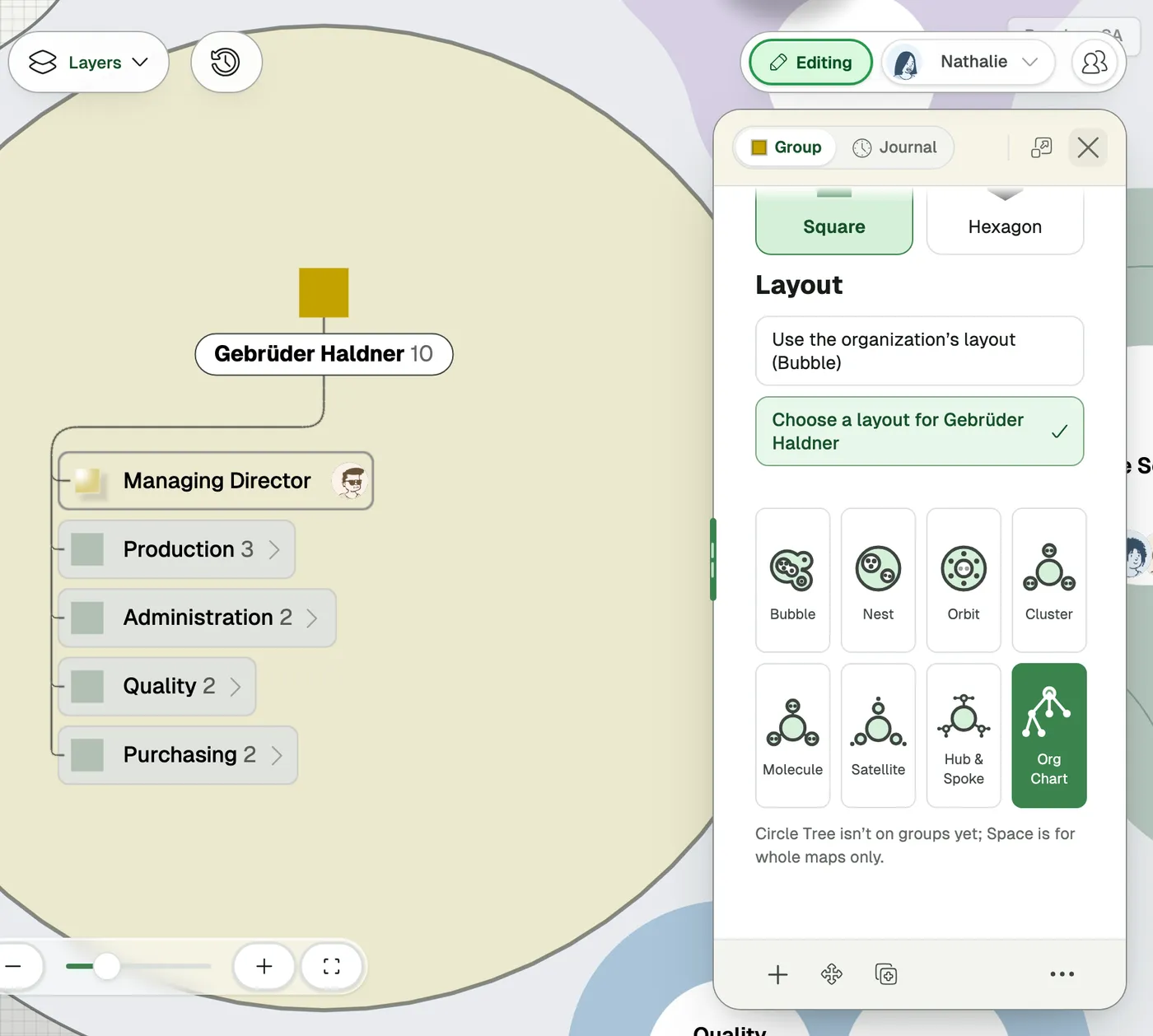
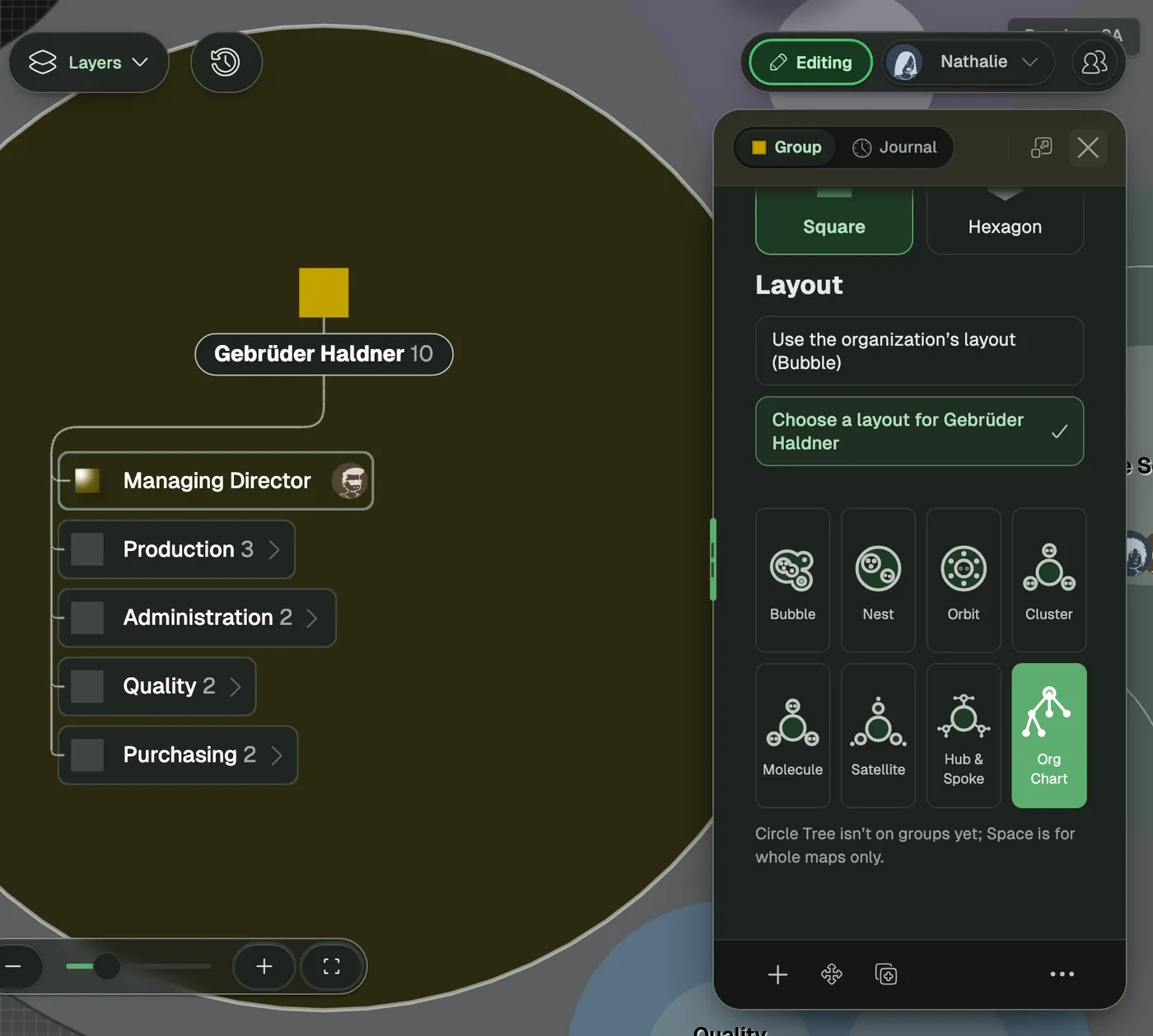
A group can use Bubble, Nest, Orbit, Cluster, Molecule, Satellite, Hub & Spoke or Org Chart. Circle Tree and Space draw the whole map: you set them in the Layout section of the Map settings (see Bubble Map).
How it looks on each map design
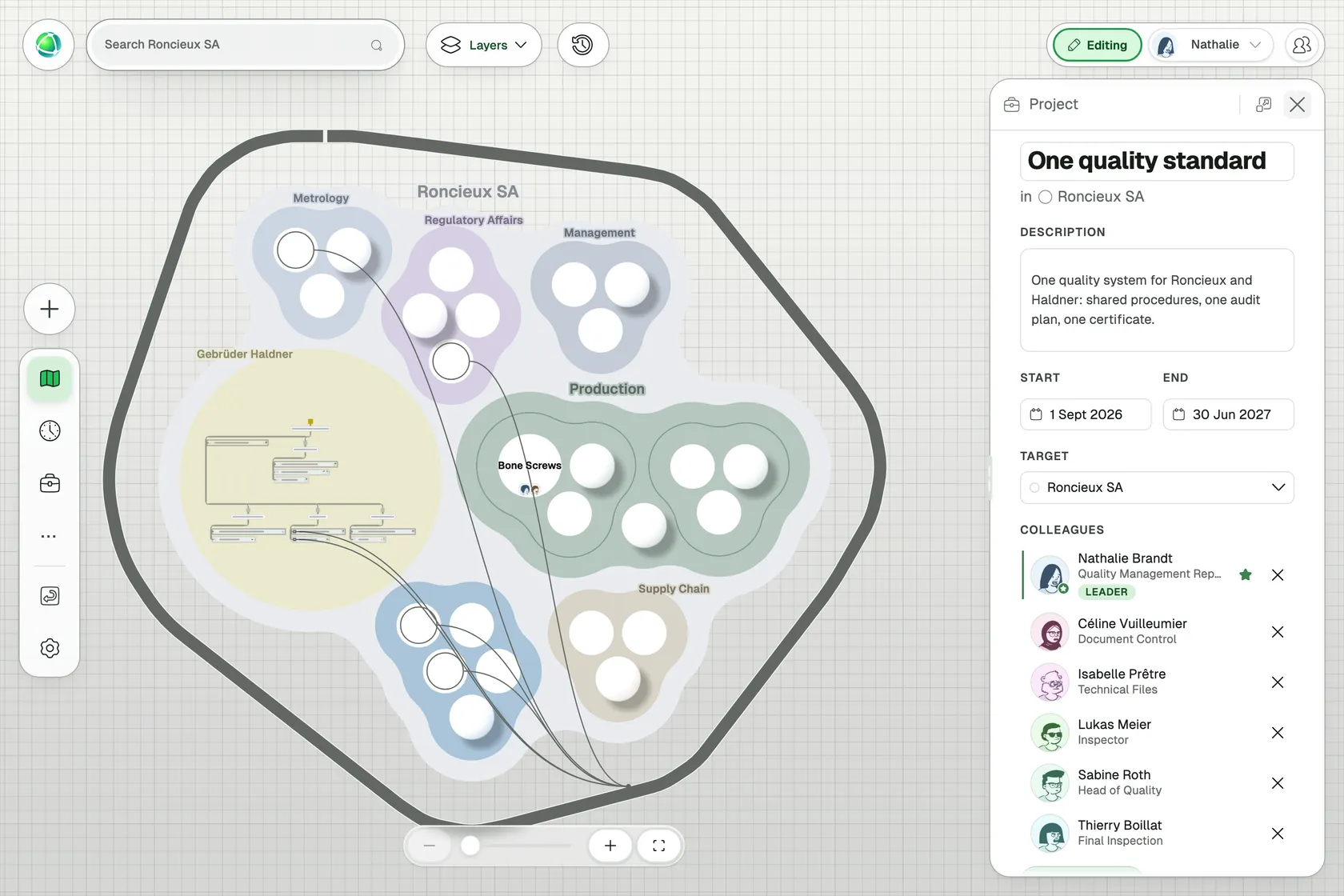
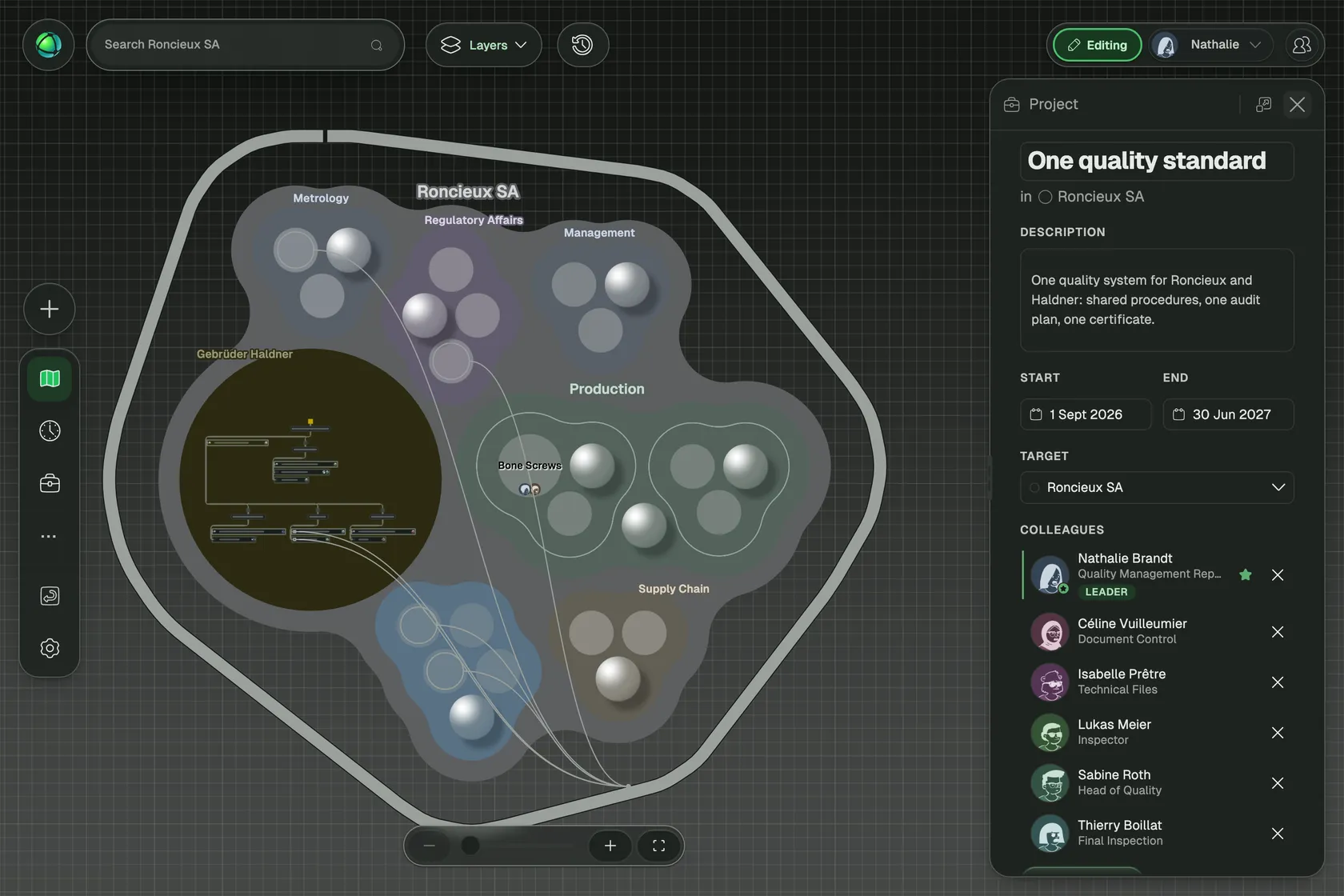
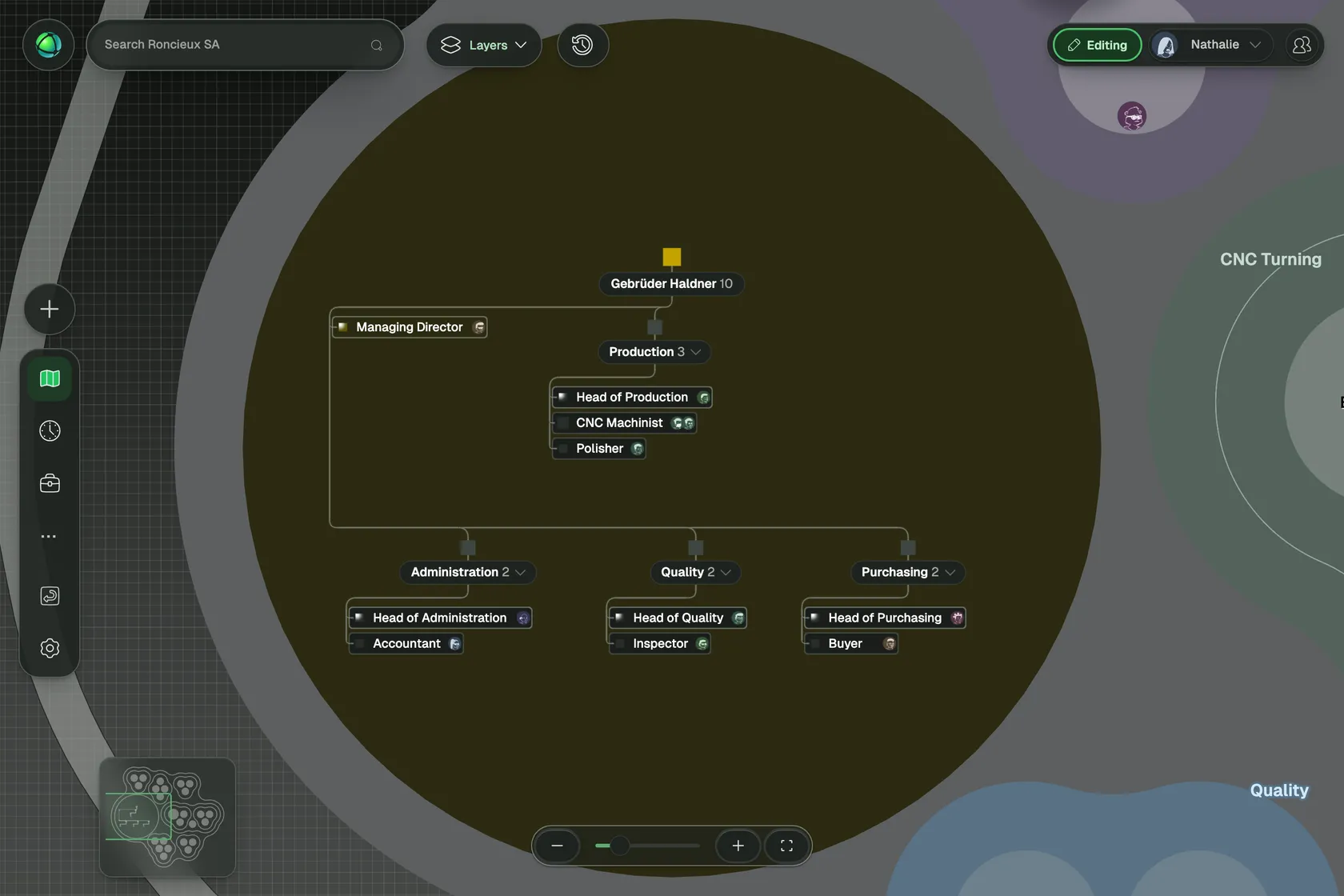
- Bubble Map: every group layout shows. A group drawn as an org chart keeps its place as a round frame, with its branch drawn inside as an org chart. A group with a circle layout, such as Orbit, is drawn in that layout inside its bubble.
- Circles (Nest and the other circle layouts): every group layout shows. A team drawn in Orbit can sit inside a map drawn in Nest, and a team drawn in Bubble keeps its bubble shape inside its circle.
- Org Chart as the map’s layout: a group with a circle layout or Bubble shows as a block in the chart, arranged in its own layout.
- Circle Tree or Space as the map’s layout: group layouts show once the map is drawn in circles or as an org chart.
Zoom in on a group drawn as an org chart to read its roles and people. Teams within the chart that hold only roles start folded. Click the arrow on a team to open or close it.
Rules
- The whole branch follows. A group’s layout applies to every group and role below it.
- One layout per branch. A branch carries one group layout, set by one group for everything below it. The Design tab names that group, with a link to it. To choose another layout higher up or lower down, clear that layout first.
- The top group follows the organization. The top of your map always uses the organization’s layout, set in the Layout section of the Map settings.
- Same data, every layout. A layout changes how a branch is drawn; what is in it stays the same. Roles, people and projects stay the same.
Projects around the whole map
On Bubble and circle maps, a project for the whole organization runs on one rounded outline around your entire map, including any group drawn as an org chart and any external groups beside it. Turn on the Projects layer, then select the project: lines run from the outline to every role on it, whether that role sits in a bubble, a circle or a row of an org chart. See Projects.
Who can use group layouts
Editors and owners can set a group’s layout, like its color and shape. Everyone who can see the map sees the result. Group layouts are part of every plan.
Related
- Bubble Map - the default layout for new maps
- Tree View - the org chart as the layout of the whole map
- Circle View & Layouts - the circle layouts a group can also use
- Projects - projects on the map