Flows
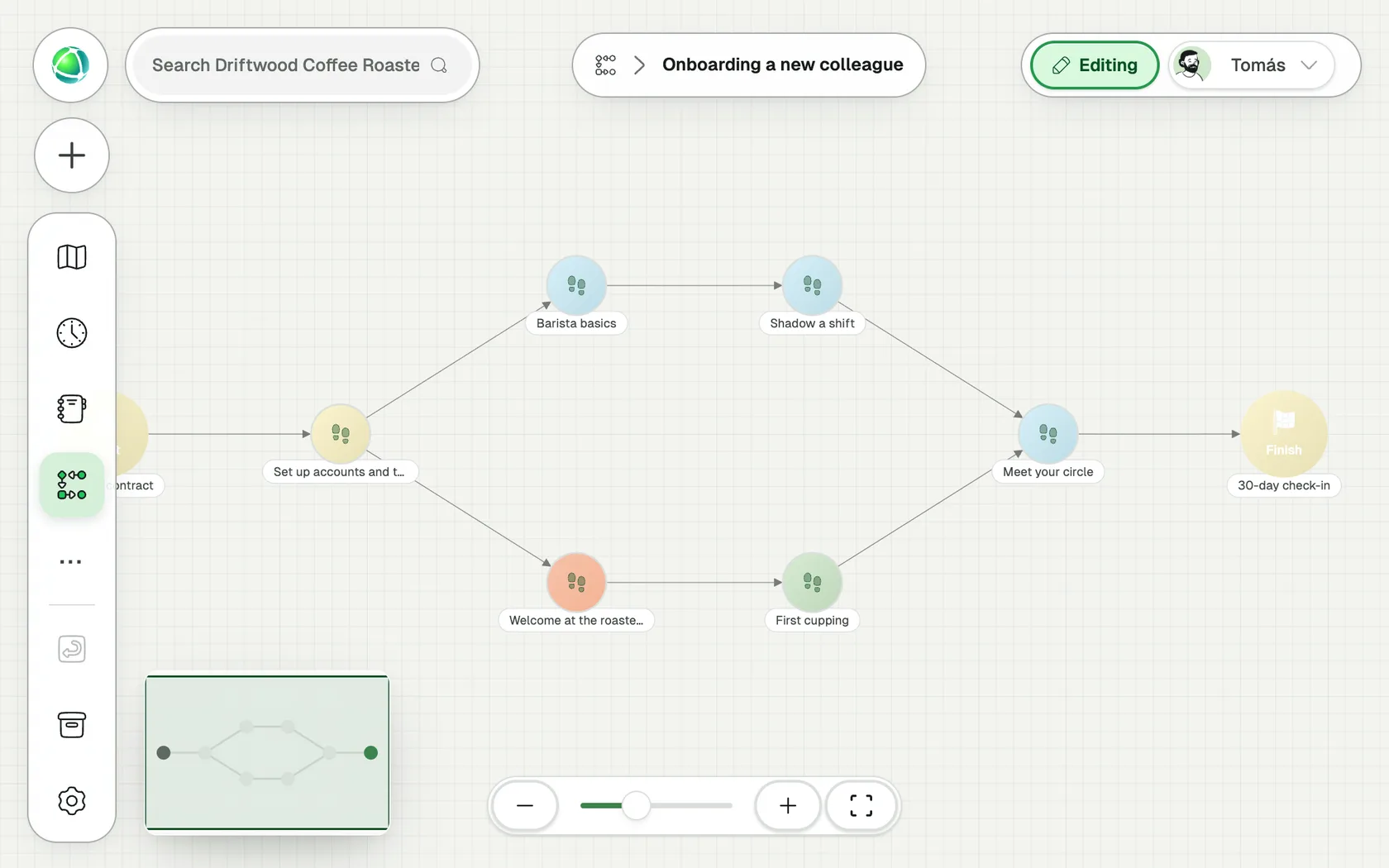
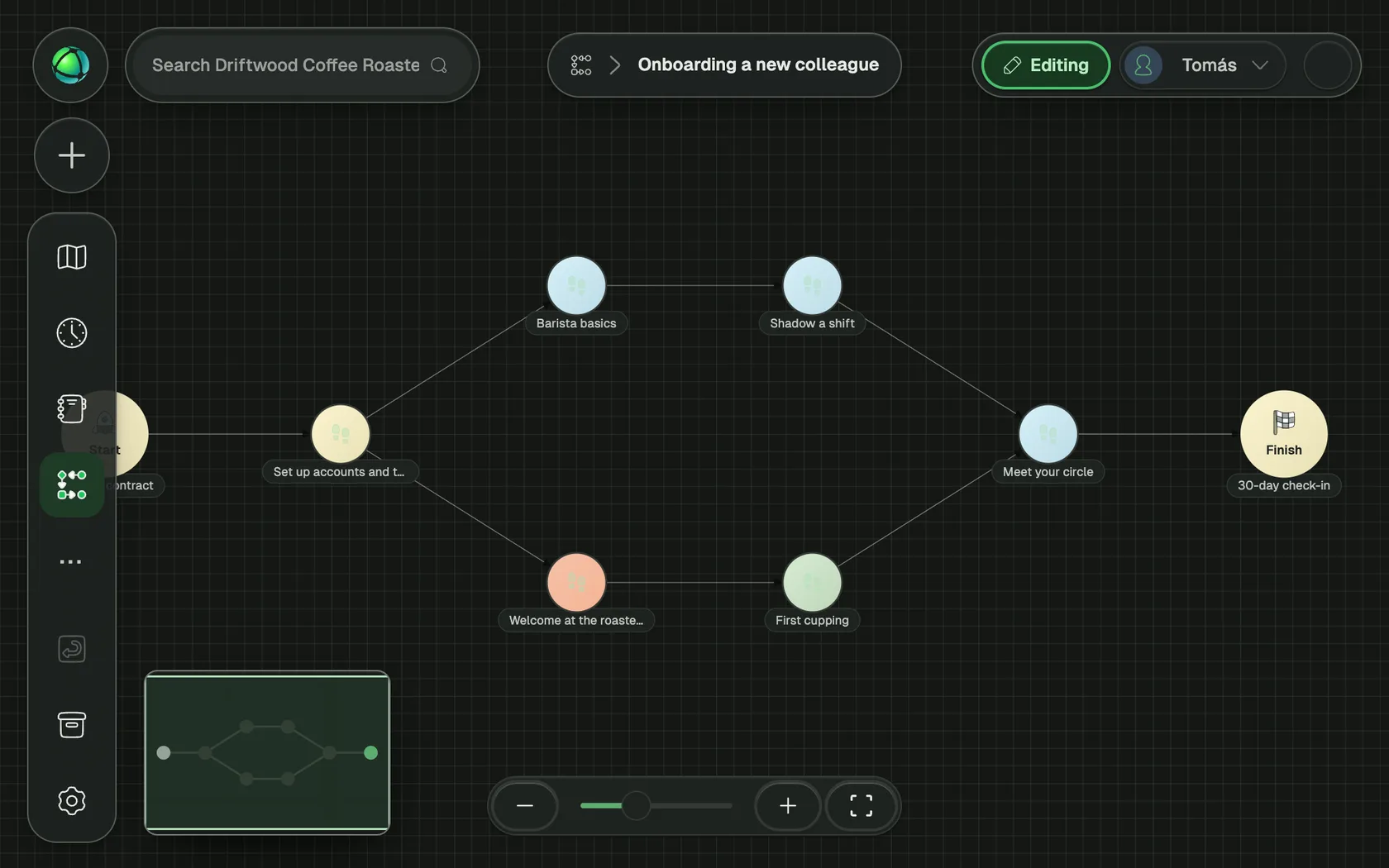
Flows maps the work your organization does again and again, such as onboarding a colleague, handling an order or closing the month, as steps connected by hand-offs. Each step names the roles and people involved, so a flow shows who does what, in which order, on top of your structure.
Create a flow
- Open Flows and click New flow. An untitled flow is created and its panel opens.
- Give it a Name and a Description.
- Choose its Access: Private keeps it to you; Public lets everyone see it and show it on the map.
- Click Open flow to build its steps.
Owners and Editors can change flows; Members read the flows they can see. To change a flow, switch to Editing: in Working mode a flow opens for reading, and right-clicking offers Switch to editing.
Add steps and hand-offs
A flow runs from a Start step to a Finish step, and every arrow between two steps is a hand-off.
- Select a step and click its + (Add step) to add the next step after it.
- On an arrow, choose Insert step to put a step between the two, or Split and add step to add a branch and keep the original arrow.
- Hold Ctrl (Cmd on a Mac) and drag a step to move it.
- Delete step removes a step and reconnects its neighbors, so the flow stays intact.
Describe a step
Click a step to open its window:
- Name and Description: what happens in this step.
- Involvement: click Add involvement and search for roles or people. Add a role as Every holder of this role to involve whoever holds it, now and later.
- Color and Shape: how the step looks.
- Show on map: draw the step over the roles involved.
See flows on the map
Turn on the Flows layer in the map’s Layers menu to draw the steps over the roles involved. A role that is part of no flow says so in its details.
Organize flows
Sort flows into folders, give them labels and a cover image, and switch to the Board to see them grouped by label. Archive a flow when it is no longer used; it stays in the Archive.
Related
- Roles: the building blocks every step refers to
- Layers: show and hide what the map displays
- Editor basics: Working and Editing