Digital colleagues
A digital colleague is an AI agent you hire like an app. It holds its own role on your map, has a person who is responsible for it, and only does the work its role describes. The first digital colleague is the Translator, which keeps your roles, groups and their fields in every language your organization works in.
Start a digital colleague
This example hires the Translator.
- Click the + in the App Bar.
- Choose New digital colleague. The App Store opens on the Digital colleagues tab.
- Click Meet on the Translator to read what it does, then click Hire Translator.
- Check the purchase summary: the price per paid seat, the amount charged today for the rest of your billing period, and the card on file.
- Confirm with Hire Translator. When it’s hired, open Translator settings to check its languages and who is responsible.
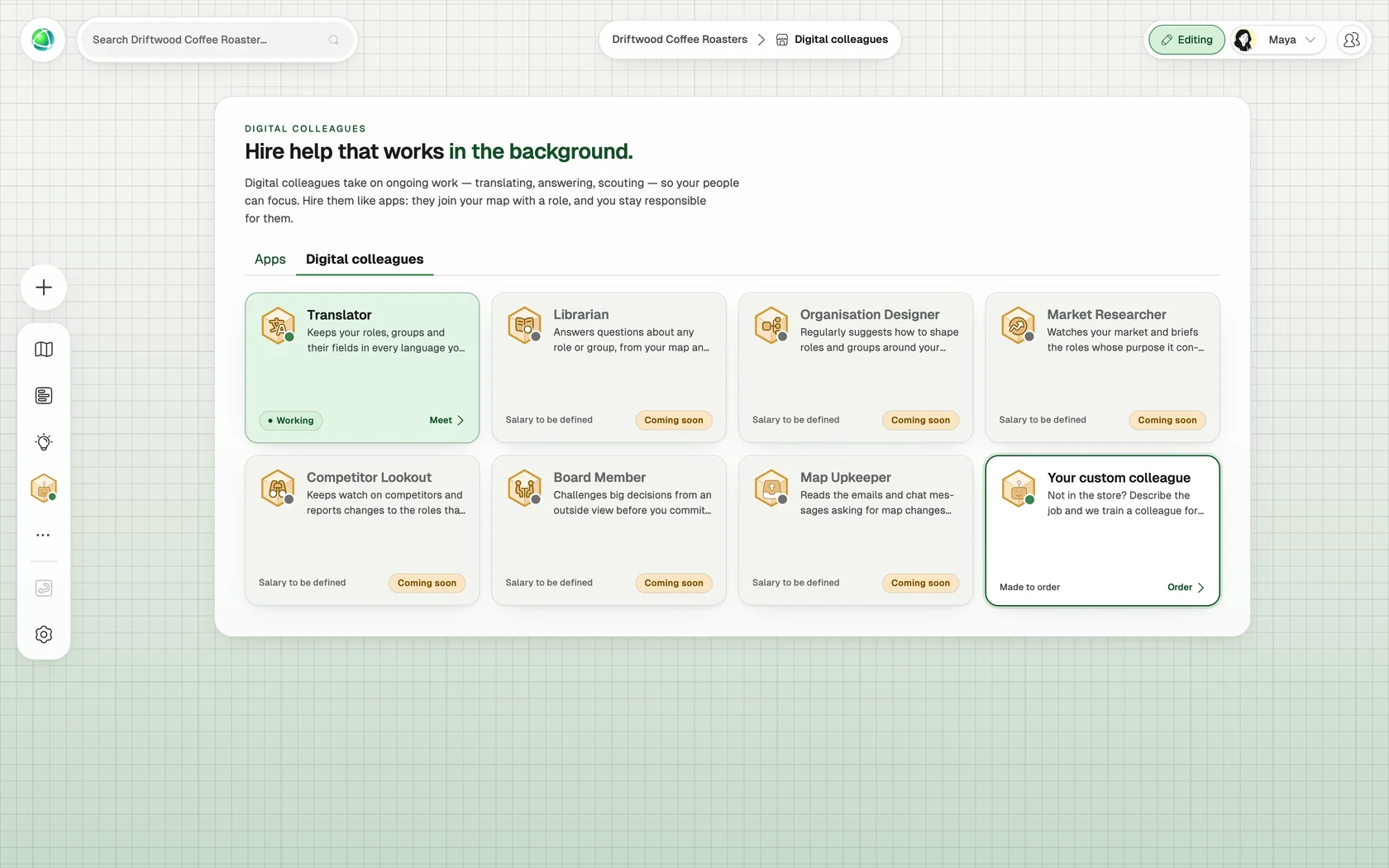
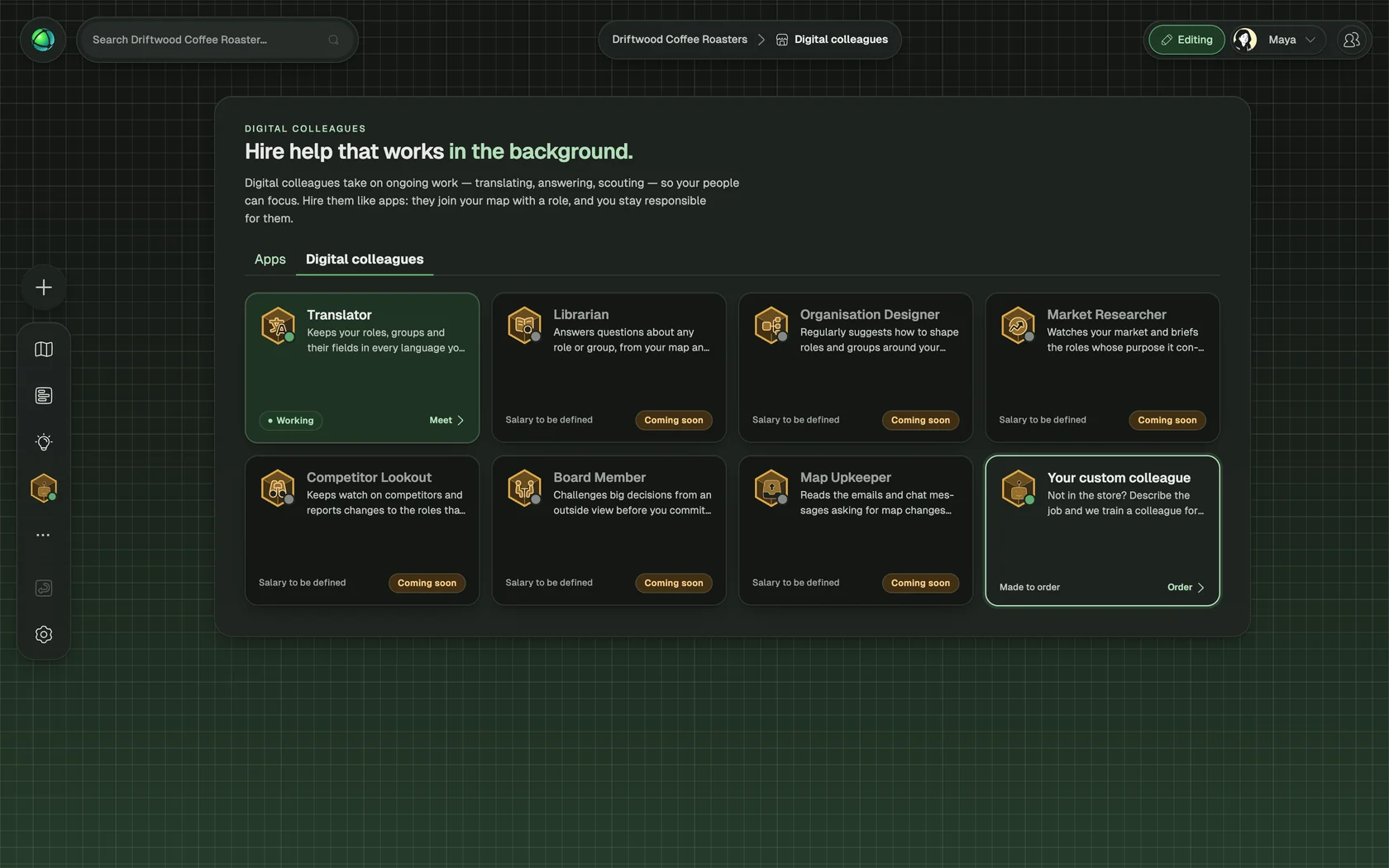
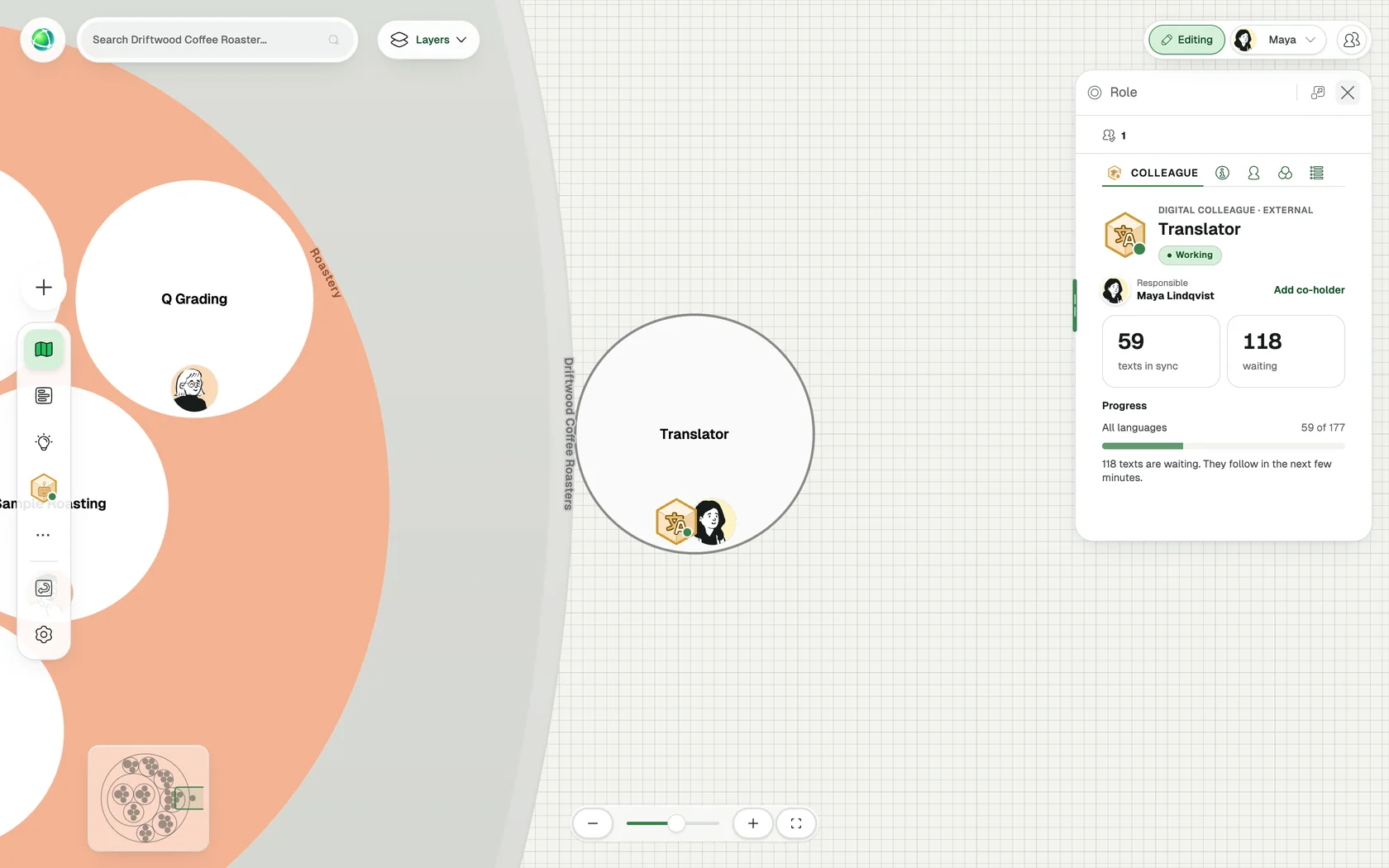
The Translator now holds its own role in External. You can move it anywhere on your map.
Make someone responsible
Every digital colleague needs a person who is responsible for it: a human co-holder of its role.
- The Owner who hires a colleague from the App Store becomes responsible for it.
- On the colleague’s Colleague tab, click Add co-holder to share the responsibility.
- A colleague carried over from an earlier Peerdom plan or added by Peerdom starts without a responsible person. Its tab says so, and an Owner can click Become responsible.
Follow its work
Each digital colleague shows one status, everywhere in Peerdom:
| Status | Meaning |
|---|---|
| Working | The colleague is doing its job. |
| Needs you | The colleague is waiting for a person, for example to confirm your languages. |
| Paused | The colleague is not working right now, because your plan has ended or because automatic translation is switched off in Settings › Translations. |
| Unplugged | The colleague can’t reach its AI model or has used this month’s budget. Nothing is lost; it picks up again once it is reconnected. |
| Leaving | The colleague has been let go and keeps working until the date shown. |
| Let go | The colleague has been let go. Its role stays on your map. |
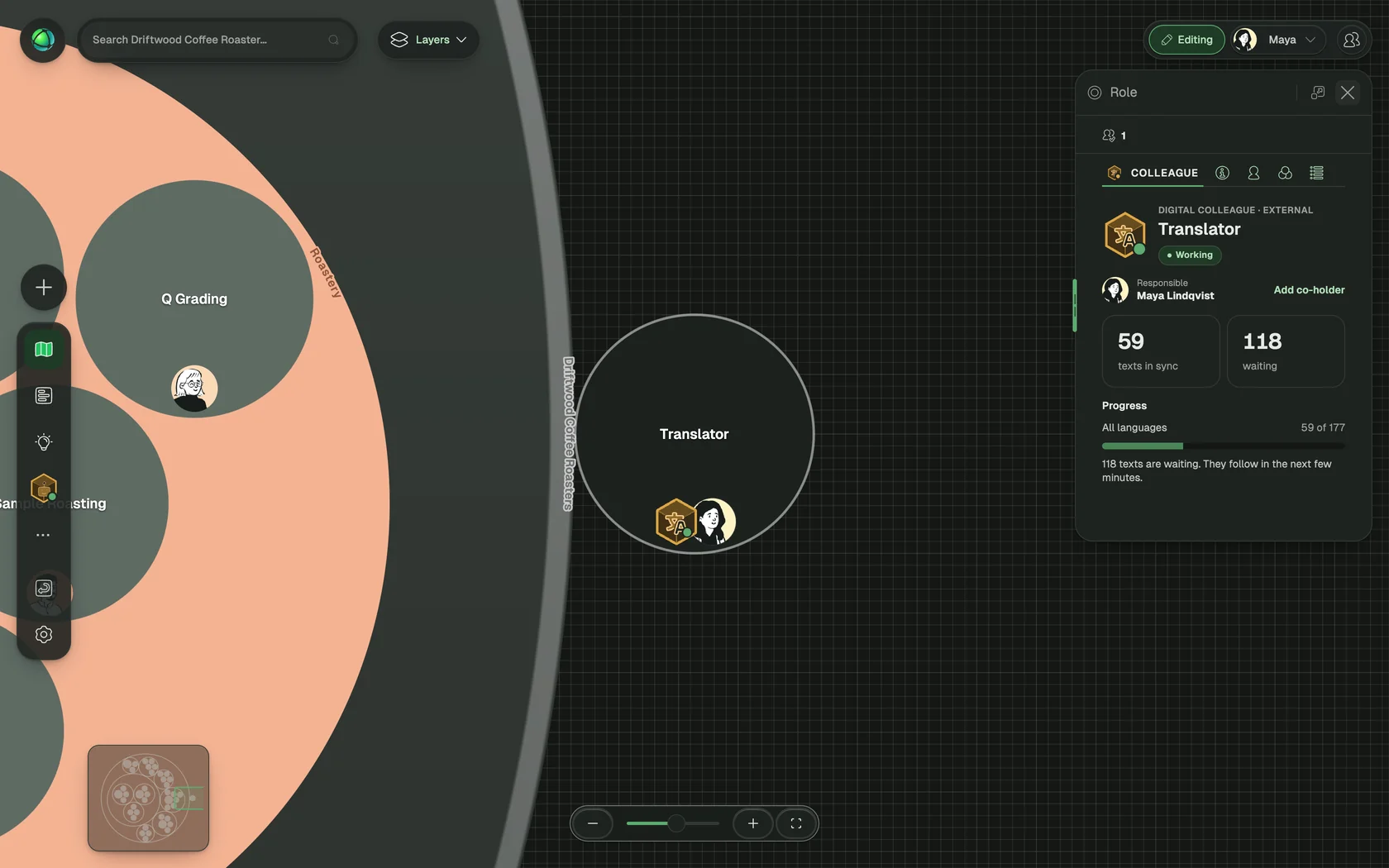
The Translator’s tab also shows how many texts are in sync and how many are waiting. New and changed texts are usually translated within 10 minutes.
The Digital colleagues app
Once you have hired a colleague, the App Bar shows one Digital colleagues entry. Open it to see all your colleagues at once:
- Cards: what each colleague is doing and who is responsible
- Table: name, role, responsible person, status and hire date
- Board: your colleagues grouped by the labels you give them
Open a colleague to see its panel, or choose Open on map to jump to its role.
This app is the one place for your digital colleagues. The Directory and the person pickers list people, and the Directory’s Roles table shows a colleague’s role with its human co-holders.
Billing and letting go
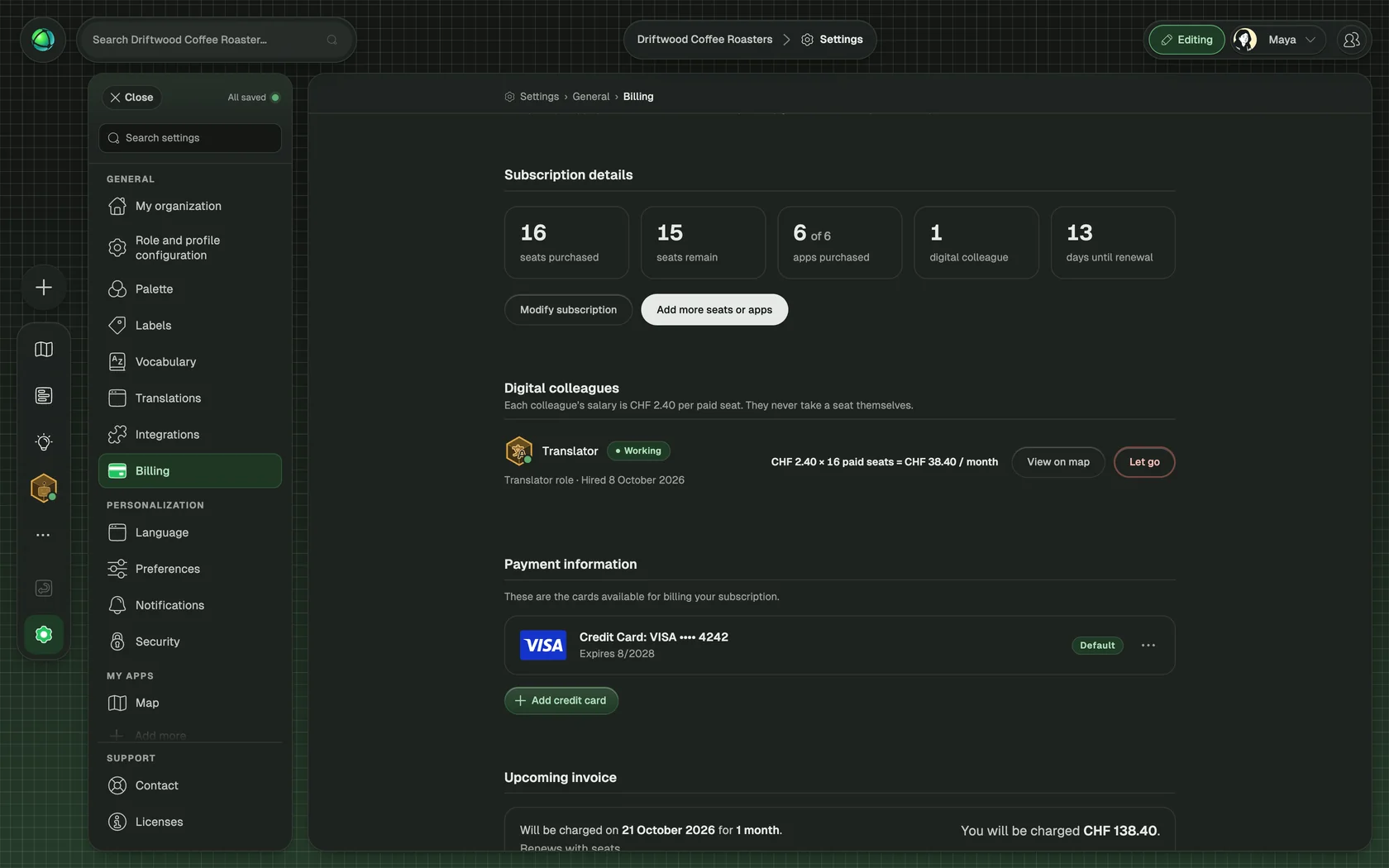
Each digital colleague costs CHF 2 per paid seat per month with annual billing, or CHF 2.40 with monthly billing, on top of your Peerdom+ subscription. You find your colleagues in Settings › Billing, in their own section.
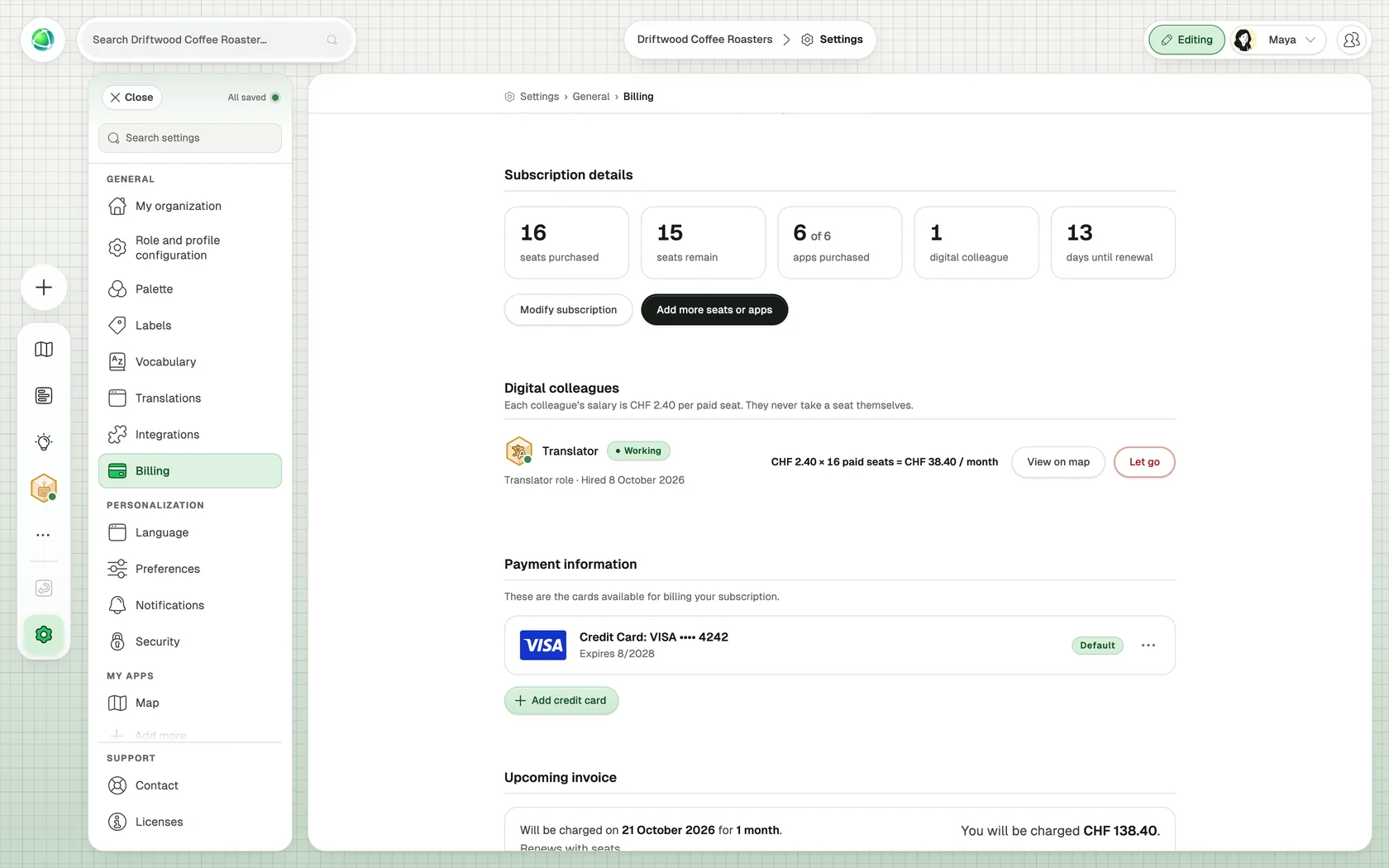
- Let go stops a colleague at the end of your current billing period. Until then it keeps working, and its row shows Leaving with the date.
- Keep undoes a scheduled let go before that date.
- After a colleague has left, its role stays on your map. To hire it again, click Rehire Translator on its role.
FAQ
Who can hire a digital colleague? Owners of an organization on Peerdom+.
Can a digital colleague change my map? Only within its role. The Translator writes translations of your texts; it never changes what your roles say.
What happens to the role when I let a colleague go? The role stays on your map, so you keep the record of the work.