Time travel
Time travel shows your map as it was in an earlier week: which groups and roles existed and who held them. Use it to see how a team grew, to remember who held a role before, or to compare your structure before and after a change.
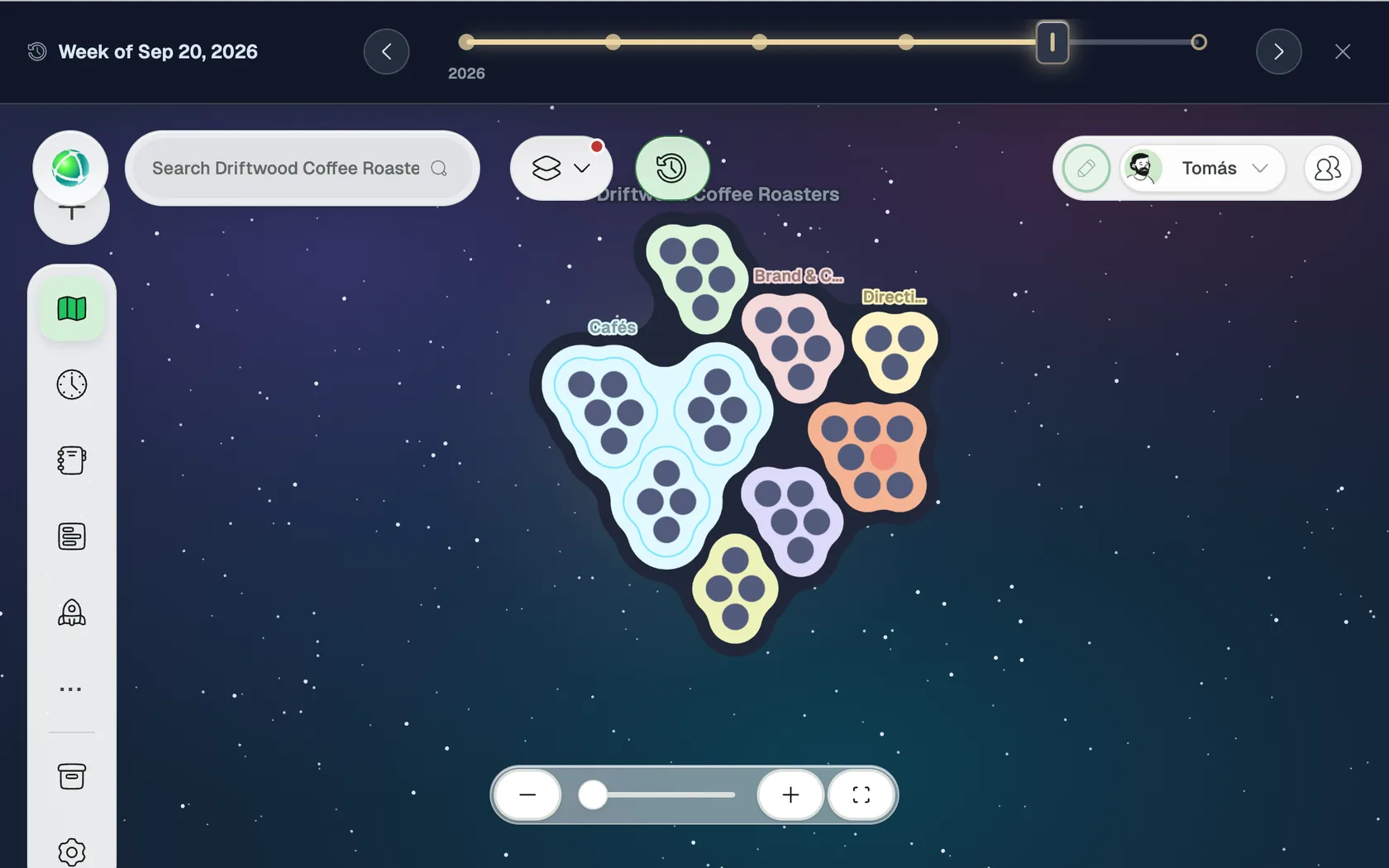
Travel back in time
- Open the map and click Time travel in the row of buttons at the top.
- A timeline opens above the map, with one point for every week in which something changed. Present is the last point.
- Drag the handle, or use Earlier and Later, to pick a week.
The map shows the week you are looking at. Click Leave time travel to return to the present.
What you see
Time travel rebuilds your structure: groups, roles and the people who held them. Layers for people, projects, goals, the network and relationships, and the layers of App Builder apps, are not shown in the past. Insights pauses until you return.
A past map is for reading. Nothing can be edited until you leave time travel.
Switch it on or off
Time travel is on by default with Peerdom+. Owners can turn it off, or on again, in Settings → Advanced with Provide access to past maps.
When it is switched on for the first time, Peerdom rebuilds about a year of weekly history. The timeline shows the progress and becomes available when the history is ready.