Data Export & Import
Peerdom gives you full access to your organization’s data. You can export a snapshot of your map, download structured data files, or import people in bulk. All data management options are in Settings under My Data.
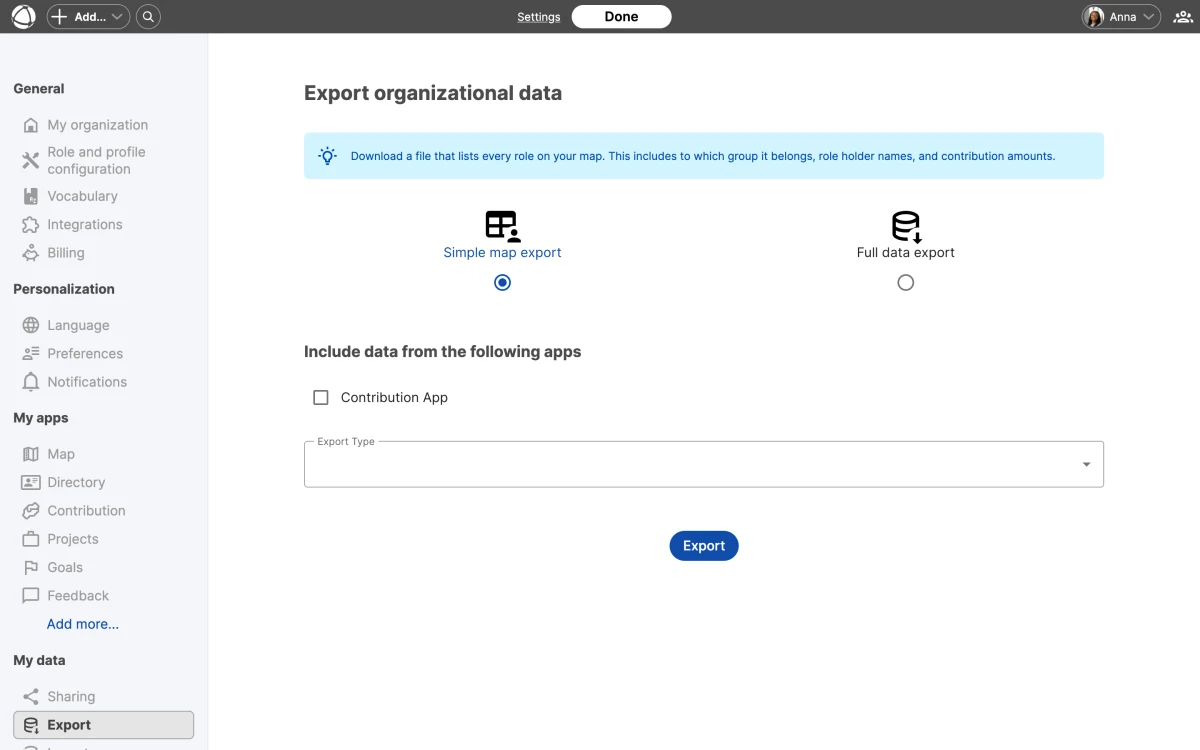
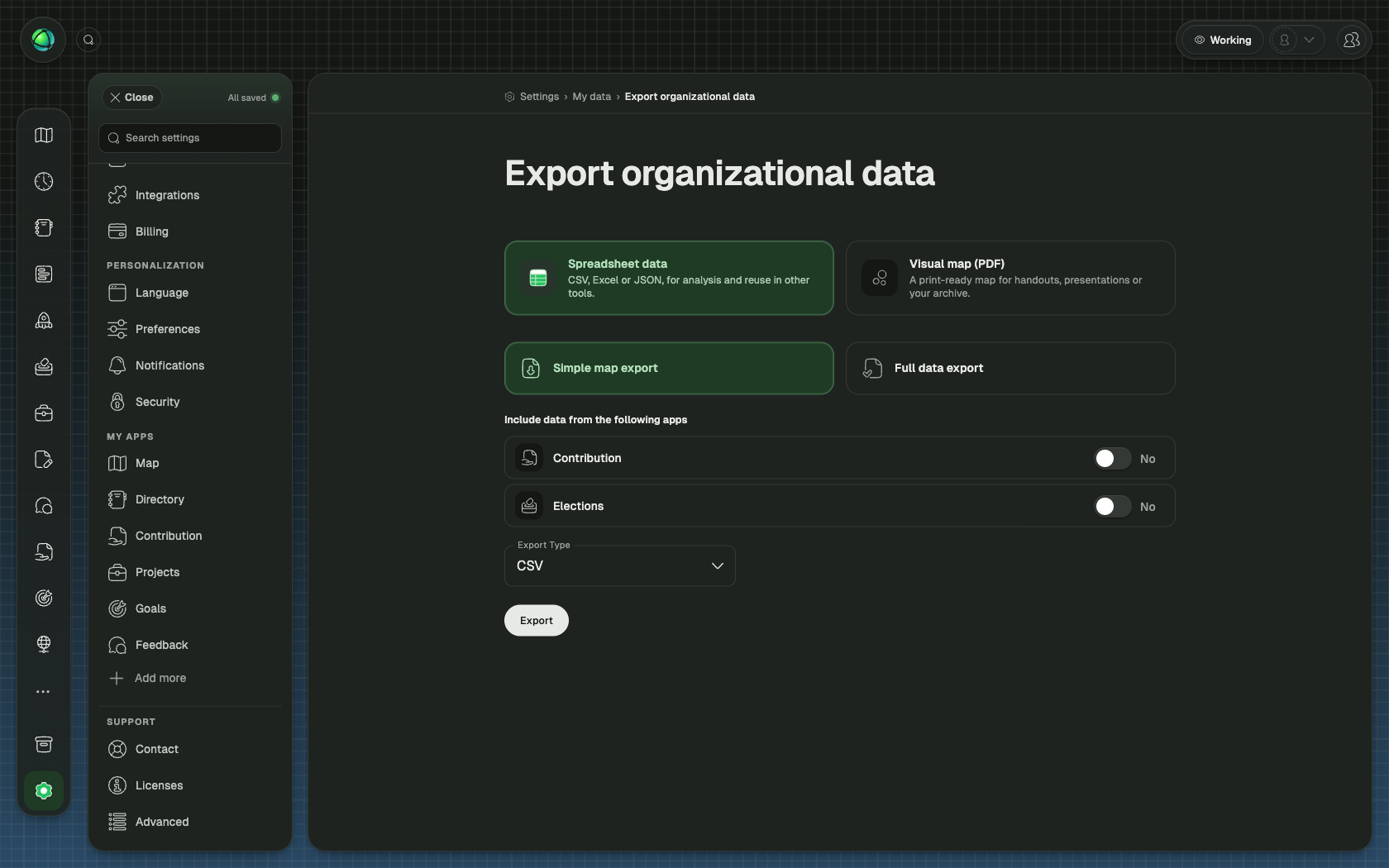
Export your data
Peerdom offers two export types:
- Simple map export: a visual snapshot of your current map, useful for presentations or records
- Full data export: CSV files containing all organization data, including people, roles, circles, and their properties
To export, go to Settings and open the My Data section. Select the export type you need and download the files.
Import people
You can add multiple peers at once by uploading a CSV file. The file can include names, email addresses, and access levels for each person.
- Go to Settings and open the My Data section
- Download the CSV template
- Fill in your peer data following the template format
- Upload the completed file and confirm
CSV import is available on paid plans and requires Owner access.
Complex imports
If your data includes roles, circles, or custom field values, contact Peerdom support for assistance with structured imports.
API alternative
For programmatic access to your organization’s data, use the Peerdom REST API. The API provides read and write access to people, roles, circles, and other resources.
Related
- Organization Settings: access data management options
- API & Webhooks: programmatic data access
- Managing People: add people manually
- Owner Quick Reference: administrative capabilities