App Builder
App Builder turns the lists your organization keeps on the side, such as the holiday sheet, the expense form or the skills overview, into apps everyone uses in Peerdom. You choose the fields, who can see the app, who adds items and how the items show on the map. Nobody writes code, and nothing needs hosting.
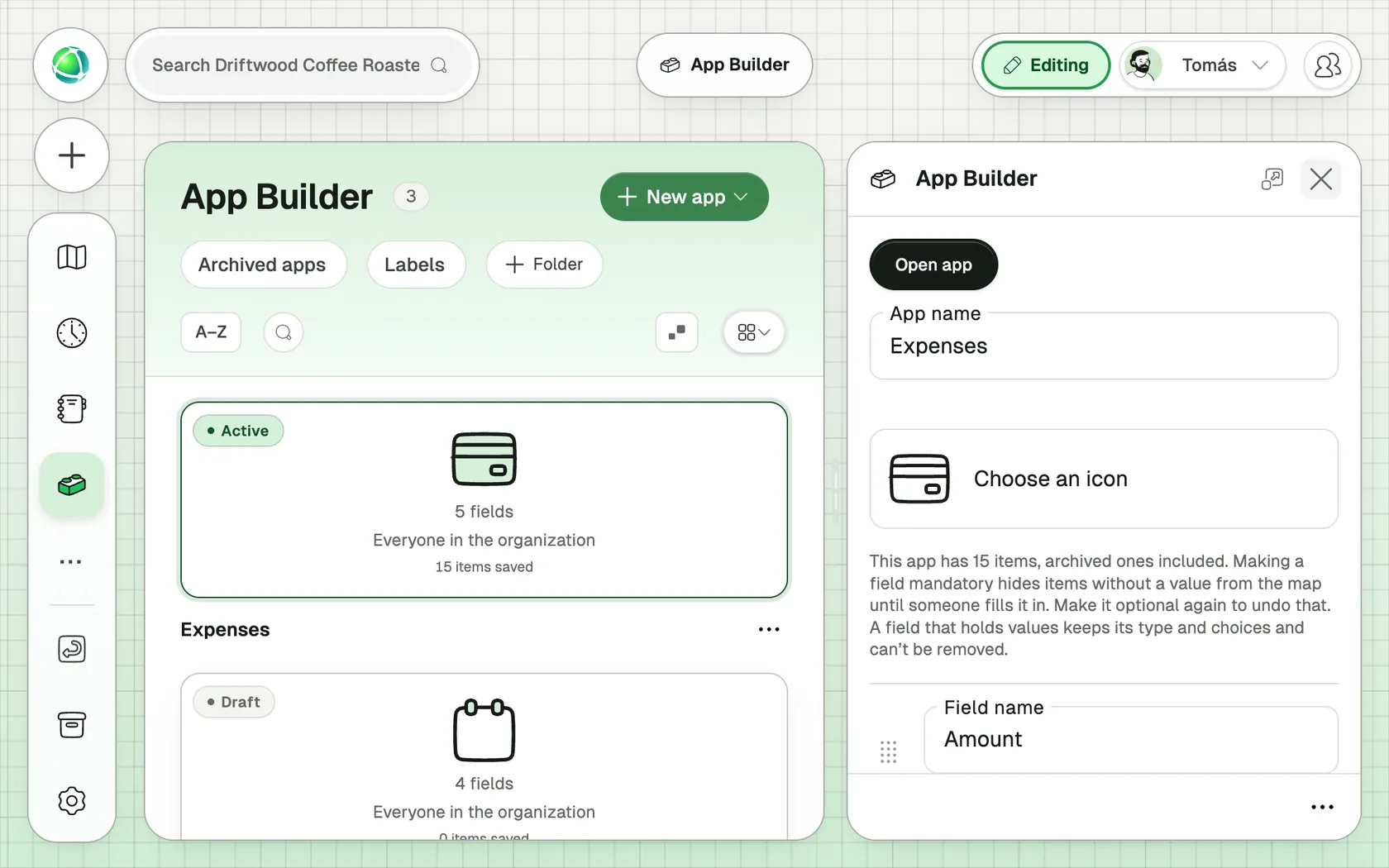
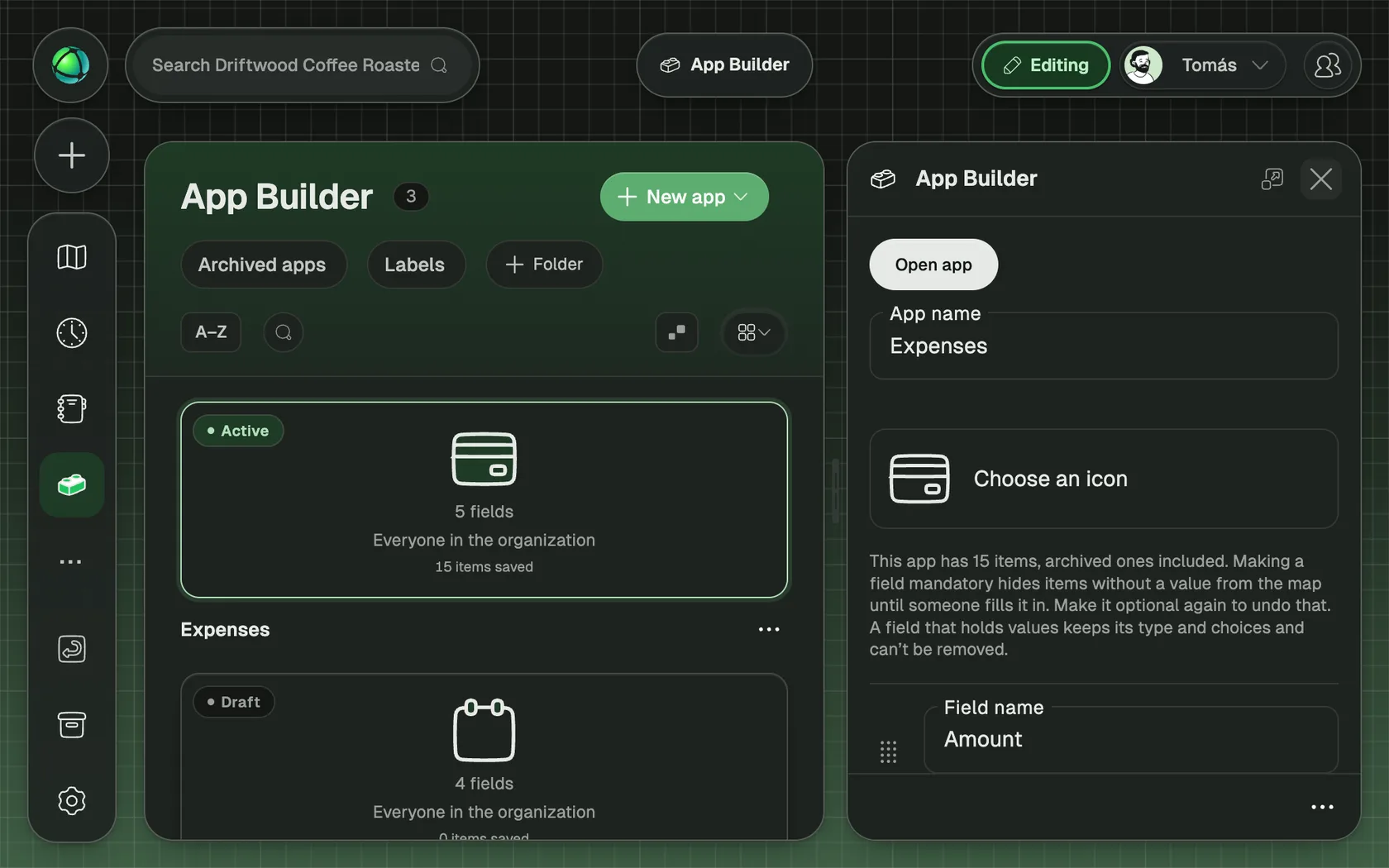
Create an app
- Open App Builder in the App Bar.
- Click New app.
- Choose Blank app to start with no fields, or start From example:
- Expenses: log team expenses and watch each team’s spending against its limit on the map.
- Holidays: record time off and see who is away, right on the map.
- Skills: capture who knows what, so everyone can find the right person.
- Give the app a name and pick an icon.
A new app starts as a Draft: only Owners can see it. Keep it there until it is ready.
Add fields
Click Add field, give it a name and choose a type:
| Type | For |
|---|---|
| Text, Formatted text | Names, notes and descriptions |
| Number, Amount, Progress (%) | Counts, money (CHF, EUR, USD or GBP) and how far something is |
| Date, Time | When something happens; a date can repeat every week, month or year |
| Yes/No | Anything that is either true or not |
| Choice | One of your own options, each with a color if you like; switch on Several choices to allow more than one |
| Person, Role, Group | Who or which part of your organization an item is about; these take your organization’s own words for people and groups |
| Image, Link, Email | Photos (several if you like), web links and addresses |
Mark a field Mandatory when every item needs it. An item without a value for a mandatory field stays saved, but it stays off the map until someone fills it in.
Pick up to three fields with On the card to choose what an item’s card shows. A photo field becomes the card’s cover.
Choose who sees it and who adds items
- Who can see it: Owners, Selected people, or Everyone in the organization.
- Who can add items: Only owners, or Everyone who can see it. When everyone adds items, each person changes their own items, and Owners can change all of them.
Set Status to Active when the app is ready. It then appears in the App Bar of everyone who can see it.
Show it on the map
Under Show on the map, choose how the items appear:
- Progress toward a limit: adds up an Amount field per group and fills a ring toward the Limit you set. A team over its limit shows how much it is over.
- Marker in each group: a marker on the group an item belongs to.
- Slice around each person or group: a slice for each item, around the person or group it is about.
- Progress over time: how far an item is between its start and end date.
- Progress (%): the value of a Progress field.
Pick a Color and a Shape for the markers. An item about a person shows at the roles that person holds. Only complete items count, and each item counts toward the one group it is linked to.
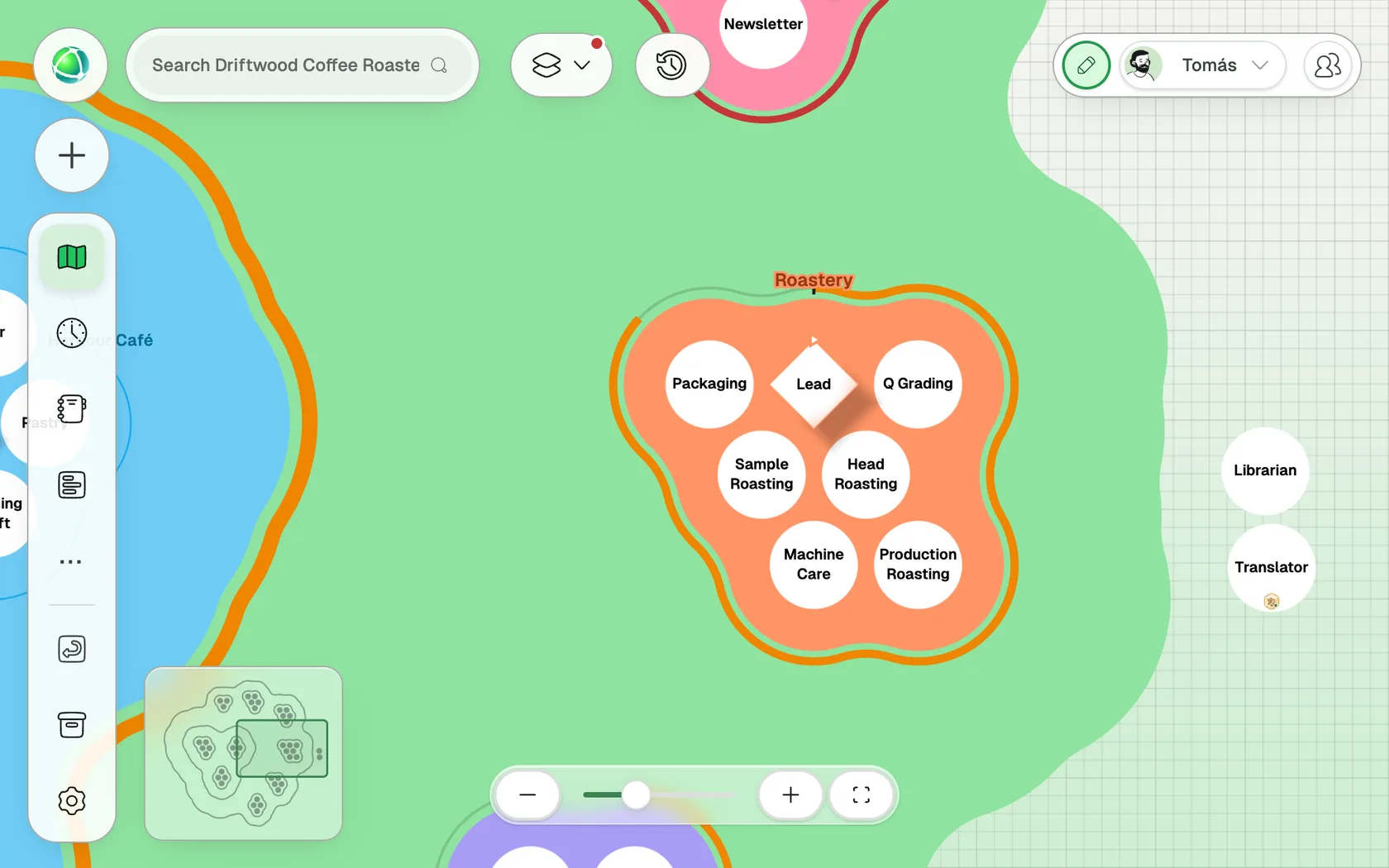
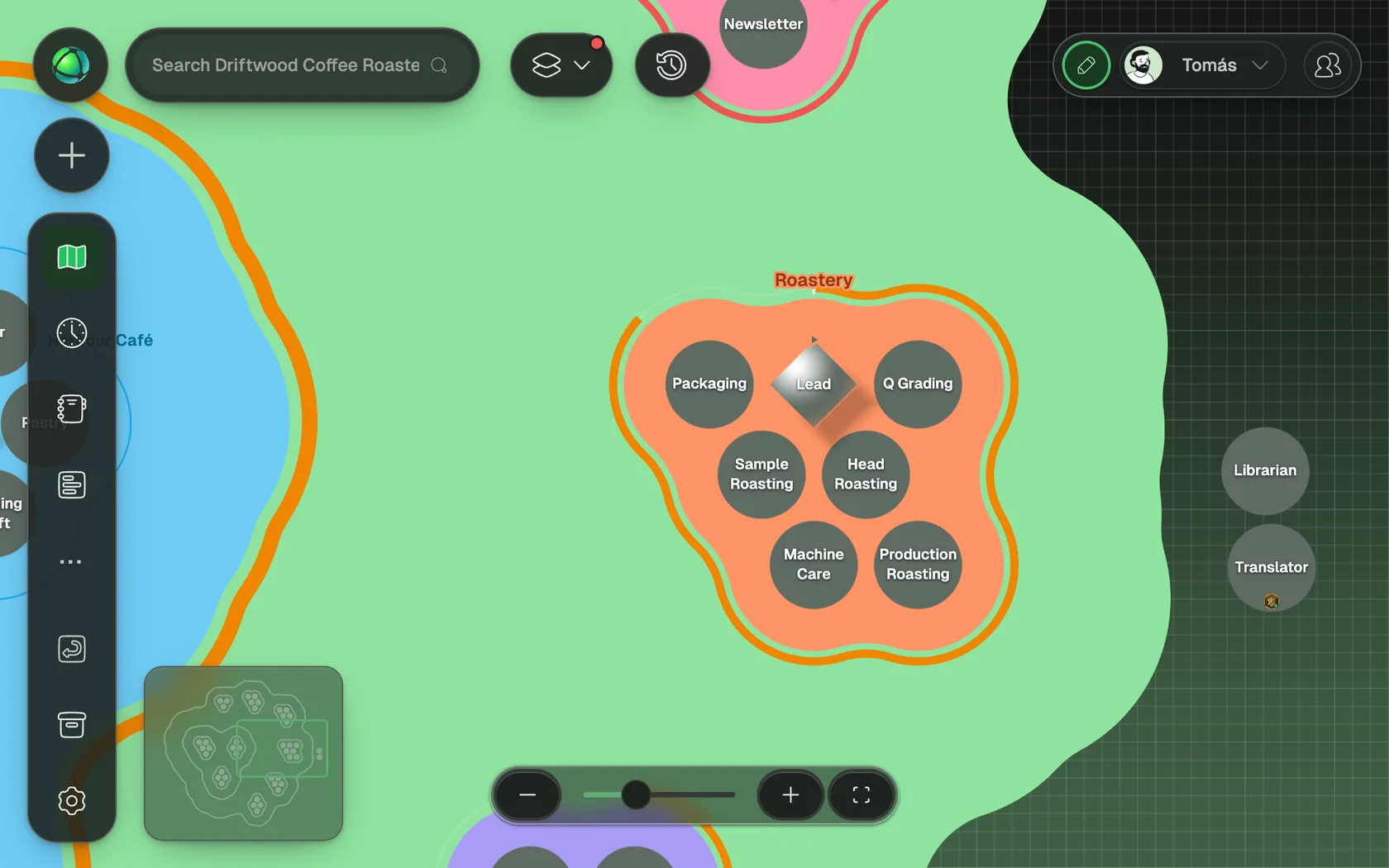
App layers are part of the map’s Layers menu, so anyone can hide them. They are not shown on draft maps or in time travel.
Use an app
Open the app from the App Bar and click New item. Items save as you type.
- Everyone who can see the app sees all of its items. Only the person who added an item, and Owners, can change it.
- Show the items as cards, or as a Board grouped by any Choice field that allows one option, or by a Yes/No field. Drag a card to another column to change its value.
- Owners can click Export app to download the app’s design and all its items, archived ones included, as a JSON file.
Archive and restore
Archive an item or a whole app when it is no longer needed. Both appear in the Archive, where you can restore them. Restoring an item of an archived app offers to restore the app too.
Related
- Custom fields: fields for roles, groups and people
- Layers: show and hide what the map displays
- Access rights: what Owners, Editors and Members can do