Invite Your Team
Your map comes to life when your team is on it. Peerdom calls people peers, everyone documented in your organization, whether they log in daily or are recorded for reference.
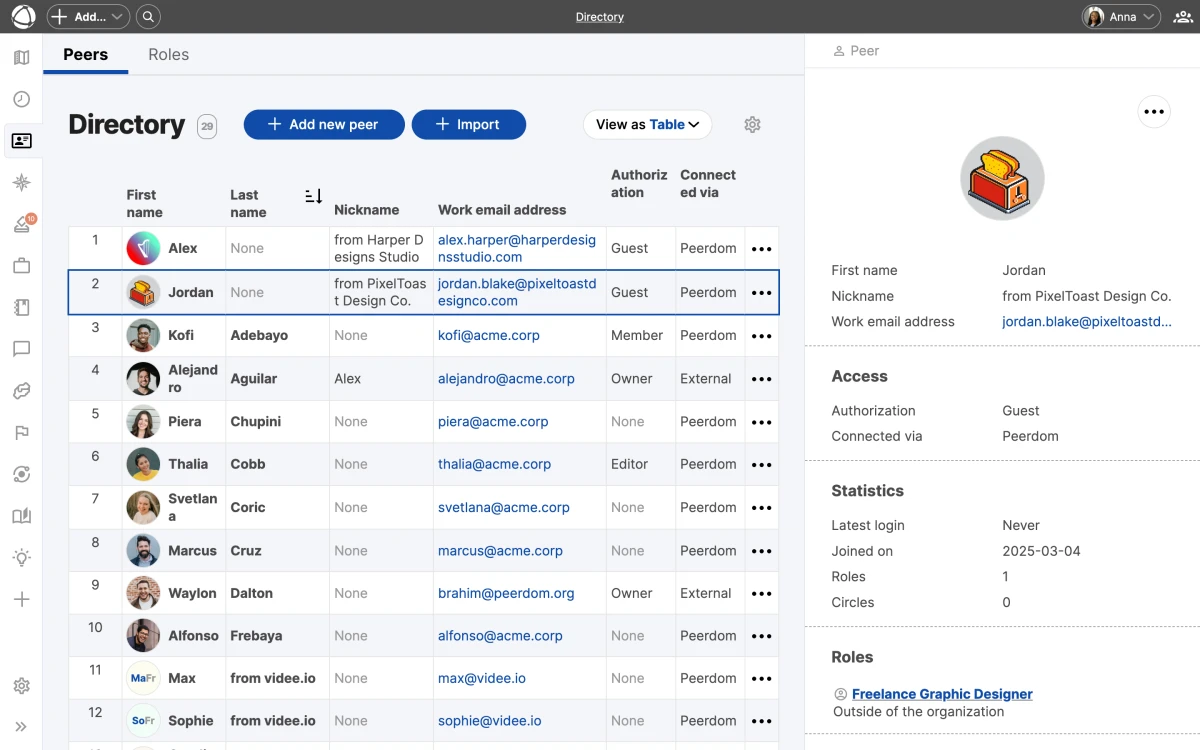
Add a peer
- Click + Add in the top toolbar
- Select New Peer
- Enter their first name, last name, and email
- Choose an access level
- Decide whether to send the invitation email now or later
- Save
The person receives an email with a link to set their password and activate their account.
Access levels
Each peer gets one access level that determines what they can see and do:
- Owner: full admin access, including settings, billing, and permissions
- Editor: create and edit circles, roles, and content (billable)
- Member: view everything, use apps, edit own profile (billable)
- Guest: view the map structure only, no apps (not billable)
- No-access: documented on the map but cannot log in (not billable)
Bulk import
For larger teams, import peers from a CSV file:
- Go to Settings > Import
- Download the CSV template
- Fill in your data
- Upload and confirm
Bulk import is available on paid plans. See the pricing page for plan details.
SSO organizations
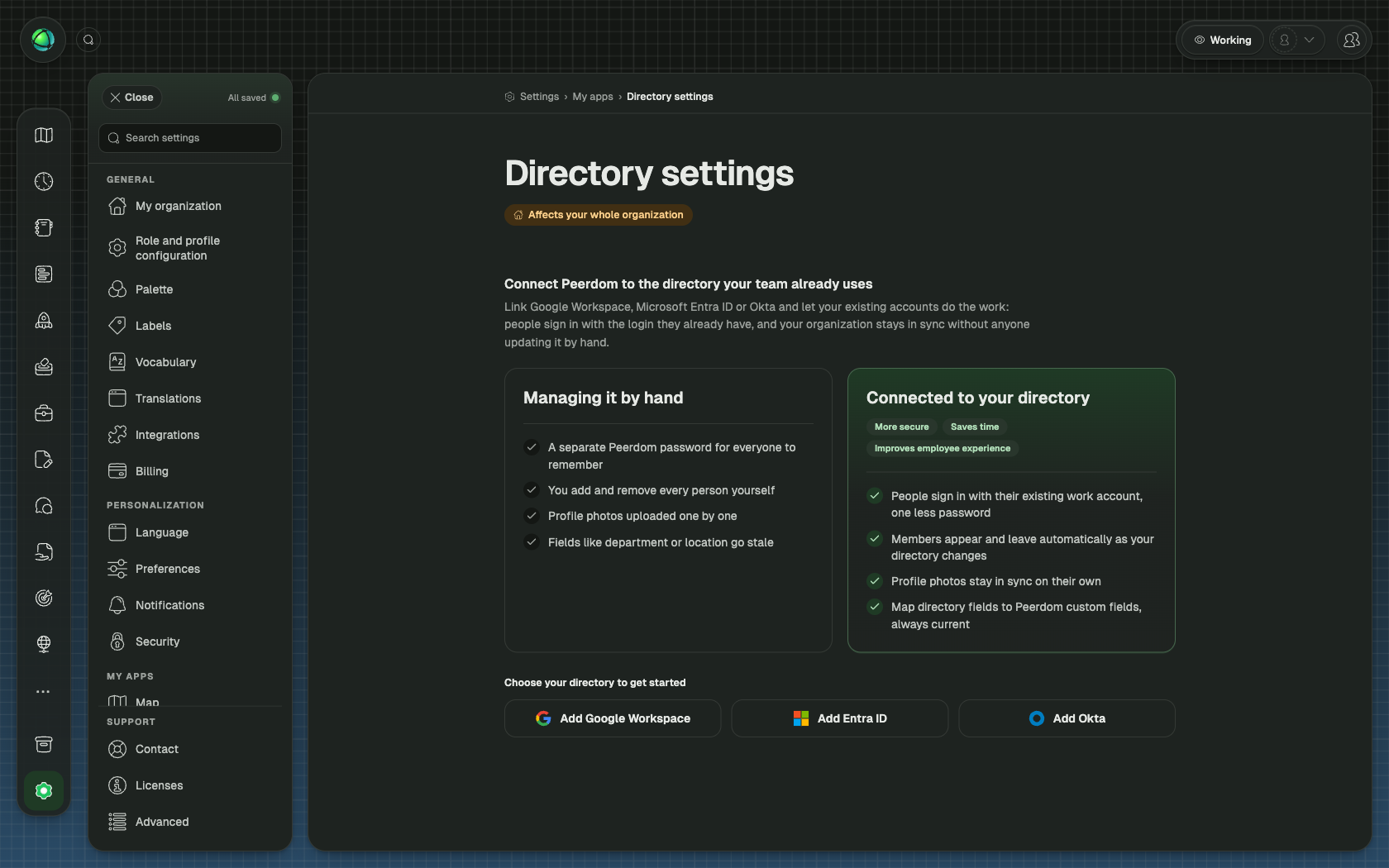
If your organization uses Single Sign-On, people are added automatically when they are included in your synced group. Peerdom supports three SSO providers:
Users synced via SSO appear in Peerdom within 24 hours. Learn more in the SSO overview.
Delay invitations
You can prepare your map before anyone sees it. When adding peers, toggle off Send invitation email. You can send it later when your map is ready.
This is useful when:
- Setting up multiple accounts before launch
- Preparing the structure before a team rollout
- Coordinating a specific onboarding date
Related
- Access Rights: detailed permissions reference
- Managing People: edit profiles, remove peers, handle departures
- Single Sign-On: automate user provisioning
- Directory: browse and search all peers