Navigating the Map
Your Peerdom map shows your entire organization as an interactive, real-time visualization. Every circle, role, and person is visible at every zoom level. Nothing collapses or hides as you zoom out.
You can view your map in three ways: Circle View (the default nested visualization), List View (a searchable flat list), or Tree View (a hierarchical diagram). Each view offers a different perspective on the same underlying structure.
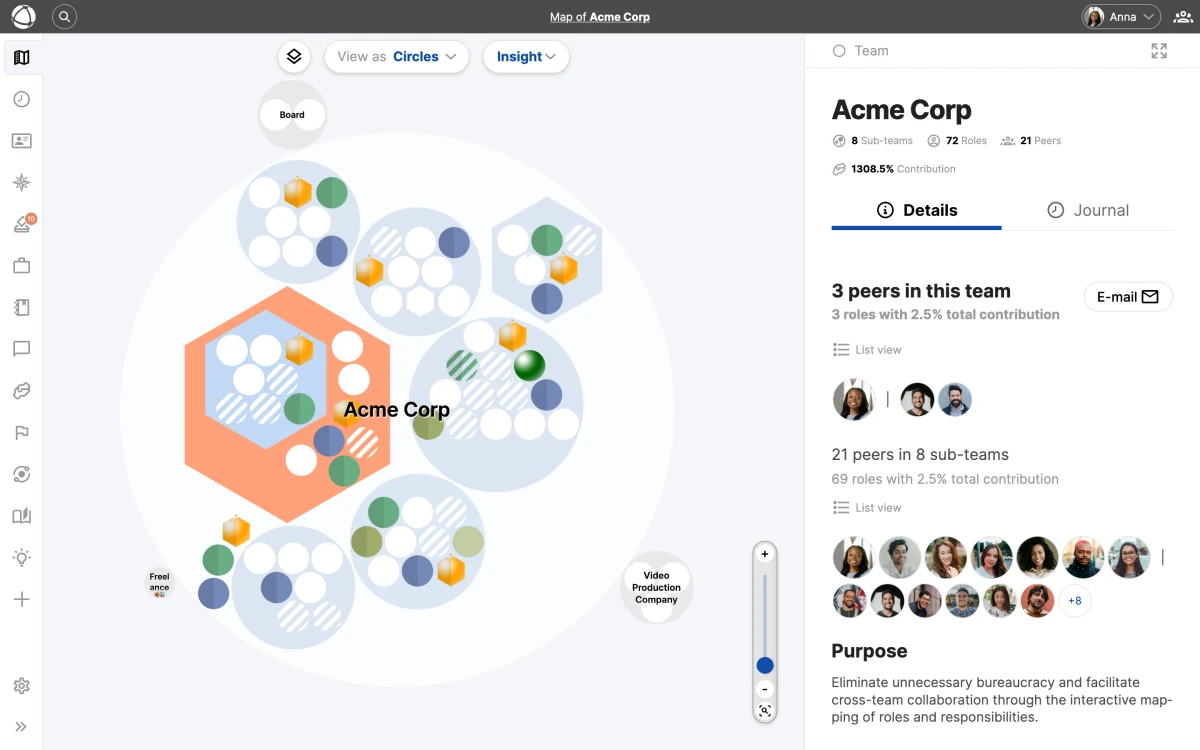
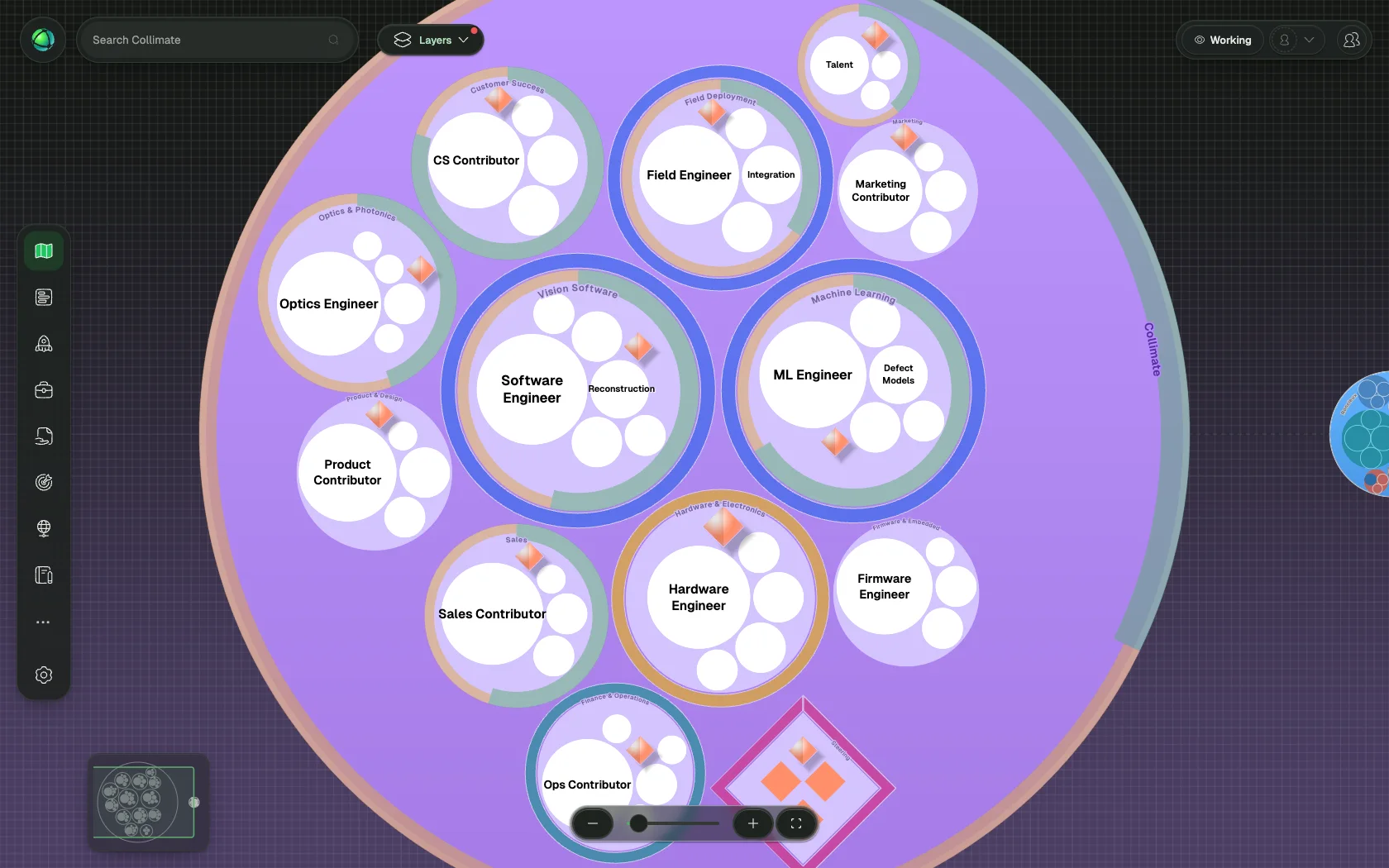
Move around the map
- Pan: click and drag on an empty area to move the view
- Zoom in/out: use the + and - controls, scroll your mouse wheel, or pinch on a trackpad or touch screen
- Hover: rest your cursor over any node to see its name
The map displays all nodes regardless of zoom level. Zooming out gives you the full picture; zooming in lets you focus on a specific area.
Select a node
Click any circle, role, or person on the map. This opens the Inspector panel on the right side of the screen (roughly one-third of the view width). The Inspector has two tabs:
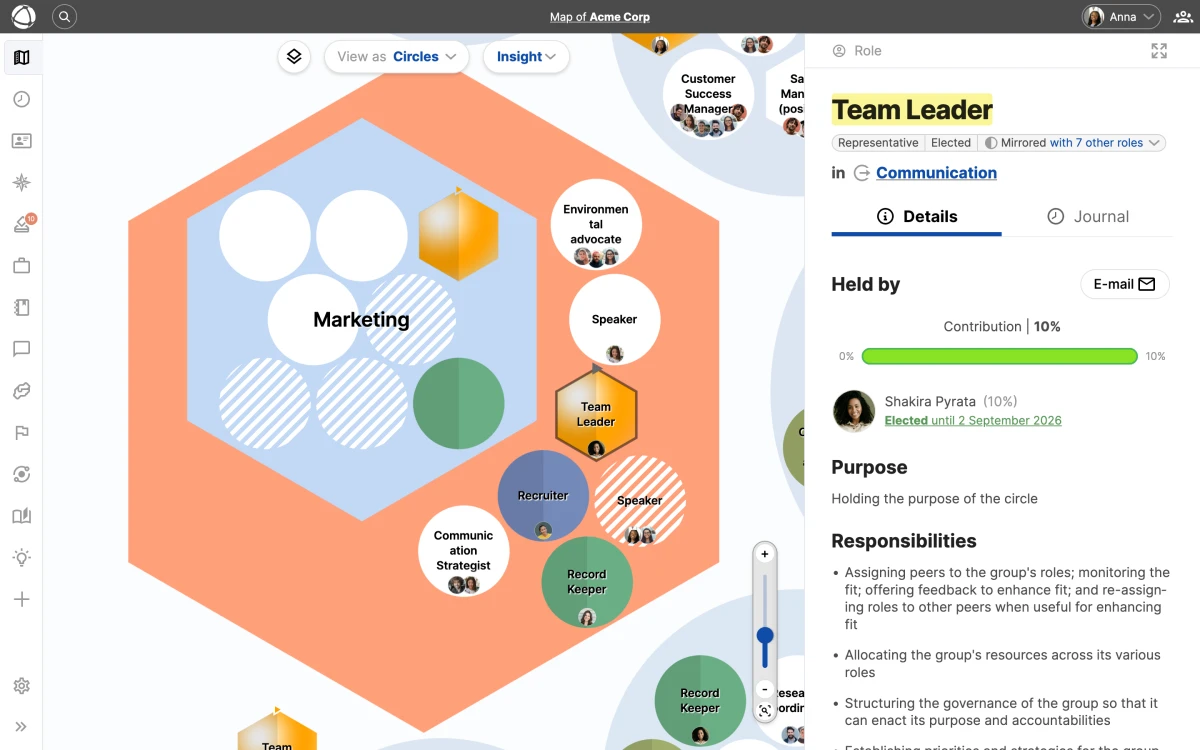
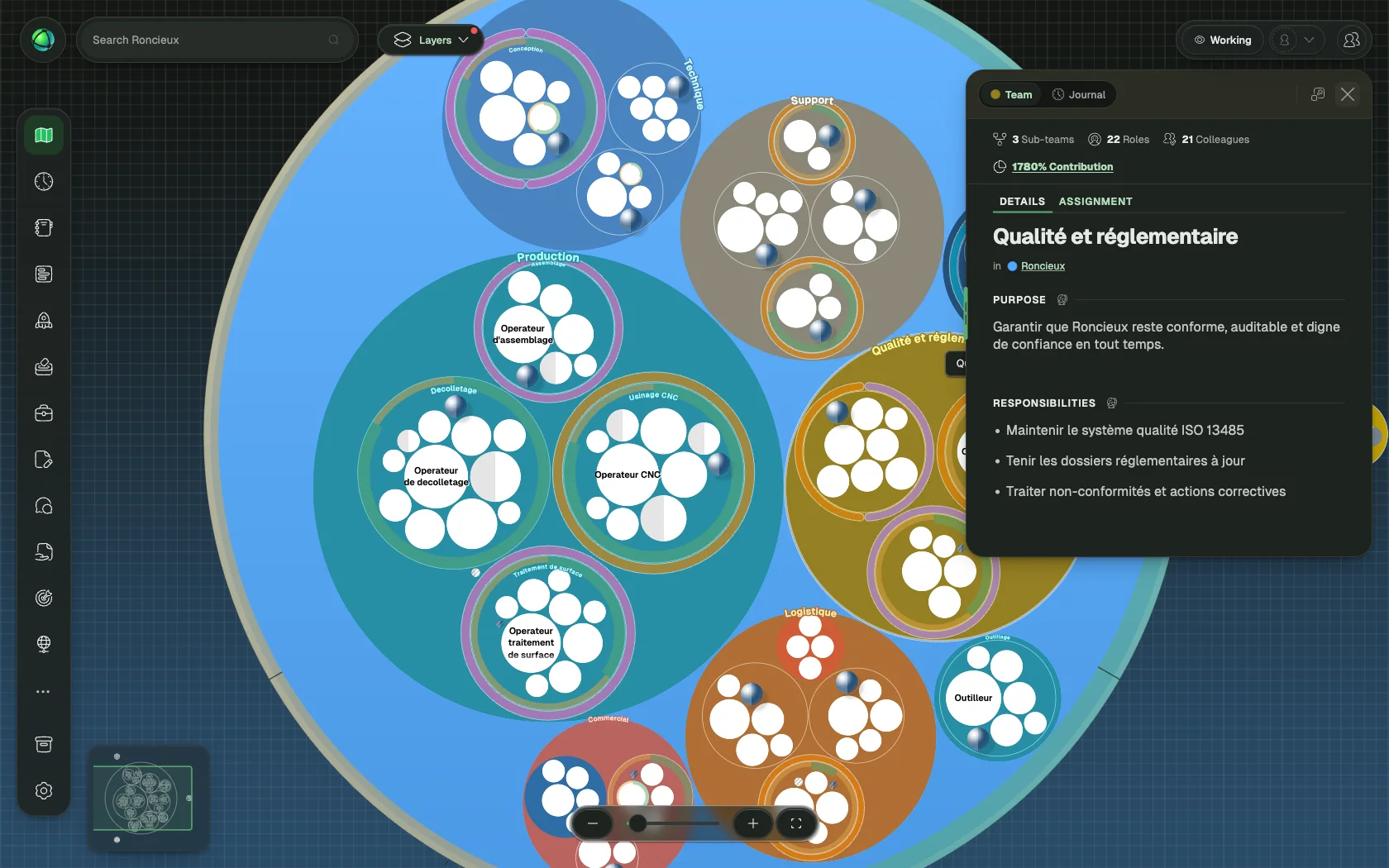
- Details: name, purpose, accountabilities, and assignments
- Journal: activity history and notes for that node (powered by the Journal app)
When you select a node, the URL in your browser updates to reflect your selection. You can share this URL to link someone directly to that node.
Filter by person
Click a person’s avatar anywhere on the map to highlight all the roles they hold. A person badge appears to confirm the active filter. This is a quick way to see someone’s full scope of responsibilities across the organization.
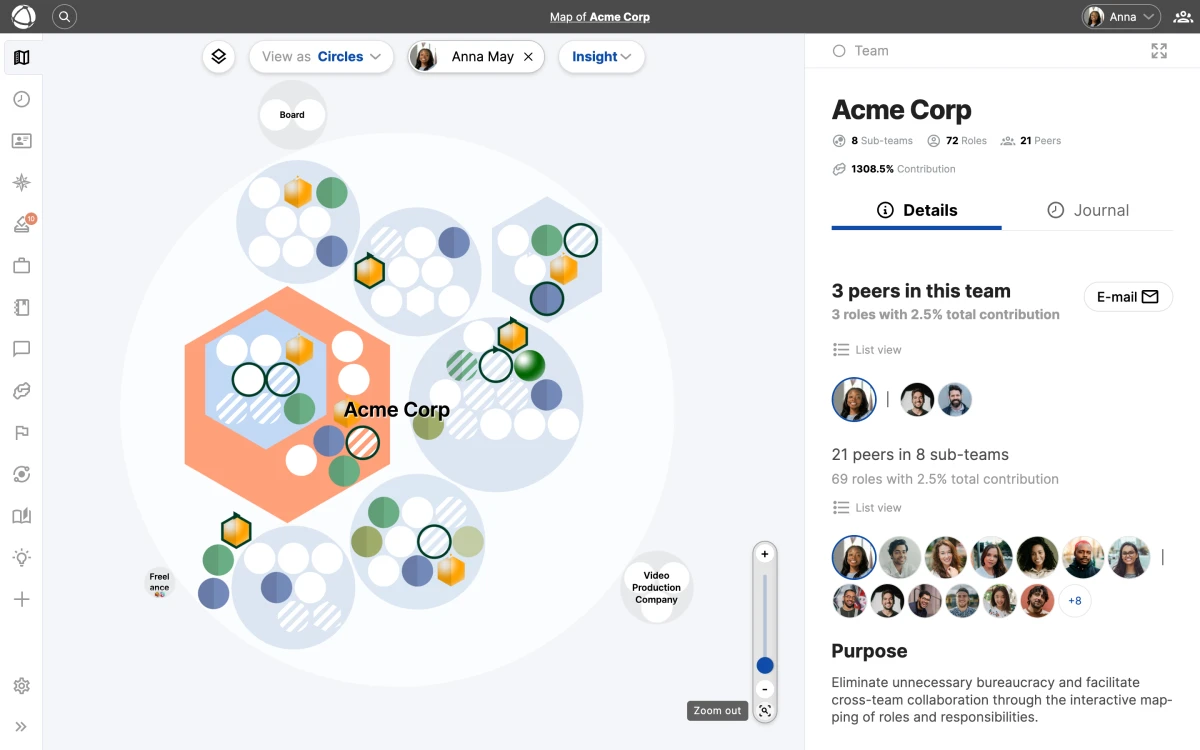
Click the badge or click elsewhere on the map to clear the filter.
Layers
Layers let you overlay additional information on the map, such as workload distribution or custom data. When a layer is active, nodes are color-coded to reflect the selected dimension.
Real-time updates
The map animates in real time. When a colleague makes a change (adding a role, reassigning someone, renaming a circle) you see it reflected on your map without refreshing.
Related
- Circle View & Layouts - explore the default nested visualization
- List View - browse your structure as a searchable flat list
- Tree View - view your organization as a hierarchical diagram
- Layers - overlay additional data dimensions on your map
- Editor Quick Reference - learn what you can create and edit