Bubble Map
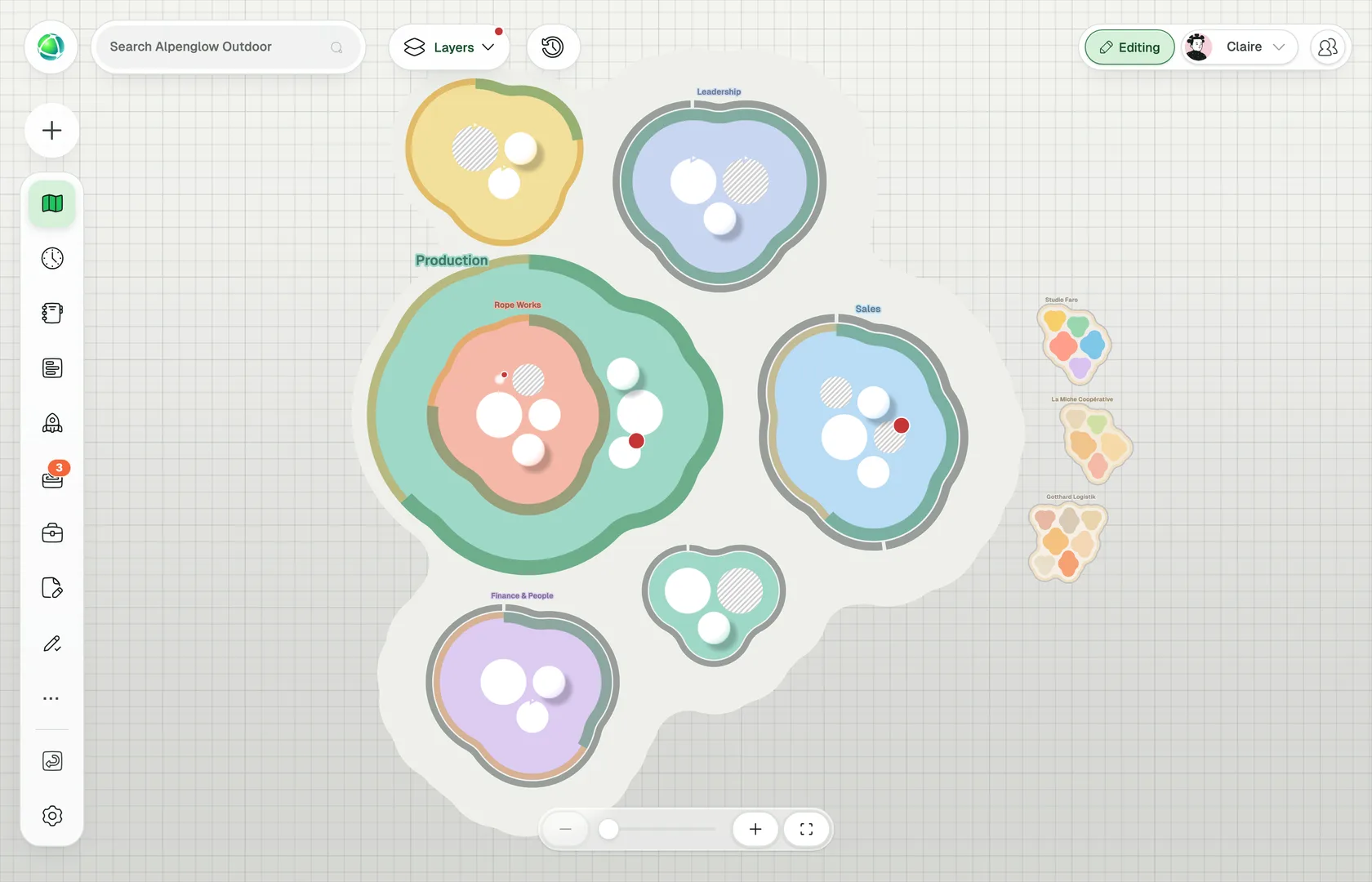
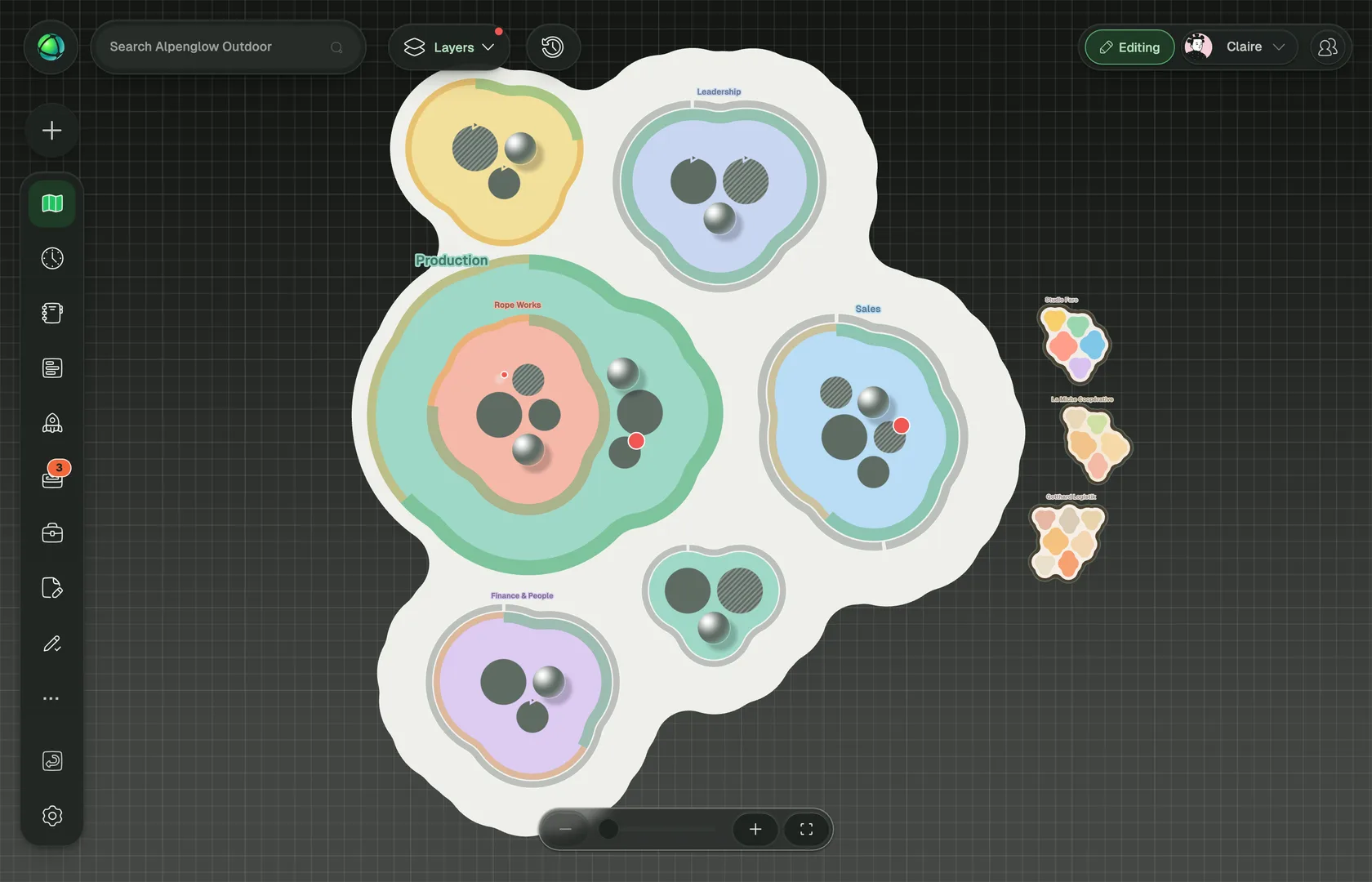
The Bubble Map is a layout for the Peerdom map that draws your organization the way it behaves: every group is a living cell. Instead of a fixed circle, each group gets one flowing outline that wraps around the roles and sub-groups inside it, and nested groups appear as cells within cells.
What the Bubble Map shows
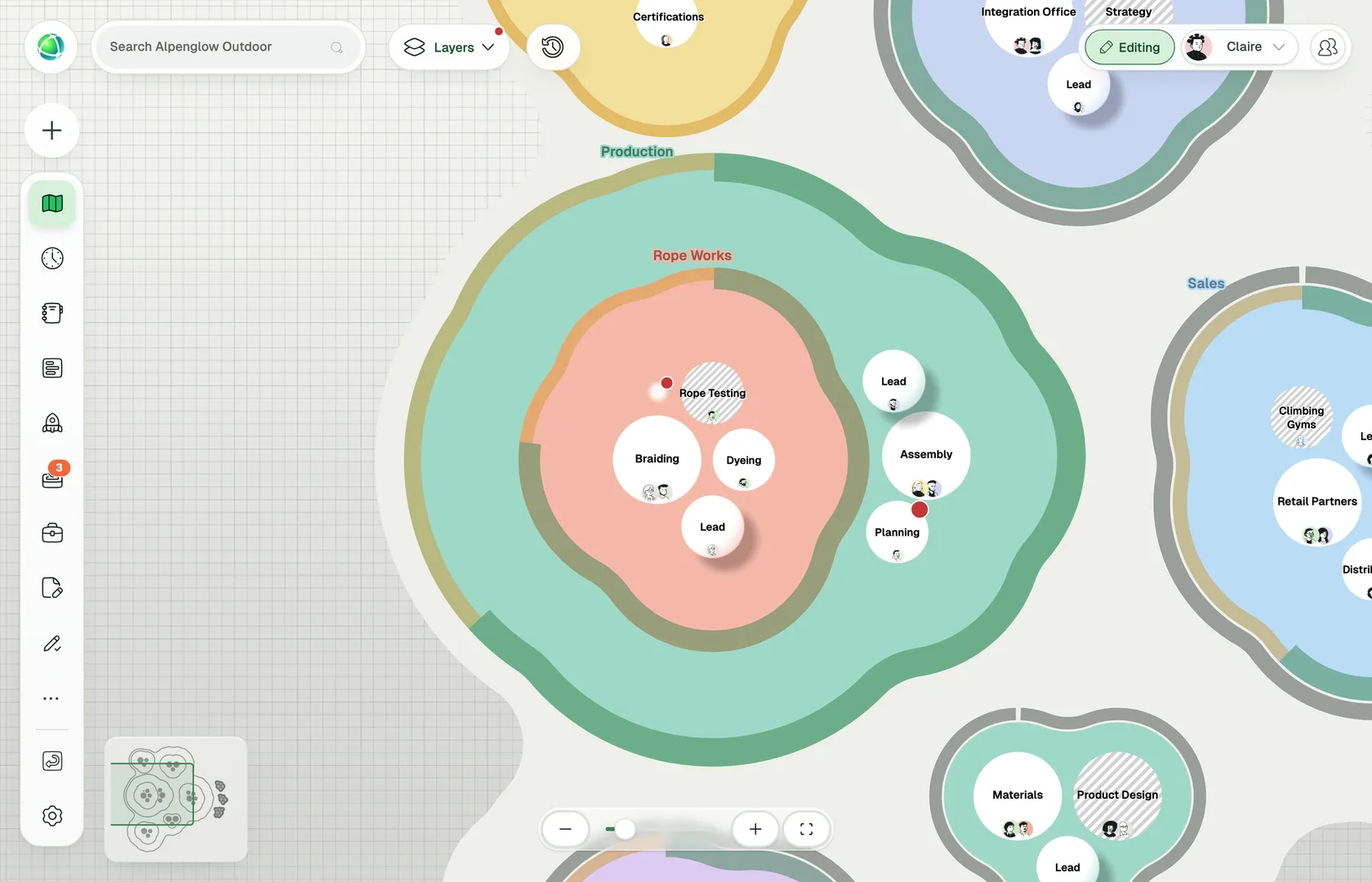
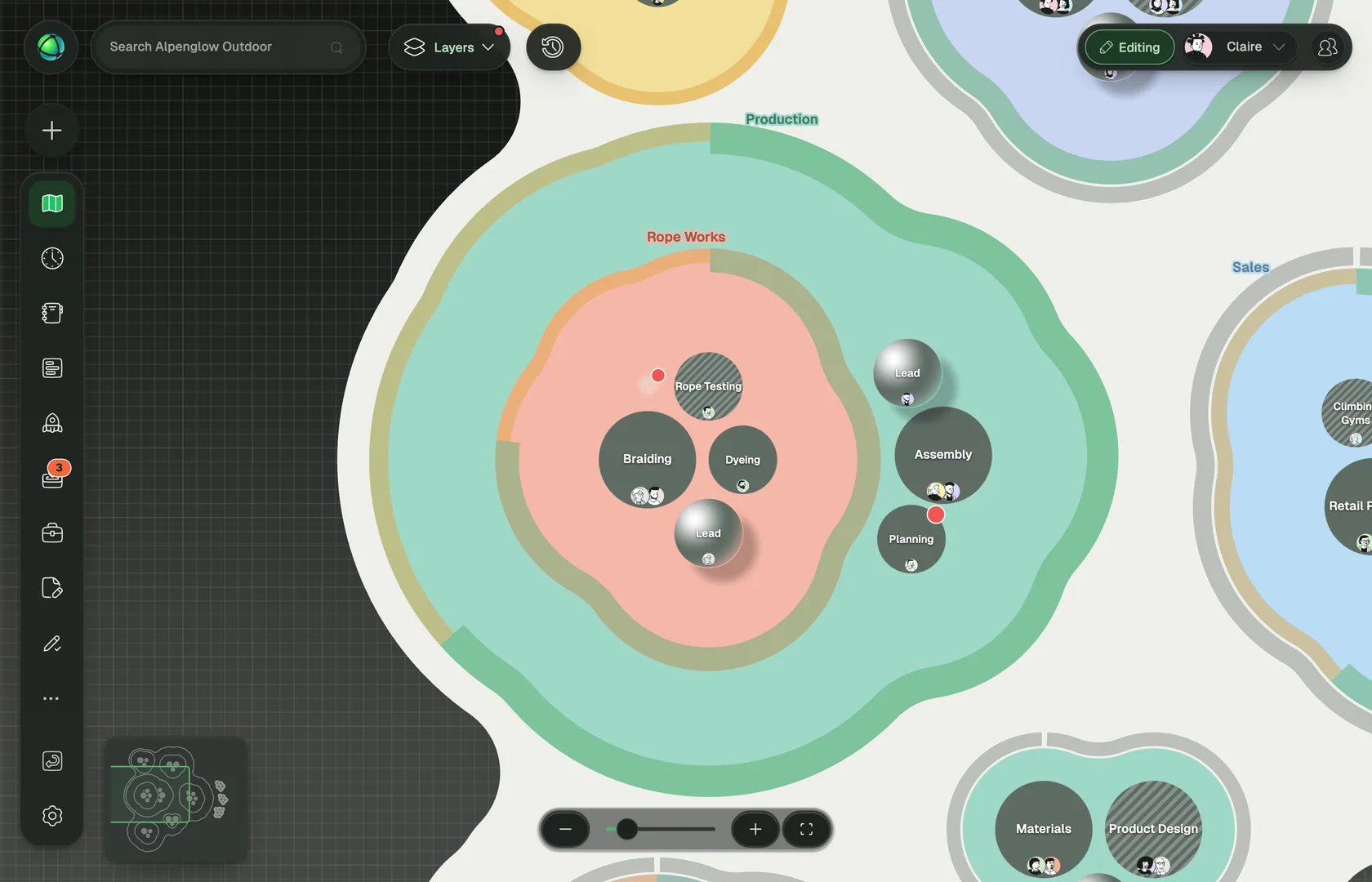
- Groups as outlines. A group’s outline is computed from its contents. A group with many roles is large, a group with one role is small, and its shape follows how its roles and sub-groups are arranged.
- Nesting as cells within cells. A sub-group sits inside its parent with an outline of its own, and the parent’s outline flows around it.
- Goals and projects on the edge. When the Goals or Projects layer is on, a group’s goals run along the inside of its outline, showing their combined progress with a divider between goals, and its projects run along the outside. Thin segments are easier to pick once you zoom in on the group.
- Everything else as you know it. Roles keep their shape and color, people appear on the roles they hold, and selecting a group or role opens it in the editor panel as in any other layout. For moving around the map, see Navigating the Map.
Switch your map to the Bubble Map
The map layout is set for the whole organization by an Owner.
- Open Settings → Map.
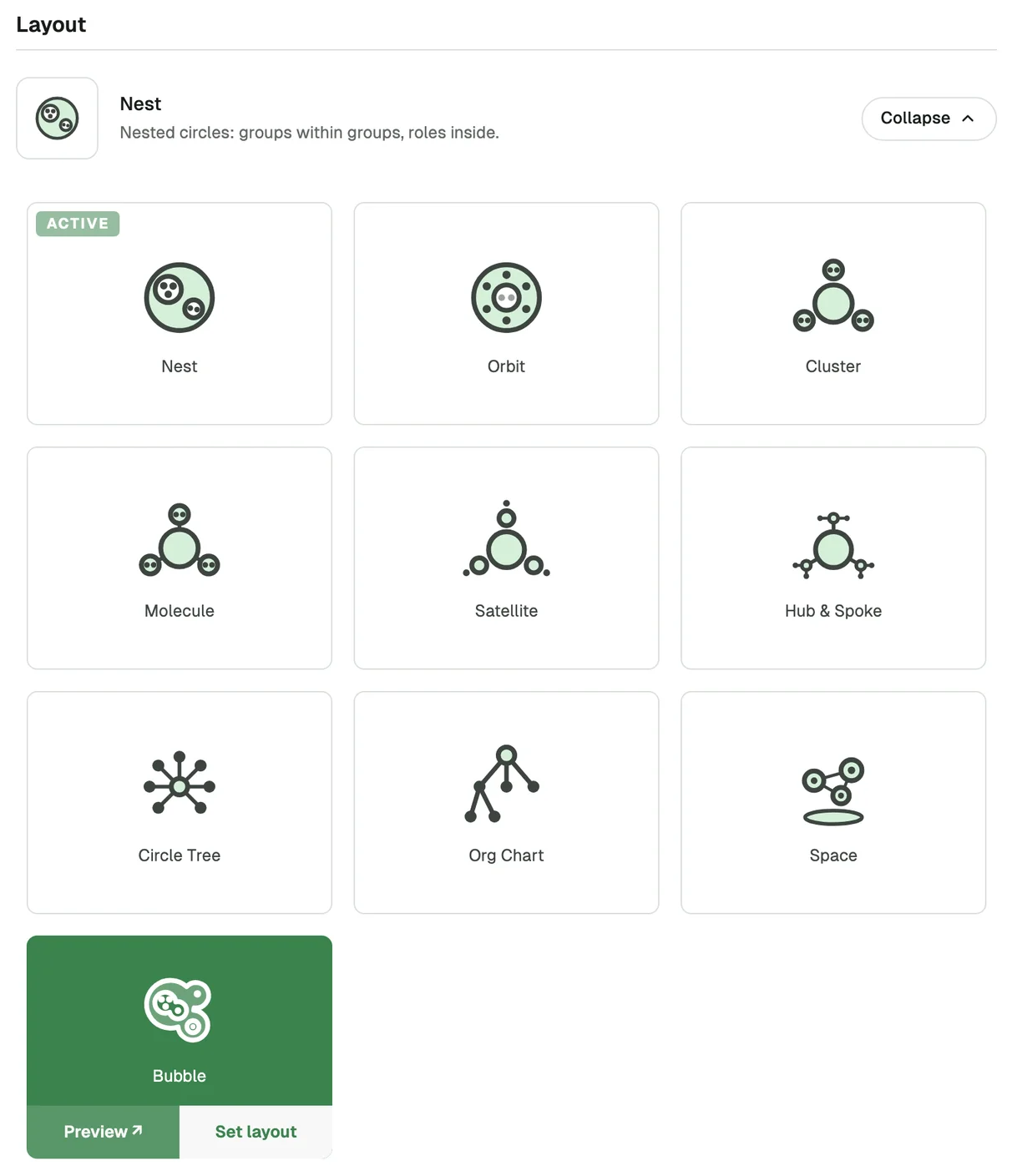
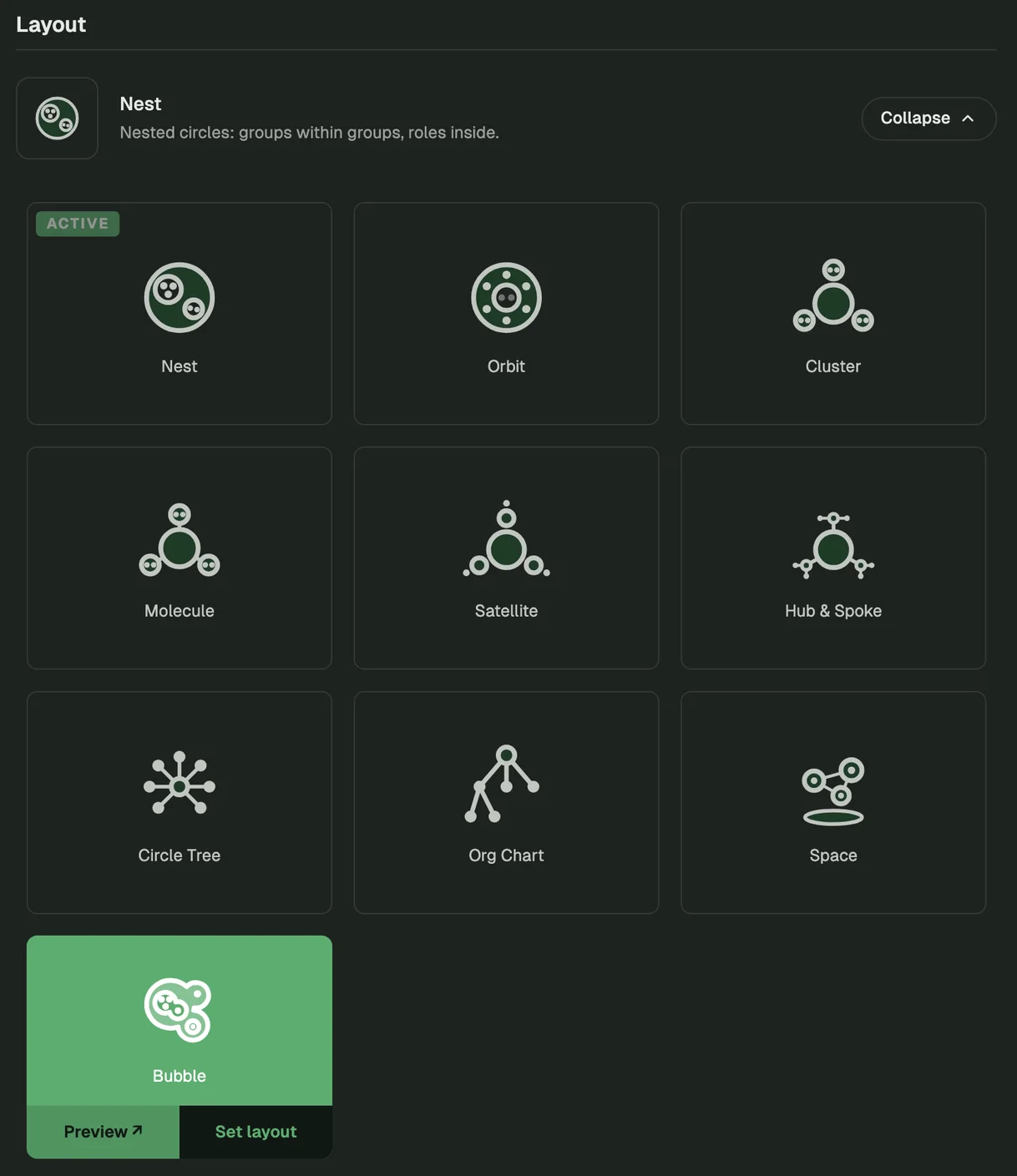
- Under Layout, choose Change….
- Select Bubble.
- Choose Preview to see the Bubble Map on your own screen first, or Set layout to switch the map for everyone in your organization.
Good to know
- Available on every plan. Every organization can use the Bubble Map.
- It is a circle layout. The Bubble Map draws the same nested structure as Circle View, with an outline instead of a circle for every group.
- It needs a browser with WebGL. Modern browsers generally support it; availability depends on your browser and device. Without WebGL, the map shows the nested circle layout instead.
Related
- Circle View & Layouts - the other circle layouts
- Navigating the Map - zoom, pan, search, and the editor panel
- Layers - show goals, projects and people on the map
- Circles & Groups - how groups organize your structure